
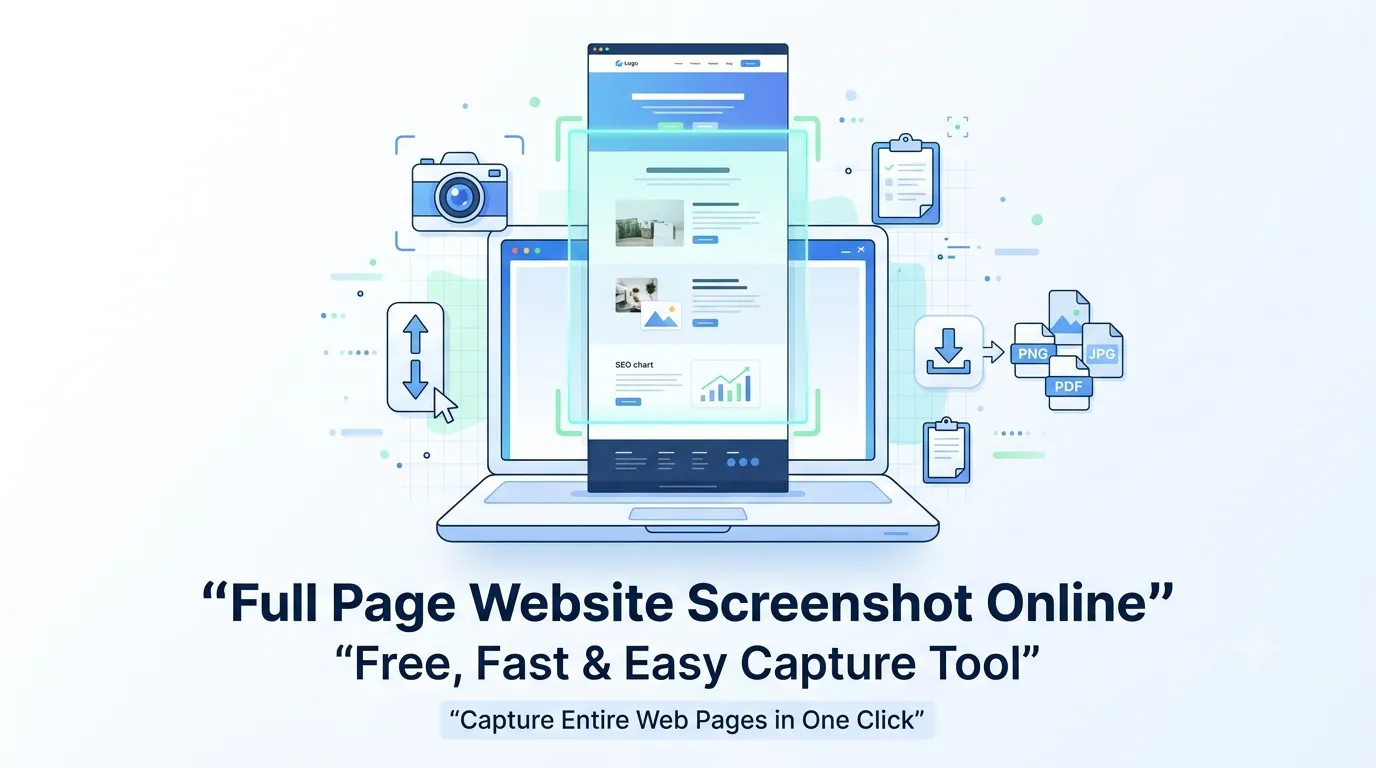
Sometimes a simple “PrtScn” capture is just not enough. You need the whole web page — header, content, footer, and everything in between. That is exactly what a full page website screenshot online tool helps you do, without any installs or sign-ups.
Whether you are an SEO specialist, designer, marketer, or student, a full page screenshot saves time and reveals the complete user experience of a site. It is also extremely useful for reports, audits, and presentations.
In this guide, you will learn the fastest ways to capture entire web pages, why it matters, and how to use the best free tools available today.
What Is a Full Page Website Screenshot?
A full page website screenshot is a complete capture of a web page from top to bottom. It includes every section that requires scrolling to view, not just what fits inside the visible browser window.
So, instead of taking several partial screenshots and stitching them, you get one tall image that shows the entire page in one go. This is especially helpful for sites with long landing pages, sales funnels, or blog posts.
Why You May Need a Full Page Screenshot
There are dozens of practical reasons to capture an entire web page. Here are the most common ones:
- Creating SEO audits and client reports
- Saving design inspiration for future projects
- Sharing bug visuals with developers
- Archiving competitor pages for research
- Documenting evidence for trademark or content issues
- Building tutorial guides and walkthroughs
In short, this small task supports big business decisions.
How to Take a Full Page Website Screenshot Online in 3 Steps
The easiest method uses a free online tool. No installs, no plugins, and no learning curve.
Step 1 — Open a Free Screenshot Tool
Start with a reliable browser-based capture tool. Our free Website Screenshot Generator works on any device and requires no installation.
Step 2 — Paste the Page URL
Copy the complete URL of the page you want to capture. Paste it into the tool’s input box and click “Generate”.
Step 3 — Download the Full Page Image
Within seconds, the tool renders the entire page and gives you a downloadable image. You can save it as PNG or JPG and share it instantly.
Browser-Based Methods (No Tool Required)
Modern browsers also offer built-in capture features. If you prefer not to use online tools, follow these quick tricks.
Google Chrome
- Press Ctrl + Shift + I to open DevTools
- Press Ctrl + Shift + P and type “screenshot”
- Choose “Capture full size screenshot”
Mozilla Firefox
- Right-click anywhere on the page
- Click “Take Screenshot”
- Select “Save full page”
Microsoft Edge
- Press Ctrl + Shift + S
- Click “Capture full page”
- Save or share the image
However, browser methods can fail on long, JavaScript-heavy pages. That is when an online generator becomes the safer choice.
Best Features of a Full Page Website Screenshot Online Tool
When choosing a tool, look for these powerful features:
- Captures the entire scrolling page
- Supports desktop and mobile resolutions
- Allows downloading in PNG, JPG, or PDF
- Renders JavaScript-heavy pages accurately
- Works without any signup
- Loads fast and stays free
The best tools combine speed, accuracy, and simplicity.
Online Tool vs Browser Extension vs Software
| Method | Speed | Setup | Best For |
|---|---|---|---|
| Online Tool | Fast | None | Quick, occasional use |
| Browser Extension | Fast | Install once | Daily heavy users |
| Desktop Software | Slow | Install + update | Advanced editing |
For most users, a full page website screenshot online tool is the fastest and most convenient choice.
Common Mistakes to Avoid
Even a simple screenshot can go wrong. Watch out for these common mistakes:
- Using outdated browser shortcuts that miss content
- Capturing pages before they finish loading
- Forgetting to close pop-ups or cookie banners
- Saving in low resolution and losing detail
- Ignoring mobile view for responsive design audits
Avoiding these issues gives you cleaner, more reliable captures.
How Screenshots Help in SEO Audits
SEO experts use full page screenshots almost every day. They help in:
- Visual comparison of competitors’ landing pages
- Showing clients before-and-after design improvements
- Spotting missing CTAs, layout issues, or broken sections
- Documenting Core Web Vitals and layout shifts
Pair this with our Website SEO Score Checker and Mobile Friendly Test for a complete page review.
Tips for Sharing Long Screenshots
Full page screenshots can be very tall, especially for long blogs. Use these tips to share them smoothly:
- Compress images with our Image Compressor before uploading
- Convert PNG to JPG to reduce file size
- Upload to Google Drive or Notion for easy access
- Use cloud sharing instead of email attachments
These small steps prevent slow downloads and bad first impressions.
Privacy and Legal Tips
Screenshots are useful, but they can also raise legal concerns. Keep these tips in mind:
- Do not capture private dashboards or paid content
- Avoid sharing screenshots that show personal data
- Always credit original websites in your reports
- Follow copyright rules when republishing visuals
Being cautious keeps your screenshots ethical and legally safe.
Final Thoughts
Taking a full page website screenshot online is one of the simplest skills with the biggest payoffs. It saves time, improves communication, and helps you make smarter design and SEO decisions.
If you want to skip the hassle of browser shortcuts and inconsistent results, try our free Website Screenshot Generator today. It captures any page in seconds — no signups, no limits, and no learning curve.
FAQs
Use a free online screenshot generator. Paste the URL, click capture, and download the entire page in seconds.
Yes. Online tools and built-in browser features can capture full pages without installing anything.
The page may not have fully loaded. Wait for all content to appear before capturing.
PNG keeps quality high, while JPG reduces file size. PDF works best for sharing in reports.
Yes. Web-based tools work directly inside your phone browser — no app required.
Yes, as long as you use trusted, HTTPS-protected tools that do not store your captures.
Most online tools cannot. Use your browser’s built-in screenshot feature after logging in.