
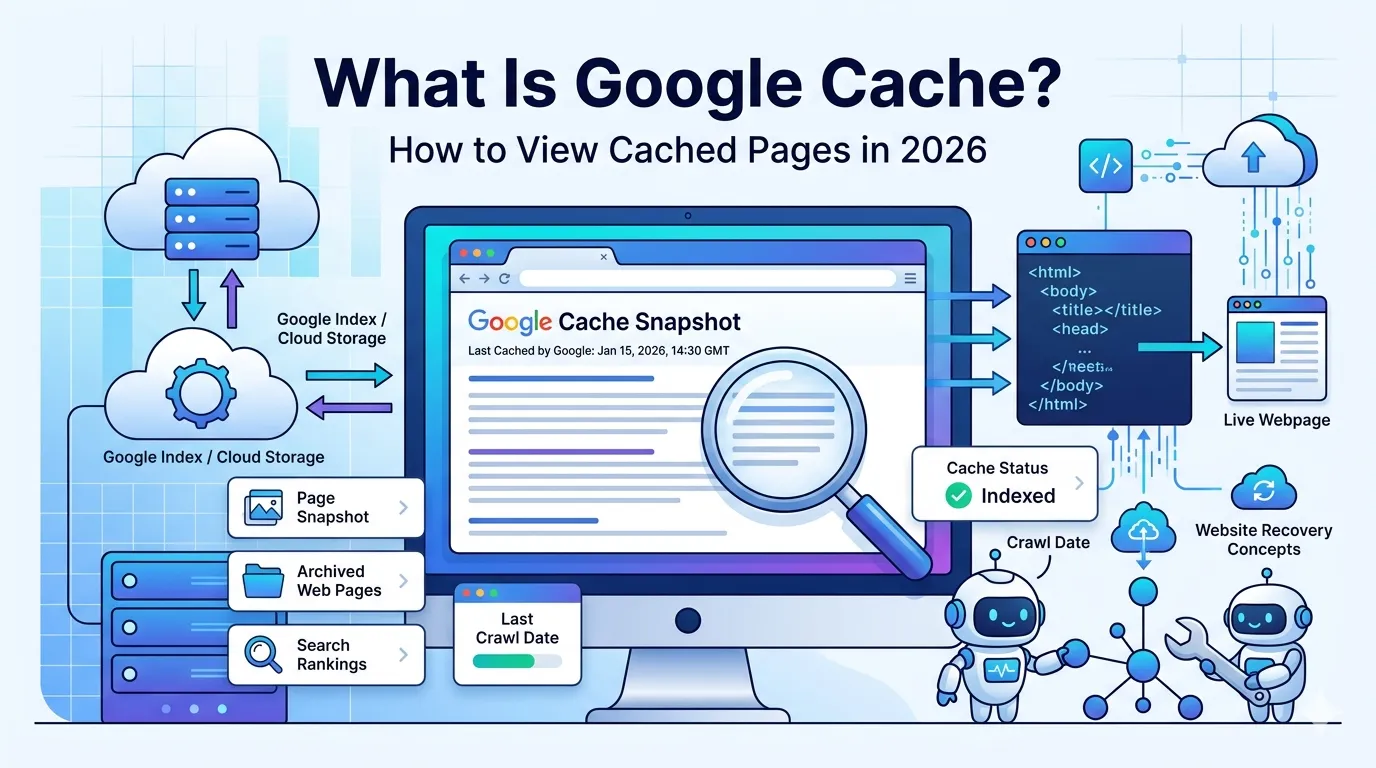
Have you ever clicked a search result and seen “Cached” next to the link? That tiny option opens a snapshot of how Google last saw your page. So what is Google cache, and why should you care about it in 2026?
Google’s cache is a powerful SEO and research tool. It shows whether your page is indexed, when Google last crawled it, and how the content looked at that time. Therefore, it remains one of the simplest ways to debug indexing or performance issues.
This guide explains what Google cache is, how to view cached pages, and how to check any URL’s cache status with a free, beginner-friendly tool.
What Is Google Cache?
Google is a saved copy of a web page stored by Googlebot during its last crawl. It captures the page’s HTML, text, and structure at that point in time.
So when a live page goes down, Google can still show its cached version. That snapshot lets users (and SEOs) view how a page looked recently.
Why Google Cache Matters for SEO
- Confirms whether Google has crawled your page
- Reveals the exact content Google sees
- Shows the last crawl date
- Helps debug rendering or indexing issues
- Provides backup access if your site goes offline
Therefore, checking cache is a smart habit before any big SEO change.
How to View Google Cache (3 Easy Ways)
You do not need any technical skills to view a cached version. Pick the method that suits you best.
Method 1 — Use the Cache URL Directly
Open this in your browser, replacing the URL:
https://webcache.googleusercontent.com/search?q=cache:yourdomain.com/pageGoogle instantly shows the cached version with the last crawl date.
Method 2 — Use Our Free Google Cache Checker
Open our free Google Cache Checker. Paste the URL and it shows the cache status in seconds.
Method 3 — Use Search Cache Operator
Type cache:yourdomain.com/page directly into Google’s search bar. Press enter, and you will see the cached version (when available).
What Information Does Cache Show?
- Full HTML version of the page
- Text-only version for accessibility checks
- Source HTML to inspect tags and links
- Exact crawl date and time stamp
This information helps you compare what Google sees vs what users see live.
Smart SEO Uses of Google Cache
1. Verify New Page Indexing
If the page has a cached version, it is indexed. So cache checks confirm your indexing progress.
2. Check Content Updates
Compare cached HTML with the current version. If Google still shows old content, refresh sitemaps or request reindexing.
3. Audit Hidden Content
Use the “text-only” view to see content without CSS or JavaScript. So you can find missing or hidden elements crawlers ignore.
4. Recover Lost Content
If a page accidentally gets deleted, the Google cache can help you restore it from the last crawl.
5. Spy on Competitor Changes
Check competitor pages’ cached versions to track recent updates, new keywords, or removed sections.
Why Google Cache May Not Show
- Page has a “noarchive” meta tag
- Google has not crawled the page yet
- Page is blocked via robots.txt
- Page is too new or thin
- Site has heavy JavaScript content
Check robots.txt and meta tags to confirm there are no accidental blocks.
Google Cache vs Wayback Machine
| Feature | Google Cache | Wayback Machine |
|---|---|---|
| Source | Google Crawl | Archive.org |
| History | Latest snapshot only | Years of history |
| Best For | SEO indexing checks | Long-term archives |
| Speed | Instant | Slower |
So use Google cache for SEO, and Wayback for historical research.
Quick Audit Workflow With Cache
- Check cache via our Google Cache Checker
- Confirm last crawl date
- Compare cached vs live page
- Fix indexing issues with our Google Index Checker
- Ping search engines via our Online Ping Tool
This workflow turns cache from a curiosity into a practical SEO weapon.
Free SEO Tools That Pair With Cache Checks
- Google Cache Checker — verify cached versions
- Google Index Checker — confirm indexing status
- Online Ping Tool — speed up re-crawls
- SEO Score Checker — measure overall health
These free tools form a fast diagnosis kit for any SEO issue.
Final Thoughts
So, what is Google cache? It is one of the easiest yet most under-used SEO debugging tools. With a single click, you can confirm indexing, audit content, and recover lost data.
Start now with our free cache checker. Test your top pages, confirm they are stored properly, and use the data to achieve smarter, faster SEO results in 2026.
FAQs
A cache is a saved snapshot of your page from the last time a search engine crawled it. It shows the page exactly as the crawler saw it.
You can use the cache URL, our free Google Cache Checker, or type:url in Google’s search bar.
It confirms indexing, shows the last crawl date, and helps debug content or rendering issues.
It may be too new, blocked by robots.txt, or marked with a noarchive meta tag.
Search engines update cached pages whenever they crawl a site, which may happen daily for active websites or weekly for newer ones.
Yes. If the page is gone, the cached version often preserves the most recent text and HTML.
No. cache shows the latest crawl, while Wayback Machine archives many snapshots over years.