
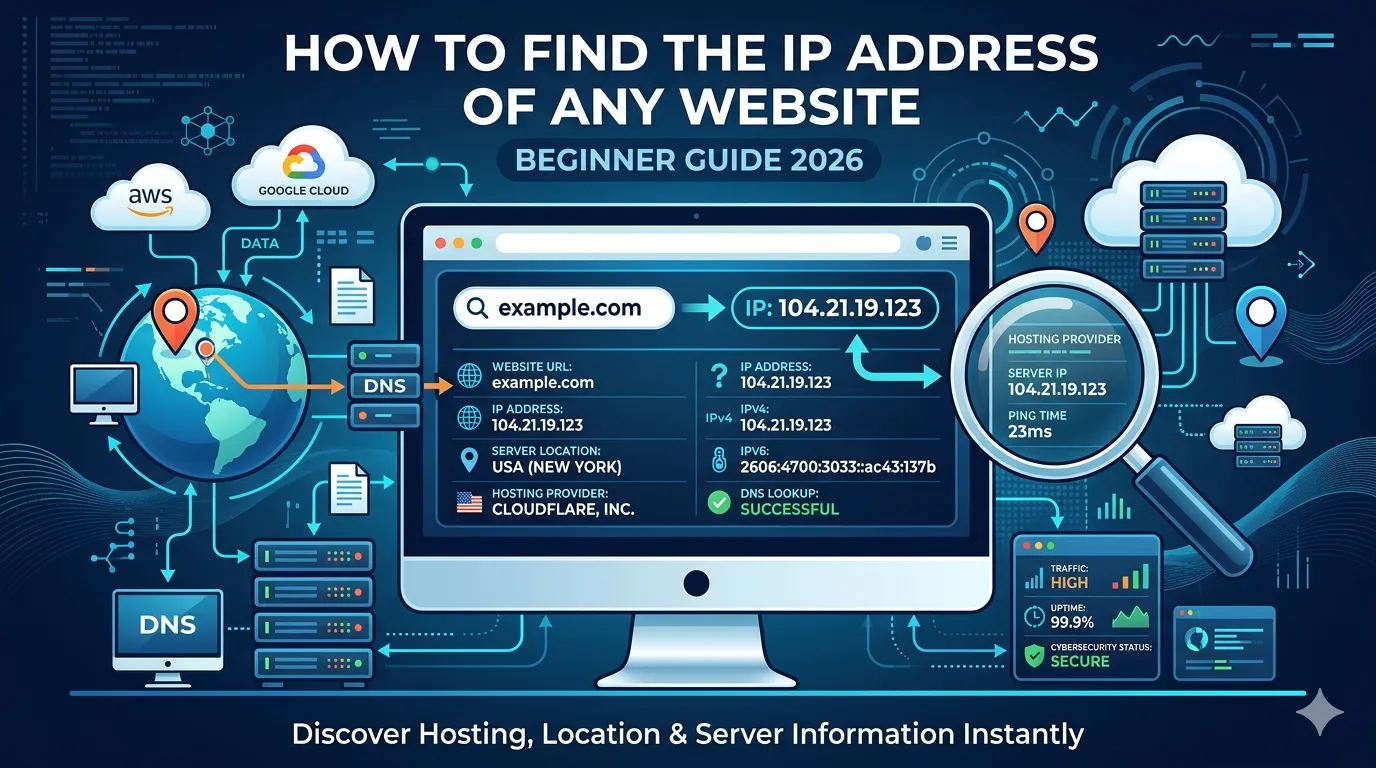
Every website on the internet sits on a server with its own IP address. Yet most people never see it. Whether you are a marketer, developer, or security researcher, learning how to find IP address of website unlocks dozens of useful insights in 2026.
An IP address reveals where a site is hosted, what server it shares with, and even helps detect downtime, security issues, or shady neighborhoods. Best of all, the process is simple and 100% free.
This guide explains what an IP address is, why it matters, and how to find IP address of website in seconds using a free tool — without any code.
What Is a Website IP Address?
A website IP address is the unique number that identifies the server hosting the site. When you type a domain, DNS converts it to an IP, then the browser connects to that server.
So every domain ultimately points to one or more IPs behind the scenes. For example, smartseotoolz.com may resolve to something like 104.21.x.x — that is its IP address.
Why You Might Need to Find a Website’s IP Address
- Investigate suspicious or scam websites
- Find hosting provider and server location
- Check for shared hosting on Class C IPs
- Diagnose downtime or DNS errors
- Spot competitor hosting setups
- Audit cybersecurity risks like blacklisted IPs
Therefore, knowing how to find IP address of website saves time across SEO, security, and tech work.
How to Find IP Address of Website in 3 Easy Methods
You can pick any method based on your skill level.
Method 1 — Use a Free Domain to IP Tool
The easiest method is our free Domain to IP tool. Paste any domain and instantly get its real IP address along with hosting and location data.
No installation, no code, no signups needed.
Method 2 — Use the Ping Command
If you prefer the terminal, run:
ping yourdomain.comThe IP address shows up next to the domain name. So this works on Windows, Mac, and Linux.
Method 3 — Use NSLOOKUP Command
You can also run:
nslookup yourdomain.comThis shows the DNS lookup result, including all IPs the domain resolves to.
How to Read the IP Address Result
Your result usually includes:
- IPv4 address (e.g., 104.21.x.x)
- IPv6 address (sometimes provided)
- Hosting provider
- Country and region
- ISP or organization name
So you instantly learn where the site lives and who manages its server.
Single vs Multiple IPs Explained
Some sites use a single IP. Others use many. Multiple IPs usually mean the site uses:
- A CDN like Cloudflare or Fastly
- Load balancing across servers
- Failover or DDoS protection
So large websites usually show multiple IPs — and that is a sign of a well-built infrastructure.
Use Cases: When IP Address Lookup Helps
1. SEO and Hosting Analysis
Check if your site shares hosting with spammy domains. Audit using our Reverse IP Lookup tool.
2. Detect Suspicious or Fake Sites
Find sites hosted in suspicious regions or known data centers. Pair with our Blacklist IP Checker for fast risk scoring.
3. Track Server Location
Combine with our GEO IP Locator to find country, city, and ISP of any web server.
4. Diagnose Downtime
If a website is down, an IP lookup can show if the issue is DNS, hosting, or connectivity.
5. Identify CDN Usage
If multiple IPs resolve to Cloudflare or Akamai ranges, you know the site uses a CDN for speed and protection.
Common Mistakes to Avoid
- Assuming the IP is the same forever (it can change)
- Forgetting that CDNs mask original server IPs
- Confusing server IPs with user IPs
- Skipping geolocation cross-checks for full context
- Trusting only one tool without verifying results
Smart researchers always confirm results with two or three tools.
Is It Legal to Find a Website’s IP Address?
Yes — completely legal. IP information is public for every domain. So checking it does not violate any privacy or cybersecurity law.
However, never misuse IP data to attack or harass sites. That always remains illegal.
Free Tools That Work Great With IP Lookups
- Domain to IP — find IP from any domain
- Reverse IP Lookup — find other sites on same server
- GEO IP Locator — find country and city of an IP
- Blacklist IP Checker — audit IP reputation
Used together, these tools form a complete IP intelligence stack for any researcher.
Quick Workflow to Find IP Address of Website
- Open our Domain to IP tool
- Paste the website URL
- Note the IP address and hosting info
- Cross-check with GEO IP Locator
- Run a blacklist check if needed
This workflow takes under 2 minutes but gives complete server intelligence.
Bonus: How to Hide Your Own Website’s IP Address
- Use a CDN like Cloudflare
- Enable DDoS protection
- Avoid exposing real IPs in DNS records
- Mask email server IPs separately
So site owners can protect their origin server while still serving traffic worldwide.
Final Thoughts
Knowing how to find IP address of website is a tiny but powerful skill. With one quick lookup, you uncover hosting, location, security risks, and infrastructure details — all useful for SEO, marketing, and cybersecurity.
Start now with our free Domain to IP tool. Paste any URL, get instant IP intelligence, and use the data to make smarter, safer online decisions in 2026.
FAQs
Use a free domain to IP tool or run the ping command on any computer. Both return the website’s current IP address instantly.
Yes. IP data is fully public. It is completely legal to look it up for research, security, or curiosity.
Yes. Sites using CDNs or load balancers often have multiple IPs to handle global traffic safely.
IPs can change when sites switch hosts, enable a CDN, or move to new servers.
Yes. Tools show the ISP or hosting company behind any IP, helping you trace site infrastructure.
Yes. Use a reverse IP lookup to see all domains hosted on the same IP address.
Cloudflare and other CDNs mask the origin IP to protect sites from DDoS attacks and abuse.