
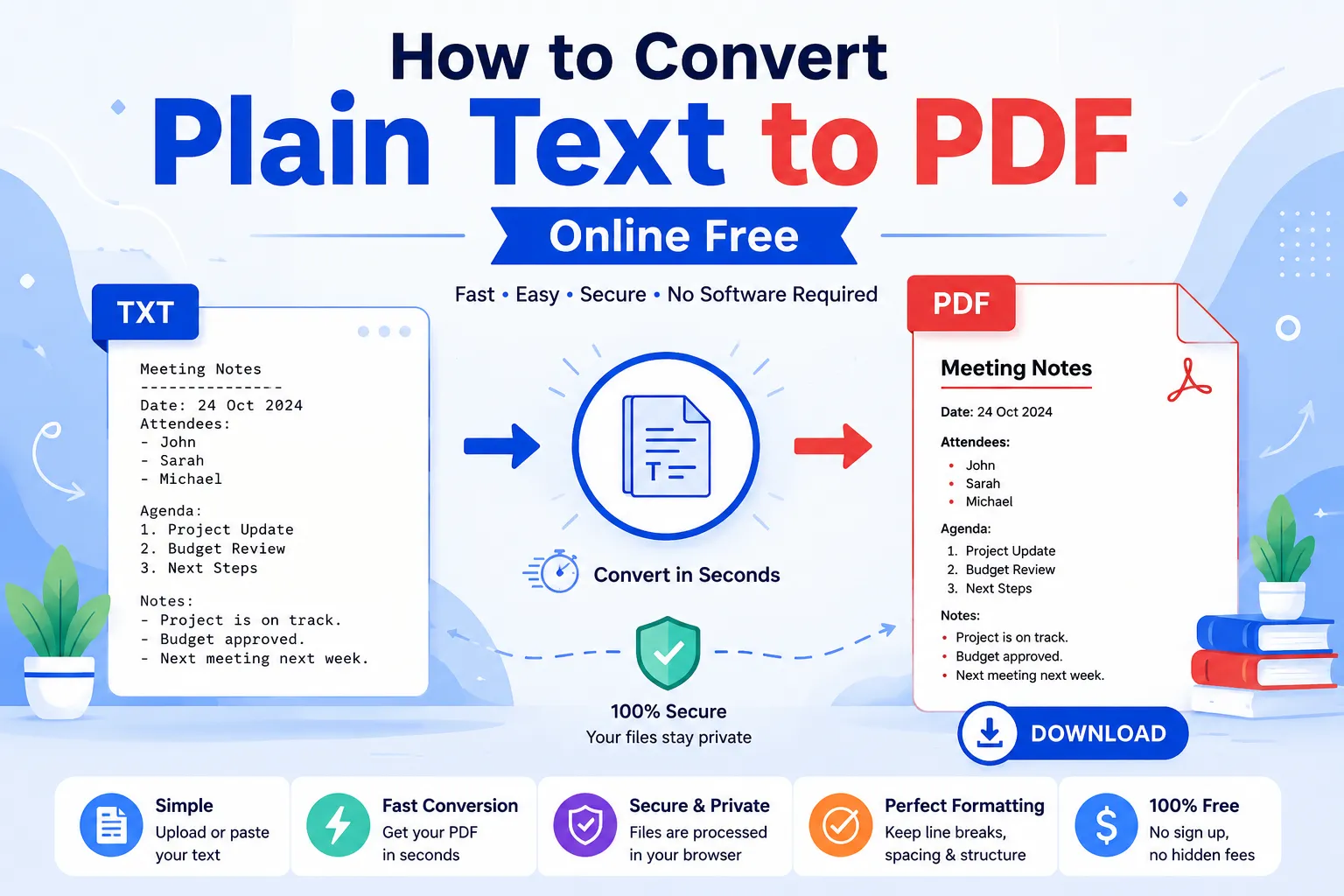
Need to convert text to PDF online without installing software? You’re in the right place. Plain text files work great for notes and quick drafts. However, sharing them professionally requires a polished format. PDF gives you that finished look while keeping your content readable on any device.
This guide walks you through every step. You’ll learn why PDF beats raw text for sharing, how to convert files in seconds, and which features actually matter. By the end, you’ll handle conversions like a pro.
Why Convert Text Files to PDF in the First Place?
Plain text files look messy on different devices. Fonts shift, line breaks scatter, and formatting falls apart. PDF locks everything in place. Your document looks identical whether opened on Windows, Mac, or a phone.
Furthermore, PDFs feel official. Recruiters expect resumes in PDF. Clients want proposals in PDF. Schools accept assignments in PDF. Sticking with .txt makes your work look unfinished, even when the writing is solid.
Common Situations Where You Need PDF Conversion
- Sending typed notes to colleagues for review
- Submitting written assignments to professors
- Sharing meeting minutes with stakeholders
- Archiving important documents for long-term storage
- Emailing clients without worrying about software compatibility
- Printing documents with consistent formatting across machines
Step-by-Step: Convert Text to PDF Online in Under a Minute
Online conversion removes every barrier. No downloads, no signup forms, no hidden costs. Just paste or upload your text and download the PDF.
Step 1: Open the Conversion Tool
Head to our Text to PDF converter. The page loads instantly, even on slow connections. No popups interrupt you.
Step 2: Paste or Upload Your Text
Drop your .txt file into the upload box. Alternatively, paste content directly into the text area. Both methods work equally well for short notes or full articles.
Step 3: Hit Convert and Download
Click the convert button. Within seconds, your PDF appears ready for download. Save it locally, share via email, or upload to cloud storage.
What Makes a Good Online Text to PDF Tool?
Not every converter delivers clean results. Some strip line breaks. Others add watermarks. A few even slow down with files over 50 KB. Pick a tool that handles your content properly.
Features Worth Looking For
- No file size limits for typical text documents
- Preserves formatting like line breaks, spacing, and tabs
- Browser-based processing so files never leave your device
- Free forever without trial periods or hidden fees
- Mobile-friendly design that works on phones and tablets
When to Convert Text to PDF (and When Not To)
PDF makes sense when sharing finalized work. It locks in your formatting and looks professional. Skip PDF, though, when collaborating on drafts. Word or Google Docs handles edits better.
Best Use Cases for Text to PDF
| Scenario | Why PDF Works Best |
|---|---|
| Resume submission | Recruiters expect locked formatting |
| Legal documents | Tamper-resistant final copies |
| eBook drafts | Consistent reading experience |
| Print-ready content | No layout shifts during printing |
| Email attachments | Universal compatibility |
Combining Text to PDF With Other PDF Tools
Conversion is just the start. Once your text becomes PDF, you can manipulate it further. Want smaller file sizes? Use our PDF Compressor. Need to combine multiple PDFs? Try the PDF Merger.
Got a long document? Split it into chapters using a PDF Splitter. Need editable text back? The PDF to Word converter reverses the process. Each tool integrates smoothly with the next.
Privacy and Security: What Happens to Your Files?
Security matters when uploading documents. Reputable tools process files locally in your browser. Nothing touches their servers. Your private notes stay private.
Before using any converter, check the privacy policy. Look for phrases like “client-side processing” or “files deleted after conversion.” Avoid platforms requiring account creation just to convert a simple text file.
Common Conversion Issues and Fixes
Sometimes conversions don’t go perfectly. Special characters might render as boxes. Long lines could wrap unexpectedly. Here’s how to handle the most frequent problems.
- Encoding errors: Save your text file as UTF-8 before uploading
- Missing line breaks: Check the converter preserves whitespace
- Strange characters: Remove emojis or use unicode-compatible tools
- Huge file size: Compress images or split long documents first
Pro Tips for Better PDF Output
Want polished PDFs every time? Format your text file thoughtfully before converting. Use clear headings, consistent spacing, and short paragraphs. The cleaner your source, the better your PDF.
Additionally, consider adding page breaks manually for long documents. Most converters respect double line breaks as section dividers. This small trick makes your final PDF feel intentional rather than auto-generated.
Ready to Convert Your First Text File?
Converting text to PDF doesn’t have to feel technical. With the right tool, you finish in under a minute. Whether you’re sending a resume, archiving notes, or sharing meeting minutes, PDF protects your formatting and reputation.
Try our free Text to PDF tool now. No signups, no watermarks, no limits. Your professional document is just one click away.