
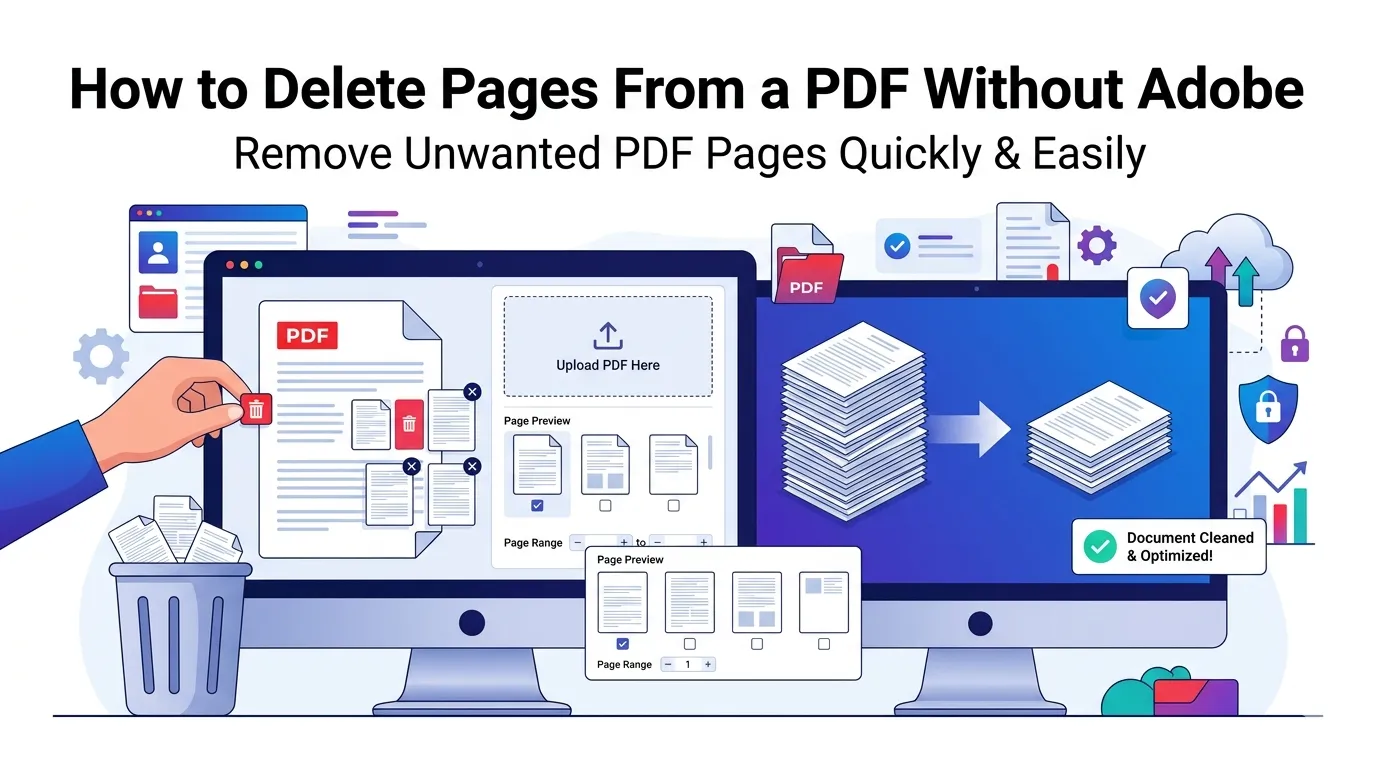
Wondering how to delete pages from a PDF without Adobe? You don’t need a paid subscription to clean up unwanted pages. Free online tools handle the job in seconds. Whether you’re trimming a blank page or removing a confidential section, this guide shows you exactly what to do.
We’ll cover why people remove PDF pages, the easiest browser-based method, and common pitfalls to avoid. By the end, you’ll edit PDFs confidently without installing anything.
Why You Might Need to Remove PDF Pages
PDFs accumulate junk over time. Scanners pick up blank backs. Reports include outdated sections. Contracts get drafted with placeholder pages. Cleaning these out improves readability and shrinks file size.
Moreover, sharing trimmed documents looks more professional. Recipients only see what matters. Confidential pages stay private when you remove them before sending.
Common Reasons to Delete PDF Pages
- Removing scanner-generated blank pages
- Stripping confidential data before sharing
- Cutting irrelevant chapters from research papers
- Cleaning up bank statements before submission
- Trimming cover pages from internal documents
- Eliminating duplicate pages from poor scans
Step-by-Step: Delete Pages From a PDF Online
Online tools beat Adobe Acrobat for quick edits. They’re free, instant, and require no setup. Here’s how to use one effectively.
Step 1: Upload Your PDF
Open the Remove PDF Pages tool. Drag your document into the upload zone. Most tools handle files up to 100 MB without issues.
Step 2: Select Pages to Delete
Preview thumbnails appear after upload. Click the pages you want gone. Some tools let you type page ranges like “3-7” for batch removal.
Step 3: Download the Cleaned PDF
Click “Apply” or “Remove.” The cleaned PDF appears in seconds. Download it, rename it clearly, and your file is ready to share.
Online Tools vs Desktop Software
People often default to Adobe Acrobat for PDF edits. However, online tools handle most everyday tasks faster. Here’s how they compare.
| Feature | Online Tool | Adobe Acrobat |
|---|---|---|
| Cost | Free | $20+ per month |
| Setup time | None | Download + install |
| Device support | Any browser | Windows/Mac only |
| Page deletion | Yes, in seconds | Yes, with full editor |
| Privacy | Browser-based options exist | Local processing |
Tips for Removing PDF Pages Safely
A few good habits prevent regret. First, always keep the original PDF before editing. If you delete the wrong page, you can start over instantly.
Second, double-check page numbers in the preview. Off-by-one errors happen when documents include cover pages or roman numeral introductions. Third, scan for hidden metadata if confidentiality matters.
Privacy: Are Online PDF Editors Safe?
Privacy matters when handling sensitive PDFs. Pick tools that process files in your browser. Files never reach external servers this way. Your contracts, statements, and personal data stay yours.
Furthermore, always read the privacy policy. Reputable services delete uploaded files within an hour. Avoid tools that store documents indefinitely or use them for “improving the service.”
Common Mistakes When Deleting PDF Pages
- Forgetting backups: Always save the original before editing
- Skipping previews: Confirm exact pages before clicking delete
- Removing signed pages: Voids legal validity in contracts
- Deleting referenced pages: Breaks internal links and bookmarks
- Renaming carelessly: Use clear filenames to track versions
After Deletion: What Else You Can Do
Once you’ve cleaned up the file, consider other improvements. Shrink the trimmed PDF with our PDF Compressor. Combine cleaned PDFs into one using the PDF Merger. Need editable content back? Try the PDF to Word converter.
For larger restructuring, split the document with our PDF Splitter. These tools work together as a complete PDF editing kit.
When to Keep Pages Instead of Deleting
Removing pages isn’t always the right call. Legal documents often require complete records. Audit trails depend on unaltered files. Academic submissions sometimes need every original page.
If you’re unsure, copy the original first and edit the duplicate. This way, you preserve the source while creating a cleaner version for sharing.
Clean Up Your PDFs in Seconds
Removing unwanted pages doesn’t require expensive software. The right online tool gets the job done in moments. Whether you’re cleaning scans, trimming reports, or removing confidential sections, the workflow stays simple.
Try our Remove PDF Pages tool for instant results. Free, secure, and ready whenever you need it.