
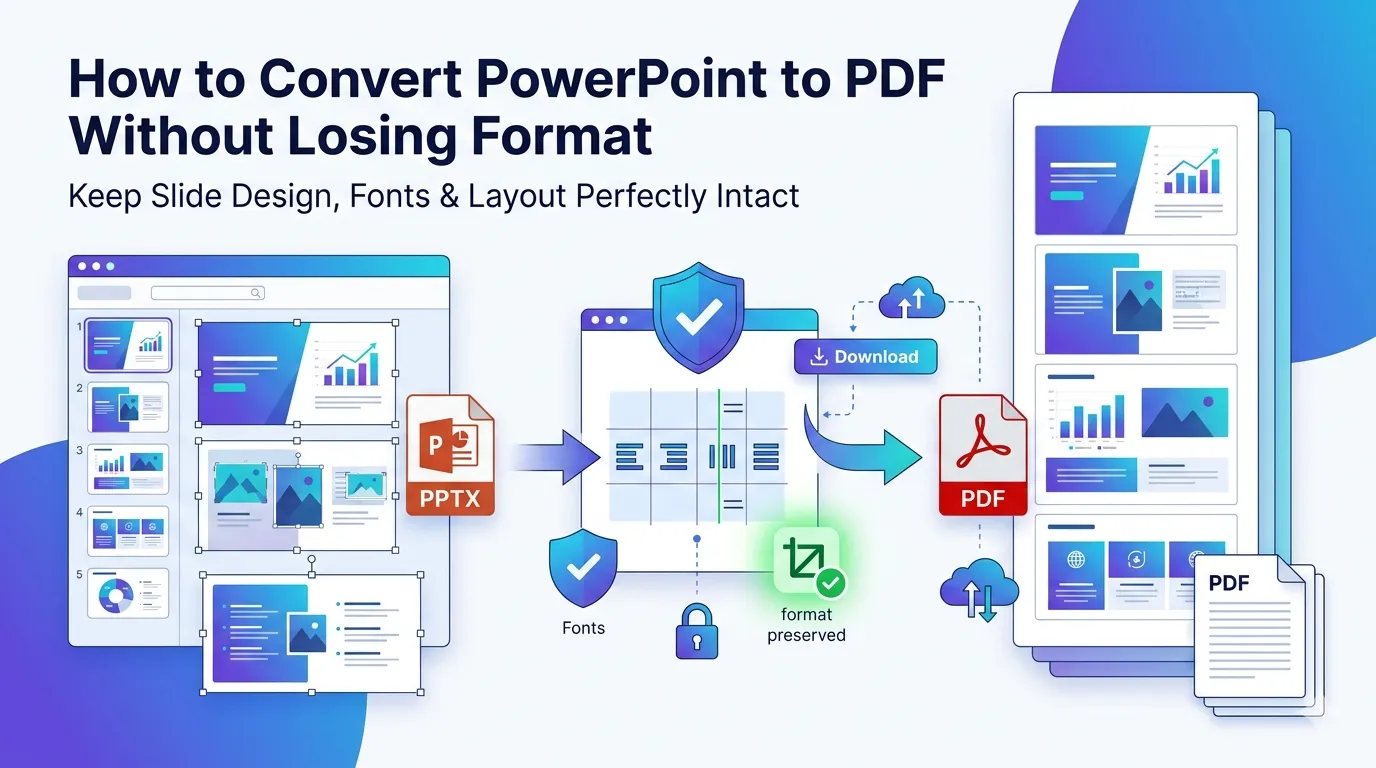
Sending a presentation only to discover fonts changed or animations broke? Learning how to convert PowerPoint to PDF without losing format saves your professional reputation. PDF locks every element exactly as designed. Your slides look identical on every device, every time.
This guide walks you through reliable conversion methods. You’ll learn the common formatting pitfalls, how to fix them, and which online tool keeps your visuals crisp. By the end, sharing slide decks gets easier.
Why Convert PowerPoint to PDF in the First Place?
PowerPoint files behave differently across versions. Custom fonts vanish if recipients don’t have them installed. Animations may not play. Slide layouts shift when opened on Mac vs Windows. PDF eliminates all that chaos.
Furthermore, PDFs prevent accidental edits. Once your deck becomes a PDF, no one can rearrange slides or change wording. Your message stays exactly as intended throughout its journey.
When PDF Beats PPTX for Sharing
- Emailing decks to clients without PowerPoint installed
- Submitting presentations as portfolio samples
- Distributing handouts at conferences
- Archiving final versions of pitches
- Sharing slides on websites and learning platforms
- Printing speaker notes alongside thumbnails
Step-by-Step: Convert PPT to PDF Online Without Quality Loss
Online tools handle PPT to PDF conversion smoothly. The key lies in picking one that respects your original design. Here’s the simplest workflow.
Step 1: Upload Your PowerPoint File
Head to the PPT to PDF converter. Drag your .pptx or .ppt file into the upload area. Most reliable tools accept both formats without complaining.
Step 2: Wait for Conversion
The tool processes your file in seconds. Complex decks with images take slightly longer. A progress bar usually shows status.
Step 3: Download and Verify
Save the converted PDF. Open it before sending to confirm everything looks right. Check fonts, colors, and image placement on a few key slides.
Common Formatting Issues After Conversion
Not every conversion goes smoothly. Spotting issues early helps you fix them before sharing the deck.
| Problem | Solution |
|---|---|
| Fonts replaced with defaults | Embed fonts in PowerPoint first |
| Images appear blurry | Use high-DPI export settings |
| Charts look stretched | Convert charts to images before exporting |
| Animations missing | Expected — PDF is static |
| Speaker notes missing | Choose “notes pages” output |
Tips for Pixel-Perfect PowerPoint to PDF Conversion
Small prep steps make a huge difference. First, embed fonts inside PowerPoint via the Save Options menu. This ensures the PDF uses your exact typography even on machines without those fonts.
Second, flatten complex graphics. Group layered elements into single images. Doing so prevents weird rendering glitches. Third, set slide size to match your output goal — widescreen for screens, standard for handouts.
Online Tools vs PowerPoint’s Built-In Export
PowerPoint exports PDFs directly through File > Save As. However, online tools sometimes produce better results, especially for complex decks. They also work when you don’t have PowerPoint installed.
Online converters shine when collaborating with non-Microsoft users. They also handle batch conversions quickly. For one-off exports on your own machine, the built-in option works fine.
Privacy: Sharing Sensitive Slide Decks
Confidential pitches deserve careful handling. Pick a converter that processes files in your browser. Files never touch external servers. Investor decks, financials, and product roadmaps stay private.
Additionally, review the privacy policy. Reputable services delete uploads within an hour. Skip tools requiring account creation just to convert one file.
After Conversion: Polishing Your PDF Further
Conversion is step one. Once you have the PDF, more options open up. Shrink huge presentation files with our PDF Compressor. Combine multiple decks using the PDF Merger.
Need to remove draft slides before sending? The Remove PDF Pages tool handles that quickly. For long decks, split into chapters with our PDF Splitter. Each tool fits naturally into the presentation workflow.
When Not to Convert PPT to PDF
Sometimes keeping the original PowerPoint makes sense. Live presentations need animations and transitions. Collaborative editing requires the editable format. Training materials often update over time.
Convert to PDF when the deck reaches its final form. Until then, PPTX stays more flexible. Many teams share both versions — PDF for review, PPTX for editing.
Share Polished Presentations Without Worry
Format issues during sharing damage credibility. A converted PDF prevents that. Your slides look identical on every screen, locking in the design effort you put into them.
Use our PPT to PDF converter for clean, professional results. Free, secure, and fast — exactly what busy presenters need.