
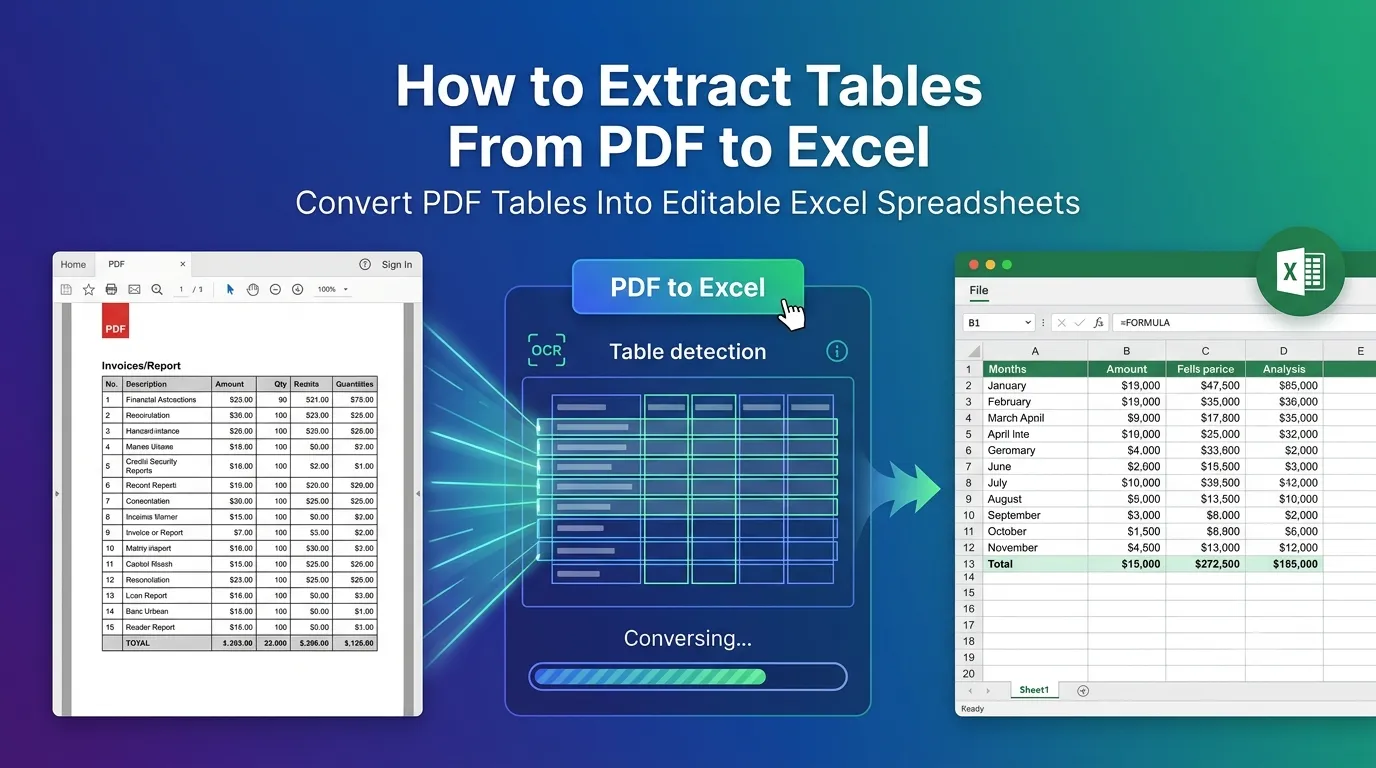
Need to extract tables from PDF to Excel without retyping every row? You’re in the right place. Manually rebuilding a 200-row financial table wastes an entire afternoon. Online converters do the same job in under a minute and keep cell structure intact.
This guide explains why direct conversion matters, walks through the simplest method, and shares tips for cleaner output. By the end, you’ll move tabular data from PDF to spreadsheet without losing accuracy.
Why PDF Tables Resist Easy Copying
PDF tables look organized visually but lack proper structure underneath. Cells stay in place because of coordinates, not actual rows and columns. Copy-pasting often jumbles columns together or merges everything into one messy line.
Furthermore, scanned PDFs make the problem worse. Tables become pure images. Without OCR, no software extracts numbers automatically. A dedicated conversion tool reads coordinates intelligently and reconstructs spreadsheet-ready data.
Common Reasons to Move Tables to Excel
- Importing bank statements for budget tracking
- Analyzing financial reports with formulas
- Combining data from multiple supplier invoices
- Tracking inventory pulled from supplier catalogs
- Compiling research data from academic papers
- Auditing tax return tables across years
Step-by-Step: Convert PDF Tables to Excel Online
Online tools turn the painful process into a couple of clicks. No special software. No scripting knowledge. Just upload and download an Excel file ready for analysis.
Step 1: Upload Your PDF
Visit our PDF to Excel converter. Drag your file into the upload zone. The page processes quickly without watermarks or signup walls.
Step 2: Wait for Conversion
The tool scans every page and identifies tables. Multi-page reports take slightly longer. A progress indicator usually shows status while you wait.
Step 3: Download the Excel File
Save the .xlsx file when ready. Open it in Excel, Google Sheets, or LibreOffice Calc. Each detected table appears on its own sheet for easy review.
What Affects Conversion Accuracy?
Quality of output depends on source quality. Native digital PDFs convert almost perfectly. Scanned tables need OCR support. Tables with merged cells or unusual layouts often need light cleanup afterward.
| PDF Source | Expected Accuracy |
|---|---|
| Native digital with clean tables | Excellent, 95–100% |
| Native with complex layouts | Very good, minor cleanup |
| Scanned at 300 DPI or higher | Good with OCR, 85–95% |
| Low-resolution scans | Variable, expect errors |
| Handwritten tables | Poor, manual entry better |
Tips for Cleaner PDF to Excel Output
Better source files create better spreadsheets. First, start with the highest-quality PDF available. Compressed copies often degrade table boundaries.
Second, remove pages without tables before conversion. The Remove PDF Pages tool trims down quickly. Third, review the Excel output for misaligned columns and adjust before sharing the spreadsheet with colleagues.
Common Issues and Quick Fixes
- Numbers stored as text: Use Excel’s “Convert to Number” feature on affected cells
- Split columns: Combine cells using CONCATENATE or simply drag-fill
- Misaligned rows: Insert blank rows to realign data manually
- Missing headers: Type column titles after import for clarity
- Decimal errors: Check region settings — periods vs commas vary
When OCR Becomes Essential
Scanned tables look identical to digital ones but behave entirely differently. Try selecting text in the PDF first. If letters won’t highlight, the document is image-based. OCR becomes mandatory for extracting usable data.
Pick a converter advertising OCR explicitly. Quality varies — some handle English perfectly while struggling with other languages. Always spot-check critical figures after OCR processing for accuracy.
Privacy When Converting Financial PDFs
Bank statements, payroll records, and invoices carry sensitive data. Choose converters that process files in your browser. Nothing reaches third-party servers when the conversion happens locally.
Furthermore, review each tool’s privacy policy. Look for short retention windows and automatic deletion. Avoid services using uploads for “service improvement” since that often means data review by humans.
After Conversion: Analyzing Your Data
Once data lands in Excel, the real work begins. Apply formulas to calculate totals. Use pivot tables for summary views. Visualize trends with built-in charts.
If you need a simpler format afterward, our PDF to CSV converter handles flat data exports. For combining sources, use the PDF Merger to bundle related reports before extraction.
When PDF to Excel Conversion Isn’t Worth It
Not every PDF needs conversion. Short tables with five rows might be faster to retype. Heavily formatted reports with merged cells often require so much cleanup that manual entry beats conversion.
Reserve conversion for large datasets where time savings outweigh quality issues. For one-off small tables, manual transcription stays the cleanest path to spreadsheet data.
Stop Retyping PDF Tables Forever
Manual data entry from PDFs steals hours every week. Online conversion gives that time back instantly. Whether you’re working with bank statements, supplier invoices, or research data, the right tool handles tabular extraction painlessly.
Try our PDF to Excel converter right now. Free, secure, and ready whenever spreadsheet-ready data matters most.