
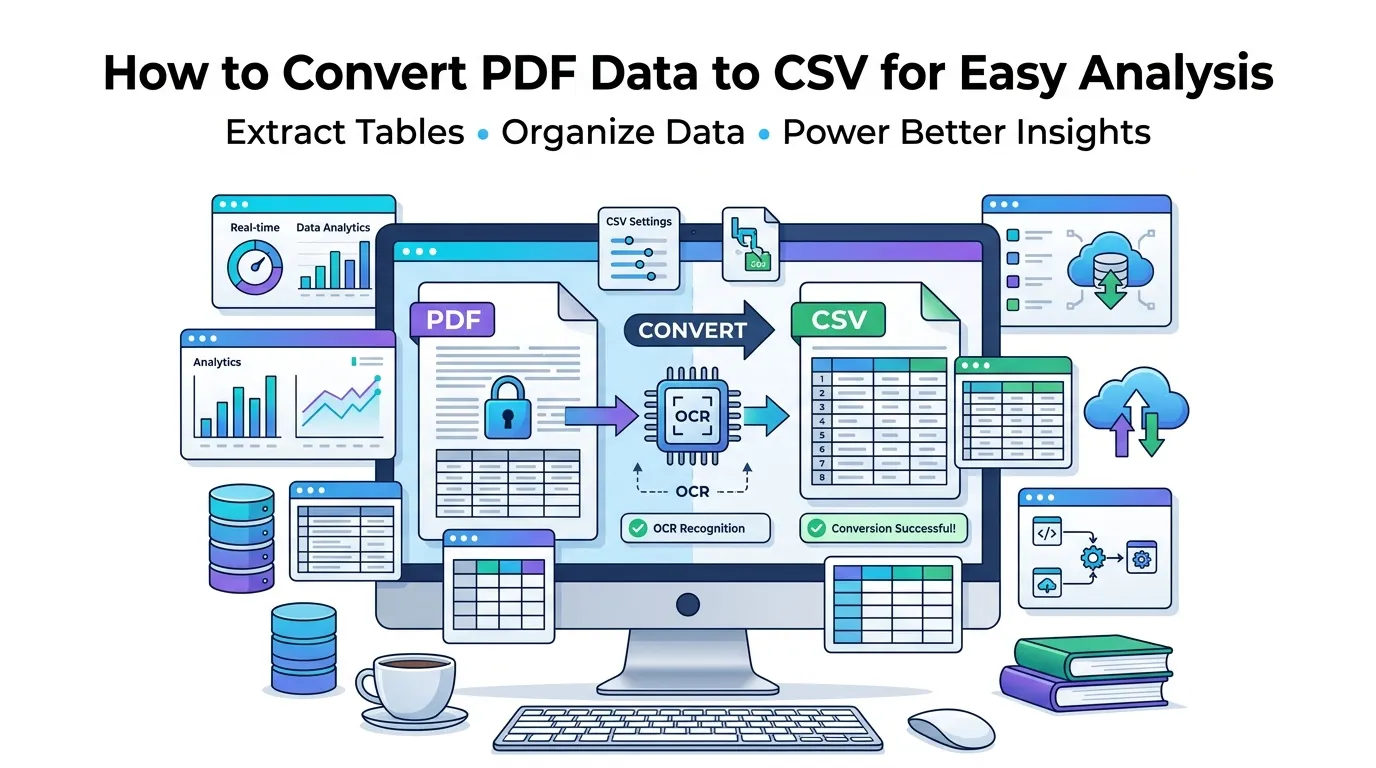
Trying to convert PDF data to CSV for spreadsheets, scripts, or databases? You’re tackling one of the most common data headaches in business. PDFs lock data into static layouts. CSV files free it for analysis, automation, and easy sharing across tools.
This guide shows the fastest way to convert PDF data to CSV online. We’ll cover why CSV beats Excel for raw data, how to handle scanned PDFs, and which output settings matter. By the end, you’ll move data confidently from PDFs into whatever tool needs it next.
Why CSV Beats Excel for Many Data Workflows
CSV is plain text. Every modern tool reads it. Python, R, MySQL, MongoDB, and even old systems consume CSV without complaints. Excel files require parsers and add formatting overhead.
Furthermore, CSV stays lightweight. A 50 MB Excel file often shrinks to under 1 MB as CSV. That matters for emailing data, uploading to APIs, and keeping version control systems happy.
Where Teams Reach for CSV
- Importing transaction data into accounting software
- Uploading product catalogs to e-commerce platforms
- Feeding records into analytics dashboards
- Migrating contacts between CRM systems
- Loading data into Python notebooks for analysis
- Bulk-updating database tables from external sources
Step-by-Step: Convert PDF to CSV Online
Online tools strip data out of PDFs in seconds. You walk away with a clean CSV ready for any system. No coding skills required.
Step 1: Upload Your PDF
Visit our PDF to CSV converter. Drag the file into the upload zone. Processing starts immediately with no popup interruptions.
Step 2: Pick Output Settings
Some converters offer delimiter choices like commas or semicolons. Pick what fits your destination tool. Most platforms expect standard comma-separated values.
Step 3: Download Your CSV File
Save the .csv file when ready. Open it in Excel, Notepad, or any text editor to verify. Then import it into your target system without any further hassle.
CSV vs Excel: Which Output Should You Pick?
Both formats have valid uses. The choice depends on what you’re doing next with the data.
| Use Case | Pick This Format |
|---|---|
| Database import | CSV |
| Manual analysis with formulas | Excel |
| Script automation | CSV |
| Sharing with non-technical teams | Excel |
| API uploads | CSV |
| Charts and pivot tables | Excel |
Tips for Cleaner CSV Output
Better PDF sources create better CSVs. First, prefer native digital PDFs over scans. Direct text extraction beats OCR-based conversion every time.
Second, strip unwanted pages before conversion using our Remove PDF Pages tool. Header pages and disclaimers add noise to the CSV. Third, review the output for stray commas inside data values — they break CSV parsing.
Common CSV Conversion Issues
- Embedded commas: Wrap affected values in quotes during cleanup
- Wrong delimiters: Choose semicolons when European tools expect them
- Encoding errors: Save the CSV as UTF-8 to handle special characters
- Missing headers: Add column titles manually if conversion skipped them
- Trailing whitespace: Run a quick find-replace to strip extra spaces
When OCR Steps In
Try selecting text in your PDF. If letters won’t highlight, your document is scanned. Direct conversion produces empty output. OCR-equipped tools read images and reconstruct data automatically.
Quality varies with scan resolution. 300 DPI scans usually work well. Lower resolutions introduce errors that need manual fixing. Always spot-check numeric columns after OCR-based conversion.
Privacy Concerns When Uploading Data
CSVs often hold valuable information. Customer lists, financial records, and internal reports deserve careful handling. Pick converters that process files in your browser. Server uploads expose data unnecessarily.
Always read each tool’s privacy policy before uploading. Look for short data retention windows. Reputable services delete files within an hour and never use them for training or analysis.
After Conversion: Working With CSV Data
CSV becomes the bridge to almost any tool. Import into pandas for data science. Load into SQL for relational queries. Feed into Power BI for dashboards. The format opens nearly every analytical door.
Need to switch formats again? Our PDF to Excel converter handles spreadsheet output instead. For raw text dumps, try the PDF to Text converter. Each tool fits different downstream needs.
When CSV Conversion Isn’t Worth It
CSV strips all formatting. Headers, font styles, and merged cells disappear entirely. For visually important documents, keep PDFs intact or pick Excel as the destination.
Reserve CSV for pure data workflows. Reports needing visual review do better as Word docs via our PDF to Word converter. Pick the format matching your actual downstream task.
Turn PDF Data Into Usable CSV Today
Locked-up PDF data slows down every team. Online conversion frees it instantly. Whether you’re feeding analytics dashboards, automating imports, or migrating systems, CSV opens every door.
Try our PDF to CSV converter now. Free, secure, and built to move your data where it actually needs to go.