
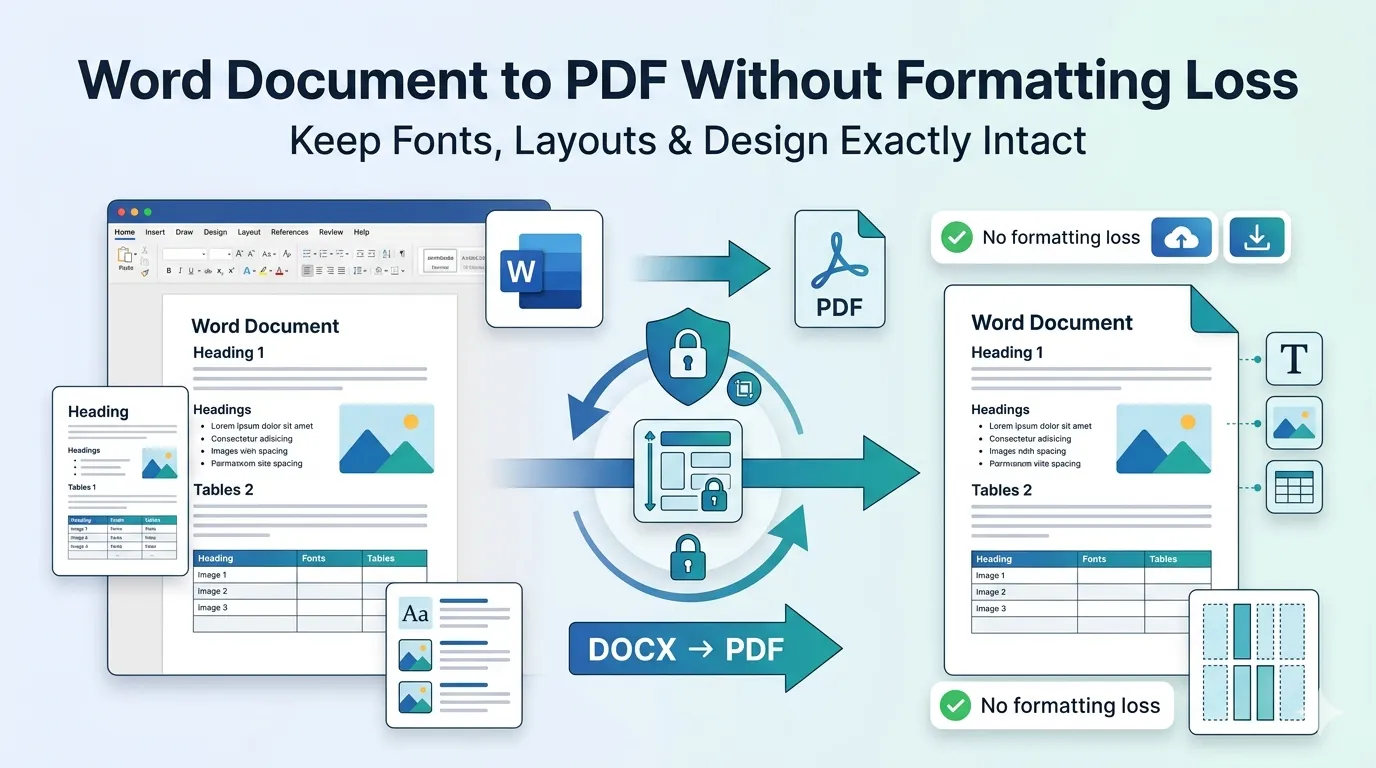
Ever sent a Word document and watched your beautiful layout fall apart on the recipient’s screen? Converting a Word document to PDF without formatting loss saves you from that embarrassment. PDF locks in fonts, spacing, and images exactly as you designed them.
This guide walks you through reliable conversion methods. We’ll cover common formatting traps, how to avoid them, and which online tools deliver pixel-perfect results every time.
Why Word Files Change When Shared
Word documents depend on the recipient’s setup. Custom fonts vanish if they aren’t installed. Page margins shift between versions. Headers misalign on Mac when created on Windows. The result feels unpredictable.
Furthermore, recipients can accidentally edit Word files. One stray click and your carefully written contract gets altered. PDF prevents that by treating the document as a finished snapshot.
Situations Demanding PDF Output
- Sending resumes to recruiters and hiring managers
- Submitting proposals to clients for review
- Archiving signed contracts for long-term storage
- Distributing internal policies across departments
- Sharing essays and assignments with professors
- Publishing eBooks for print or download
Step-by-Step: Convert Word to PDF Online
Browser-based tools handle conversion in seconds. No expensive subscriptions or installs required. Just upload your .docx file and download the PDF.
Step 1: Upload Your Word File
Visit the Word to PDF converter. Drag your file into the upload zone. Most tools accept .doc, .docx, and even .rtf formats.
Step 2: Wait for Conversion
The tool processes your document automatically. Plain text files convert almost instantly. Heavily formatted reports with embedded images take a few extra seconds.
Step 3: Download and Verify
Save the PDF to your device. Open it before sharing to confirm everything looks right. Check fonts, page breaks, and image positioning on a few key pages.
Avoiding Format Loss During Conversion
Small prep steps prevent big disappointments. First, embed fonts in Word before exporting. Use the Save Options panel to ensure typography travels with the file.
Second, set page sizes consistently throughout the document. Mixed A4 and Letter pages confuse converters. Third, flatten complex tables to avoid cell-merge surprises during PDF rendering.
Common Issues After Word to PDF Conversion
| Problem | Fix |
|---|---|
| Fonts substituted with defaults | Embed fonts in Word first |
| Images appear pixelated | Use higher-resolution source images |
| Page breaks shifted | Set explicit page breaks in Word |
| Hyperlinks broken | Use absolute URLs in source |
| Bullet points changed | Apply standard list styles in Word |
Online Tools vs Microsoft Word Export
Word’s built-in export works well for simple documents. However, online converters sometimes deliver better results for complex layouts. They also work without a Microsoft Office license, which matters for cross-platform teams.
Online converters also handle batch jobs efficiently. Drop multiple files in and get PDFs back quickly. Useful when finalizing project deliverables before client meetings.
Privacy: Handling Confidential Documents
Word documents often hold sensitive content. Legal contracts, financial reports, and HR records demand careful handling. Pick converters that process files in your browser. No server uploads means no data leaks.
Always check privacy policies before uploading. Reputable services delete files within an hour. Avoid platforms that store uploads indefinitely or use them for training.
Polishing Your PDF After Conversion
Conversion is rarely the last step. Shrink huge files with our PDF Compressor. Combine multiple converted PDFs using the PDF Merger.
Need to remove draft pages before sending? The Remove PDF Pages tool trims unwanted content. For long reports, split into chapters using our PDF Splitter.
When to Keep Word Format Instead
Conversion isn’t always the right call. Drafts that need ongoing edits stay easier in Word. Collaborative documents requiring tracked changes work best in their native format.
Convert to PDF only when the document is final. Many teams share both versions — Word for editing, PDF for review and archiving. This dual approach keeps everyone productive.
Share Polished Documents With Confidence
Format issues damage professional credibility. A clean PDF prevents that completely. Your documents look identical on every screen, protecting all the effort you put into formatting.
Try our Word to PDF converter for instant, accurate results. Free, secure, and ready whenever finalized documents need to leave your hands.