
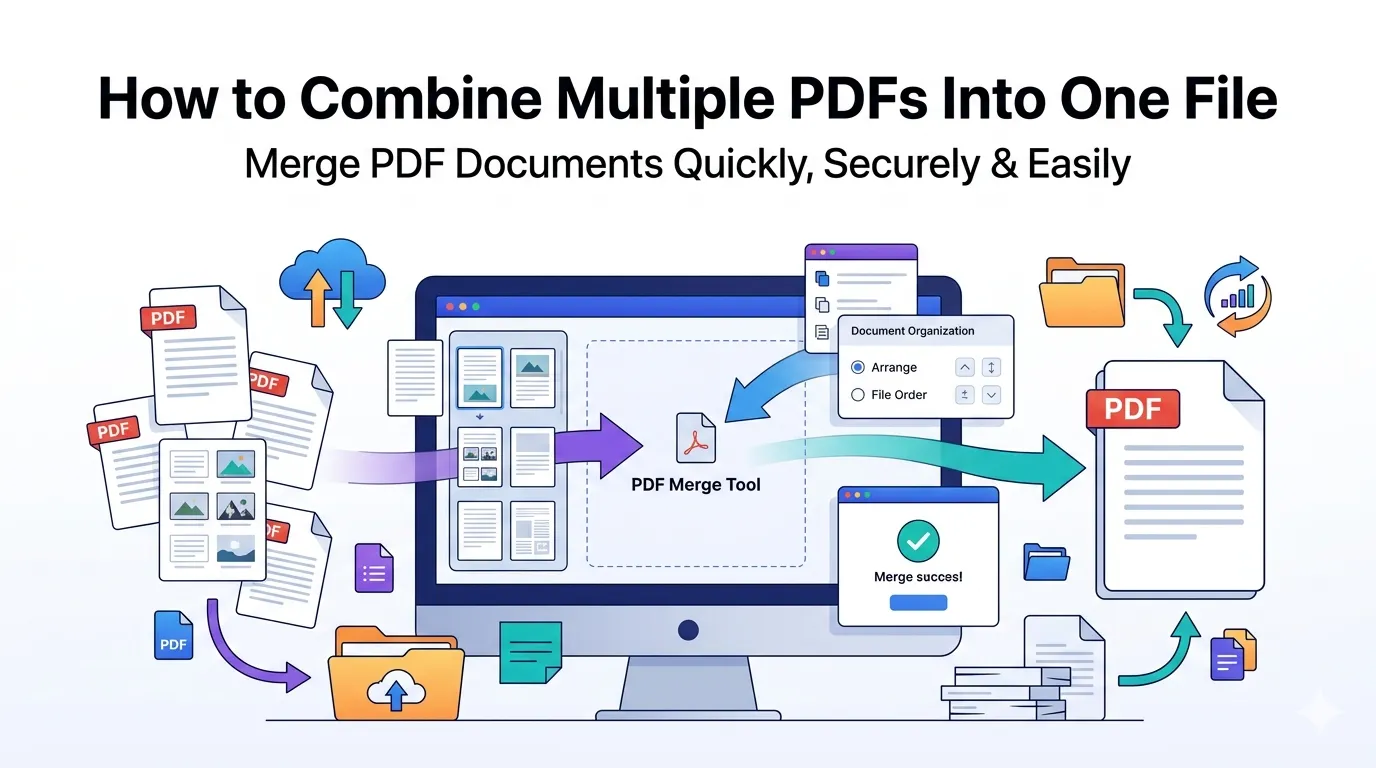
Tired of attaching ten separate PDFs to one email? Learning how to combine multiple PDFs into one file solves that mess instantly. A single merged document looks professional, stays organized, and travels reliably whether you’re sending invoices, reports, or proposals.
This guide explains why merging matters, walks through the easiest online method, and shares tips for clean output. By the end, you’ll handle multi-file PDF projects in seconds.
Why Merging PDFs Beats Sending Separately
Multiple attachments confuse recipients. Files arrive in random order. Some get lost in spam. Merging everything into one PDF makes your delivery look intentional and stays easy to download in a single click.
Furthermore, merged PDFs preserve sequence. Your reader sees chapters, sections, or proofs exactly as you intended. No more “Did you mean to send file 3 first?” replies from confused colleagues.
Practical Use Cases for PDF Merging
- Combining monthly invoices into a quarterly summary
- Bundling contract pages with supporting documents
- Assembling case files for legal submissions
- Joining lecture notes from different classes
- Compiling research papers with references
- Sending complete project deliverables to clients
Step-by-Step: Merge PDFs Online
Browser-based merging happens in seconds. No installations or paid software required. Just upload your files, arrange them, and download the merged PDF.
Step 1: Upload Your PDFs
Visit our PDF Merger. Drag multiple PDFs into the upload zone at once. The tool handles dozens of files comfortably for most use cases.
Step 2: Set the Correct Order
Drag thumbnails to arrange files. Drag-and-drop reordering keeps things visual and quick. Always confirm sequence before generating the final merge.
Step 3: Generate and Download
Click the merge button. The tool stitches files together in seconds. Save the merged PDF, rename it descriptively, and you’re ready to share.
Smart Merging Strategies for Different Needs
| Use Case | Smart Approach |
|---|---|
| Legal documents | Add page numbers after merging |
| Financial reports | Merge in date order automatically |
| Multi-author papers | Compress images first to control size |
| Internal handbooks | Insert table of contents post-merge |
| Photo PDFs | Standardize page sizes before merging |
Tips for Cleaner PDF Merge Output
Better source files create better merges. First, standardize page sizes across PDFs. Mixed A4 and Letter pages look jarring in the final document.
Second, name files descriptively if alphabetical sorting matters. Third, remove unnecessary pages from each PDF first via our Remove PDF Pages tool to keep the merge focused.
Common Merging Issues and Quick Fixes
- Order shuffled: Drag thumbnails manually in the tool
- Huge file size: Compress each PDF before merging
- Mixed page sizes: Standardize before uploading
- Bookmarks lost: Pick a tool that preserves bookmarks
- Headers misaligned: Check page orientation across files
Online Tools vs Desktop PDF Editors
Desktop apps like Adobe Acrobat handle merging well. However, online tools require nothing to install and work cross-platform. They suit one-off jobs perfectly while keeping workflows simple.
Online merging also helps when collaborating across teams. Send a link to colleagues without worrying about software compatibility. Useful for distributed groups with mixed device setups.
Privacy When Merging Sensitive PDFs
Merged documents often hold valuable data. Contracts, financial records, and personal files deserve careful handling. Pick mergers processing files in your browser. Files stay on your device throughout the process.
Always review the privacy policy. Tools deleting files within an hour offer reasonable security. Avoid platforms requiring account creation just to combine a few PDFs.
After Merging: Polishing the Final PDF
The merged file usually needs minor polishing. Compress oversized merges with our PDF Compressor. Remove draft pages using the Remove PDF Pages tool if anything stays unwanted.
For different downstream needs, convert the merged file through our PDF to Word converter or PDF to Text converter. Each tool extends the final document’s usability.
When Merging Isn’t the Right Approach
Sometimes keeping files separate makes more sense. Independent contracts shouldn’t merge with unrelated invoices. Audit trails often require unaltered original documents. Combining them defeats the purpose.
Reserve merging for content that genuinely belongs together. Use ZIP archives instead when you want to bundle but preserve separate files. The PDF to ZIP converter handles that nicely.
Send Polished, Bundled PDFs Every Time
Cluttered email threads with multiple attachments slow everyone down. Merging PDFs creates clean, professional deliveries instead. With the right tool, you assemble related documents in under a minute.
Try our PDF Merger today. Free, secure, and ready whenever multiple PDFs need to travel together as one organized package.