
Want your PDFs to scream professionalism the moment recipients open them? Learning how to add watermark to PDF for branding does exactly that. Watermarks signal ownership, prevent unauthorized reuse, and reinforce your brand identity instantly.
This guide walks through the simplest method, explains different watermark styles, and shares tips for striking the perfect balance between visibility and subtlety. By the end, you’ll add brand-ready watermarks like a designer.
Why Watermark Your PDFs in the First Place?
Branded PDFs feel more credible. Recipients see your logo or company name on every page. That repeated visual presence builds memory and trust over time. Plain documents miss this easy win.
Furthermore, watermarks discourage misuse. A clearly marked “Confidential” or “Draft” reduces accidental sharing. Copyright watermarks remind viewers that the work belongs to you, deterring casual reuse.
Common Reasons to Add Watermarks
- Branding proposals and pitch decks with company logos
- Marking drafts so reviewers know edits are expected
- Adding “Confidential” stamps on legal documents
- Protecting photography portfolios from reuse
- Labeling internal documents to control distribution
- Showing ownership on architectural plans and blueprints
Step-by-Step: Add a Watermark Online
Browser-based tools add watermarks in seconds. No design software or technical skills needed. Here’s the smoothest workflow.
Step 1: Upload Your PDF
Visit our PDF Watermark tool. Drag your file into the upload zone. The tool handles multi-page documents without issue.
Step 2: Configure the Watermark
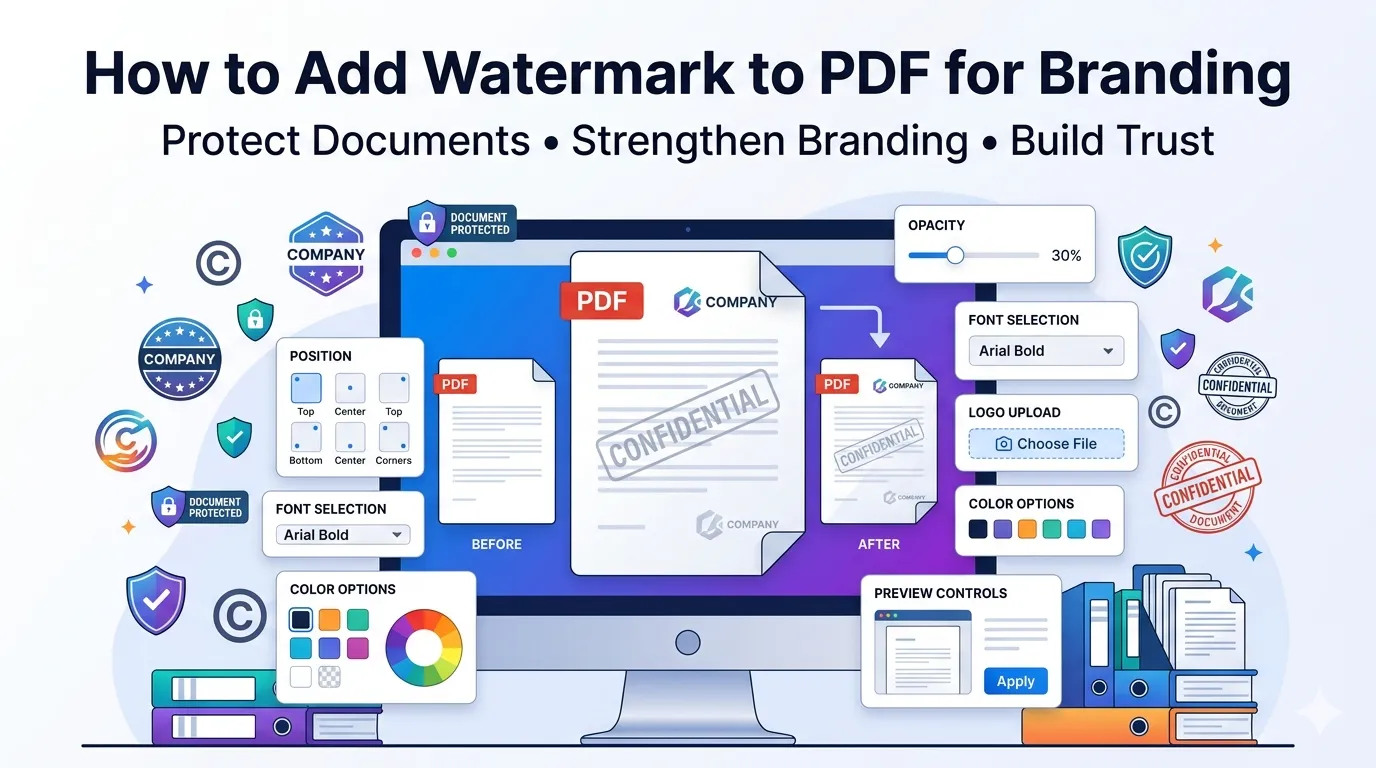
Choose text or image watermarks. Pick font, color, opacity, and position. Diagonal watermarks across the center work for protection. Subtle footer watermarks suit branding without distraction.
Step 3: Apply and Download
Preview the result before finalizing. Adjust settings if needed. Click apply, and the tool stamps every page consistently. Save the watermarked PDF and share with confidence.
Text vs Image Watermarks: Which to Use?
Both watermark types serve different needs. Text watermarks load fast and stay readable at any zoom level. Image watermarks let you stamp logos or signatures with visual polish.
| Watermark Style | Best Use Case |
|---|---|
| Diagonal text | “Draft” or “Confidential” stamps |
| Footer text | Subtle copyright notices |
| Logo center | Strong brand recognition |
| Logo corner | Discreet branding without distraction |
| Faded background | Anti-piracy on portfolios |
Choosing the Right Watermark Settings
Settings matter as much as content. Opacity below 30% keeps the watermark visible without obscuring text. Higher opacity stands out aggressively, useful for strong protection messages.
Pick fonts that match your brand. Color choices should contrast slightly with page content. Avoid black at full opacity unless you intend to dominate the reading experience.
Common Watermark Mistakes to Avoid
- Too dark or opaque: Makes content harder to read
- Pixelated logo image: Use high-resolution PNGs
- Inconsistent placement: Stick to one position across pages
- Wrong font choice: Match brand typography
- Skipping preview: Always verify before applying to all pages
Tips for Professional-Looking Watermarks
Small design choices lift watermark quality. First, prepare a logo at 300 DPI for crisp results across all zoom levels. Web-quality images often look blurry in PDFs.
Second, test watermarks on actual content pages, not just empty layouts. Background images affect visibility. Third, stick with consistent watermark styles across all your branded documents.
Privacy When Adding Watermarks Online
Branded documents often contain sensitive content. Pick watermark tools that process files in your browser. Confidential proposals and drafts never leave your device this way.
Always review the privacy policy. Reputable tools delete files within an hour. Skip platforms requiring permanent account creation just to add a watermark to one PDF.
After Watermarking: Building the Workflow
Watermarked PDFs slot into broader workflows. Compress them with our PDF Compressor for easier sharing. Combine related branded files using the PDF Merger.
For extra protection, add a password using our PDF encryption tool. Layered watermark plus encryption keeps content both branded and secured throughout distribution.
When Watermarks Aren’t the Best Choice
Heavy watermarks distract from reading. Skip them on documents people need to focus on, like user manuals or training material. Cluttered visuals slow down comprehension and frustrate readers.
Reserve watermarks for branding, ownership, or status indicators. For pure information-sharing documents, clean layout beats decorative stamping every time.
Brand Your PDFs With One Click
Watermarks turn ordinary PDFs into branded, protected, professional documents. Adding them takes seconds with the right tool, yet the impact lasts every time a recipient opens the file.
Try our PDF Watermark tool today. Free, secure, and ready whenever your documents need a touch of brand power and protection.