
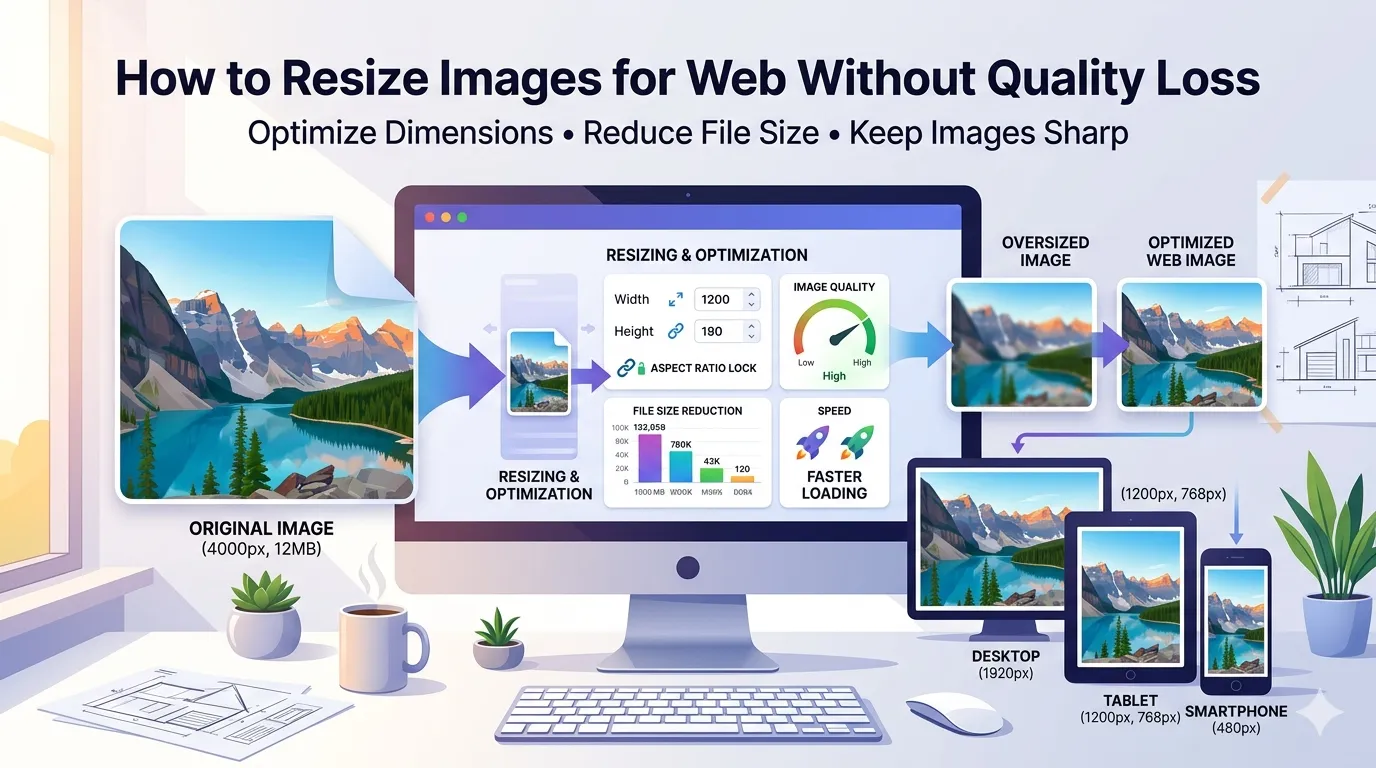
Trying to reduce image file size without losing quality? You’re tackling one of the most common web performance challenges. Heavy images slow down pages, eat data plans, and bounce visitors. Smart compression keeps visuals crisp while making files dramatically smaller.
This guide explains how image compression works, walks through the easiest online method, and shares pro tips for crisp results. By the end, you’ll shrink photos and graphics without sacrificing visual punch.
Why Image File Size Matters So Much
Large images slow everything down. Websites lose visitors after three seconds of waiting. Email attachments hit size limits. Phone storage fills up quickly. Cloud backups stretch over hours instead of minutes.
Furthermore, page speed affects SEO. Google ranks fast-loading pages higher. Compressed images improve Core Web Vitals scores. Visitors stay longer when content loads instantly.
Where Image Compression Pays Off
- Speeding up WordPress and e-commerce sites
- Hitting Gmail’s 25 MB attachment limit
- Freeing space on phone or laptop storage
- Reducing data usage when uploading to social media
- Backing up photo libraries to cloud services faster
- Sharing large galleries with clients quickly
Step-by-Step: Compress Images Online
Browser-based compressors handle the work in seconds. No software installations or paid subscriptions needed. Here’s the fastest workflow.
Step 1: Upload Your Images
Visit our Image Compressor. Drag photos into the upload zone. Most tools handle JPG, PNG, and WebP formats together without issue.
Step 2: Pick Compression Settings
Choose a quality level. Most tools offer light, medium, and aggressive options. Medium compression usually delivers 70-80% size savings while keeping images visually identical for typical web use.
Step 3: Download Optimized Images
Save the compressed files individually or as a ZIP. Compare before/after sizes — savings often exceed 70% for web photos. Replace originals on your site or upload to wherever they’re needed.
How Compression Actually Works
Compression uses smart algorithms to remove data your eyes can’t see. JPG compression discards subtle color variations human vision misses. PNG compression strips repetitive pixel data without altering visible content.
Furthermore, modern compressors use perceptual quality models. They protect visible details while aggressively shrinking background areas. The result keeps focal points sharp while squeezing every wasted byte.
Lossy vs Lossless: Which to Pick?
| Compression Type | Size Reduction | Best For |
|---|---|---|
| Lossy (JPG) | 60-80% | Photos, web images |
| Lossless (PNG) | 10-30% | Logos, screenshots, graphics |
| WebP (lossy + lossless) | 70-90% | Modern websites |
| AVIF | 80-95% | Cutting-edge web |
Tips for Maximum Compression Without Loss
A few habits stretch every byte. First, resize before compressing. A 5000-pixel photo displayed at 1500 pixels wastes massive amounts of data. Match dimensions to actual display sizes.
Second, convert formats strategically. WebP saves 25-35% vs JPG at identical quality. AVIF saves even more. Third, strip metadata. Camera EXIF data adds bulk most users never need on web images.
Common Compression Mistakes
- Compressing already-compressed images: Quality drops rapidly
- Using JPG for logos: Edges blur; PNG works better
- Skipping the original backup: Always keep uncompressed master files
- Going too aggressive: Find the sweet spot where quality stays acceptable
- Ignoring format choice: Pick format based on image content
When Quality Loss Becomes Visible
Heavy compression introduces visible artifacts. JPG photos develop blockiness in solid colors. PNG graphics lose subtle gradients. Watch carefully when pushing settings aggressively.
Test compressed images on multiple devices. What looks fine on laptop screens may show banding on phones with high pixel density. Adjust settings until quality stays consistent across viewing contexts.
Privacy When Compressing Photos Online
Photos often hold valuable data. Family pictures, ID scans, and event memories deserve careful handling. Pick compressors processing files in your browser. Images stay on your device throughout compression.
Review each tool’s privacy policy. Reputable services delete uploads within an hour. Avoid platforms requiring permanent account creation for one-off compression tasks.
After Compression: Other Image Optimizations
Compression is one piece of a bigger workflow. Resize photos for web display using our Image Resizer. Convert formats for better compression via our Image to WebP converter.
For combining many images into one file, try the Image to PDF converter. Each tool handles a specific job efficiently. Together they form a complete image optimization toolkit.
When NOT to Compress Images
Master files deserve their full quality. Don’t compress originals you may need to edit later. Professional photographers keep RAW or high-quality TIFF versions untouched, compressing only export copies.
Also, archival images with historical value should stay uncompressed. Future viewing technology may demand higher quality than today’s standards. Keep originals safe and compress only working copies.
Smaller Images, Faster Pages, Happier Users
Heavy images create slow pages, frustrated visitors, and wasted bandwidth. Compression solves all three in seconds without sacrificing visual punch. Whether you’re optimizing a website, freeing storage, or sharing galleries, smart compression makes everything smoother.
Try our Image Compressor today. Free, secure, and ready whenever oversized photos need to shrink into shareable, web-friendly files.