
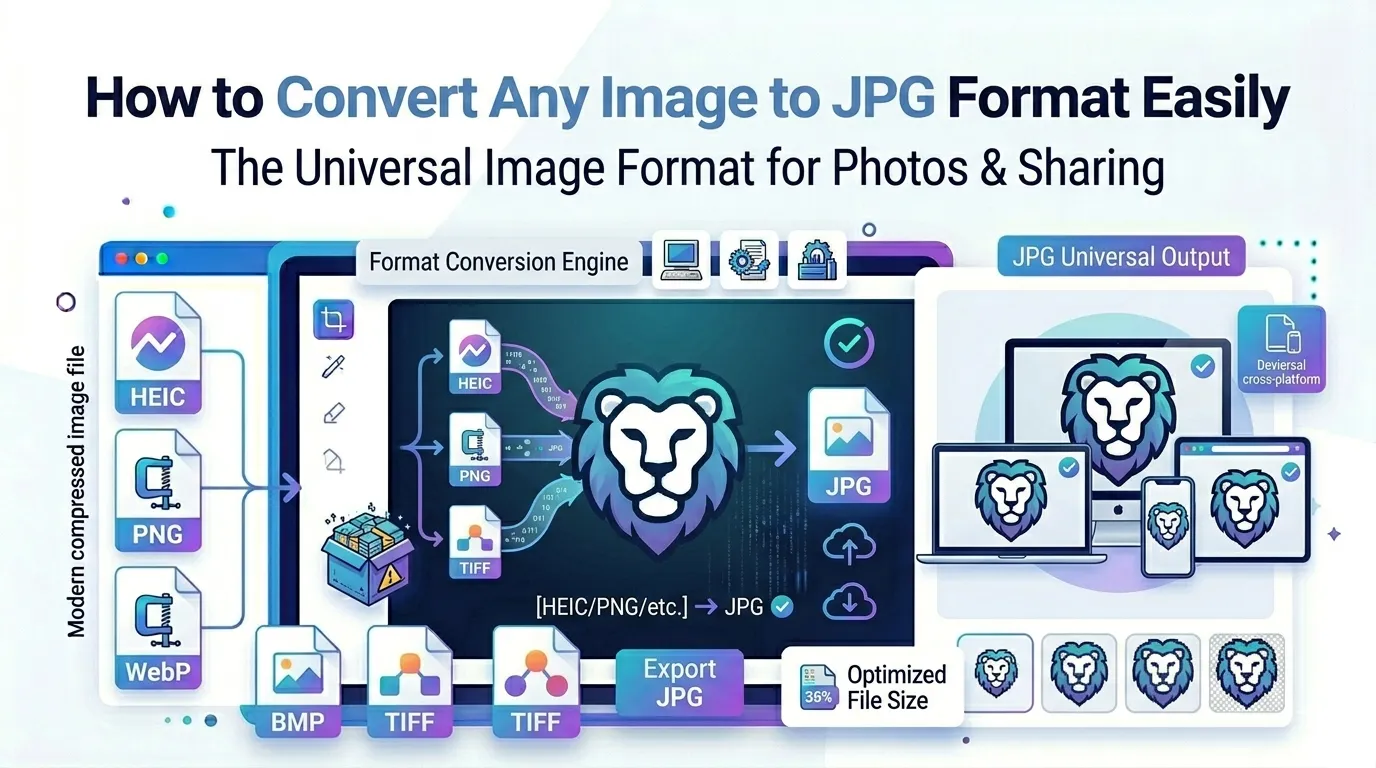
Got files in HEIC, WebP, or PNG that won’t work where you need them? Learning how to convert any image to JPG format solves that compatibility headache instantly. JPG remains the universal standard for photos. It works everywhere, loads fast, and keeps file sizes manageable.
This guide walks through the simplest method online, explains when JPG beats other formats, and shares tips for crisp results. By the end, you’ll handle image format conversions with confidence.
Why JPG Remains the Default Image Format
JPG handles photos beautifully. It compresses smoothly without ruining detail. Every device opens it. Additionally, every web browser displays it. Furthermore, every editing app accepts it.
That universal compatibility makes JPG the safest choice for sharing.
Furthermore, JPG files stay small. A typical photo weighs under 500 KB after compression. PNG versions of the same image often exceed 5 MB. For photography, JPG balances quality and efficiency unbeatably.
When You Need JPG Conversion
- Sharing iPhone HEIC photos with Windows users
- Uploading WebP images to platforms that don’t support them
- Saving PNG screenshots smaller for email
- Submitting photos to printers requiring JPG
- Converting RAW camera files for everyday sharing
- Standardizing image formats for archive consistency
Step-by-Step: Convert Images to JPG Online
Online converters handle the work in seconds. No software downloads or paid subscriptions required. Here’s the fastest workflow.
Step 1: Upload Your Images
Visit our Image to JPG converter. Drag photos into the upload zone. The tool accepts HEIC, PNG, WebP, BMP, TIFF, and many other formats.
Step 2: Choose JPG Quality
Pick a compression level. Higher quality preserves more detail but increases file size. Medium settings around 80% suit most web uses. Maximum quality matters for print or archival storage.
Step 3: Download Converted Files
Save the JPG files individually or as a ZIP. Test opening one to confirm conversion succeeded. Replace originals on your device or share them wherever they’re needed.
Format Comparison: When to Pick JPG vs Others
| Format | Best Use Case |
|---|---|
| JPG | Photographs, web images, general sharing |
| PNG | Logos, screenshots, graphics with transparency |
| WebP | Modern websites prioritizing speed |
| HEIC | iPhone storage efficiency |
| TIFF | Professional print and archival |
Handling HEIC From iPhones
iPhones save photos as HEIC by default. The format saves storage but causes compatibility headaches. Windows machines, older Macs, and many web platforms can’t open HEIC files directly.
Converting HEIC to JPG fixes this instantly. The converted JPG works everywhere. Original iPhone HEIC files stay safe on your phone while shared copies travel freely as JPG.
Tips for High-Quality JPG Output
Smart habits keep JPGs crisp. First, start from the highest-quality original possible. RAW or uncompressed sources convert cleaner than already-compressed files.
Second, pick the right quality level. 90% quality works for photos needing pristine detail. 80% suffices for web display. Anything below 60% introduces visible compression artifacts. Third, resize images before converting using our Image Resizer.
Common Conversion Issues
- Transparency lost: PNG transparent backgrounds become white in JPG
- File size unexpectedly large: Lower quality setting or use compression
- Color shift: Check if source uses CMYK; JPG works best with RGB
- Quality drop on second conversion: Always re-convert from originals
- Missing metadata: Some tools strip EXIF data by default
When NOT to Convert to JPG
JPG isn’t always the right choice. Logos and graphics with sharp edges look pixelated in JPG. PNG handles them better. Screenshots also lose crispness in JPG. Stick with PNG for digital interface captures.
Transparent images can’t keep their see-through backgrounds in JPG. Convert to PNG or WebP if transparency matters. JPG flattens transparency to white, which often ruins logos.
Privacy When Converting Personal Photos
Photos hold valuable personal data. Family pictures, ID scans, and event memories deserve careful handling. Pick converters processing files in your browser. Images stay on your device throughout conversion.
Always check each tool’s privacy policy. Reputable services delete files within an hour. Avoid platforms requiring account creation for one-off format conversions.
Combining JPG Conversion With Other Tools
JPG conversion fits into bigger workflows. Compress converted files with our Image Compressor for major size savings. For modern web optimization, follow up with our Image to WebP converter.
Bundle multiple JPGs into one document via the Image to PDF converter. For transparency preservation, route through our Image to PNG converter instead.
When JPG Stays the Smart Default
JPG works for nearly every photographic need. Casual sharing, web display, email attachments, social media — JPG handles them all efficiently. Until WebP gains universal support, JPG remains the safe, compatible choice.
Reserve specialty formats for specific needs. Use PNG for transparency. Pick WebP for modern websites. Stay with JPG for everything else, and you’ll rarely run into compatibility issues.
Convert to JPG and Share Anywhere
Format incompatibility kills photo sharing instantly. JPG fixes that for almost every photograph. With the right converter, switching formats takes seconds and unlocks universal compatibility across every device and platform.
Try our Image to JPG converter today. Free, secure, and ready whenever your photos need to travel as the world’s most compatible image format.