
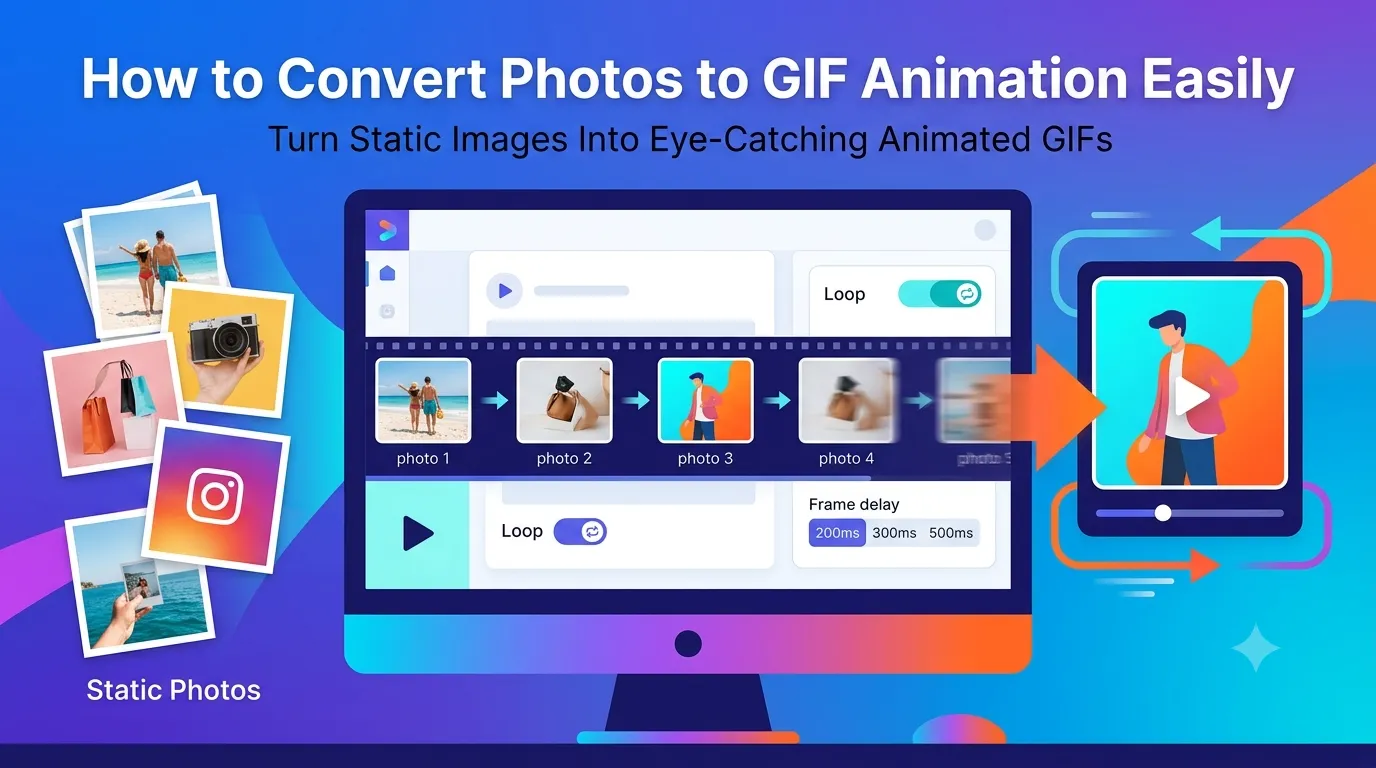
Want to convert photos to GIF animation that grabs attention on social media or blogs? You’re tapping into one of the internet’s most beloved formats. GIFs play automatically, work everywhere, and tell quick visual stories that static images can’t match.
This guide walks through the simplest method to turn images into animated GIFs, explains optimal settings, and shares tips for smooth loops. By the end, you’ll create eye-catching GIFs that boost engagement instantly.
Why GIFs Still Rule for Quick Animations
GIFs play automatically without buttons. They loop forever. Every social platform supports them natively. Email clients accept them. Browsers render them instantly. That universal compatibility makes GIF the safe choice for casual animations.
Furthermore, GIFs need no special player. Recipients see your animation instantly without downloads or plugins. The format may be old, but it remains unbeatable for sharing short visual stories.
Popular Uses for Photo-to-GIF
- Turning vacation photo sequences into shareable animations
- Creating product demos from before-and-after shots
- Showing UI mockups stepping through user flows
- Documenting design iterations across multiple versions
- Building social media posts that stop the scroll
- Adding subtle motion to email signatures
Step-by-Step: Convert Photos to GIF Online
Online tools handle photo-to-GIF conversion in seconds. No video editing skills required. Here’s the simplest workflow.
Step 1: Upload Multiple Photos
Visit our Image to GIF converter. Drag several photos into the upload zone. The tool needs at least two frames to create animation.
Step 2: Arrange Frame Order and Speed
Drag thumbnails to set play order. Pick the frame delay between 100ms (fast) and 1000ms (slow). Most engaging GIFs play frames at 200-400ms each.
Step 3: Generate and Download GIF
Click the generate button. The tool stitches frames into one animated GIF. Save the file and share it directly on social media, blogs, or messaging apps.
Choosing the Right GIF Settings
Settings shape your final result. Frame rate controls smoothness. Loop count decides whether the animation plays once or forever. Color depth affects file size and visual quality.
| Setting | Recommended Value |
|---|---|
| Frame delay | 200-400ms for natural pacing |
| Loop count | Forever for social media |
| Color depth | 256 colors for photos |
| Output dimensions | 480-800px wide |
| Frame count | 5-30 frames |
Tips for Smooth, Eye-Catching GIFs
Small habits make every GIF better. First, resize photos to identical dimensions before converting. Mixed sizes create jarring jumps mid-animation.
Second, plan a clear start and end. Loops feel smooth when the last frame transitions naturally back to the first. Third, keep things short. Most engaging GIFs run under 5 seconds total.
Common GIF Conversion Issues
- Huge file size: Reduce dimensions or frame count
- Color banding: Expected with 256-color limit; resize for cleaner output
- Choppy animation: Add more frames or reduce frame delay
- Wrong order: Drag thumbnails to rearrange before generating
- No transparency: GIFs only support single-color transparency
GIF vs Video: When to Pick Each
GIFs play instantly without controls. Videos offer better quality and sound but need players. For short animations under 5 seconds, GIF wins on simplicity. For longer content, MP4 video delivers better quality at smaller file sizes.
Modern web platforms often auto-convert GIFs to MP4 anyway for bandwidth savings. Twitter, Reddit, and Imgur do this behind the scenes. Your upload stays a GIF, but viewers see optimized video playback.
Privacy When Converting Personal Photos
GIFs often feature personal moments. Family photos, event memories, and product images deserve careful handling. Pick converters processing files in your browser. Photos stay on your device throughout.
Read each tool’s privacy policy first. Reputable services delete uploads within an hour. Avoid platforms requiring permanent account creation for one-off GIF creation.
Combining GIF With Other Tools
GIF creation pairs well with other image tools. Resize source photos first using our Image Resizer for consistent dimensions. Compress oversized GIFs with our Image Compressor if needed.
For sharing static versions, route through our Image to JPG converter. Or bundle the GIF into a PDF with the Image to PDF converter for presentation handouts.
When GIF Isn’t the Best Choice
GIFs have real limits. Long animations balloon to massive file sizes. Quality drops noticeably with the 256-color palette. Print workflows can’t handle GIF. Embedded video usually beats GIF for content over 10 seconds.
Reserve GIF for short, fun animations under 5 seconds. Pick MP4 or WebM for longer videos with sound. Save complex tutorials for dedicated video formats that handle them properly.
Create Eye-Catching Animations in Seconds
Static images get scrolled past. Animated GIFs grab attention and tell stories. With the right tool, you transform a few photos into a shareable animation in under a minute, ready for any social platform.
Try our Image to GIF converter today. Free, secure, and ready whenever your photos need to come alive as an animation that stops the scroll.