
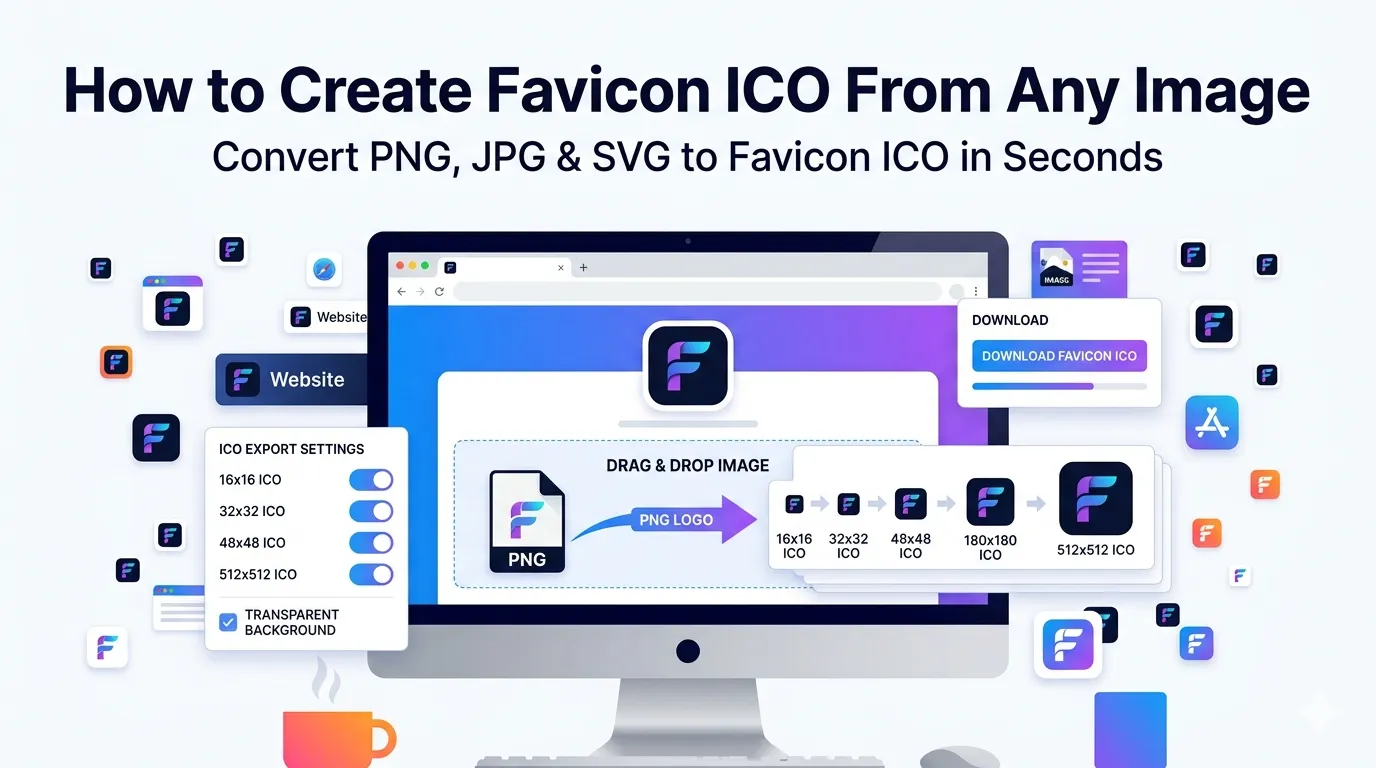
Want to create favicon ICO files for your website without design software? Learning the process saves hours and instantly elevates your site’s professionalism. That tiny icon in the browser tab speaks volumes about your brand identity.
This guide walks through the easiest method to make a favicon, explains the right dimensions and formats, and shares tips for sharp results. By the end, you’ll generate ICO favicons in seconds.
Why Favicons Matter More Than You Think
Favicons are visual anchors for your brand. They appear in browser tabs, bookmarks, history lists, and mobile home screens. Visitors recognize your site instantly when favicons stay consistent across these touchpoints.
Furthermore, missing favicons look unprofessional. Visitors see a generic globe or blank square instead of your brand. That subtle gap suggests carelessness, which damages trust before they read a single word.
Where Favicons Appear
- Browser tab labels next to page titles
- Bookmark menus and history lists
- Mobile home screen shortcuts when added
- Search engine results pages
- Cross-tab notifications and pinned tabs
- Browser autocomplete dropdowns
Step-by-Step: Create a Favicon Online
Browser-based tools generate ICO favicons in seconds. No Photoshop or expensive software required. Here’s the simplest workflow.
Step 1: Upload Your Source Image
Visit our Image to ICO converter. Drag your logo or icon into the upload zone. The tool accepts PNG (best with transparency), JPG, or SVG sources.
Step 2: Choose Favicon Sizes
Pick which sizes to include. 16×16 covers browser tabs. 32×32 suits high-DPI displays. 48×48, 64×64, and 256×256 cover desktop shortcuts. Multi-size ICO files handle every context cleanly.
Step 3: Download the ICO File
Save the generated favicon.ico file. Upload it to your website’s root directory. Browsers find it automatically without extra configuration in most cases.
Recommended Favicon Sizes
Modern web requires more than just the classic 16×16 favicon. Different platforms need different sizes for clean rendering.
| Size | Use Case |
|---|---|
| 16×16 | Standard browser tabs |
| 32×32 | High-DPI browser tabs and Windows tiles |
| 48×48 | Windows desktop shortcuts |
| 180×180 | iOS Apple touch icon |
| 192×192 | Android Chrome icon |
| 512×512 | PWA install icon and splash screen |
Tips for Crisp Favicons
Tiny graphics demand careful design. First, simplify your logo. Complex details vanish at 16×16. A bold single-color version often beats a detailed multi-color one.
Second, use transparent PNG sources. White backgrounds clash with dark browser themes. Third, test on actual browsers. Preview your favicon in Chrome, Firefox, and Safari before committing to the design.
Common Favicon Mistakes
- Too much detail: Simplify aggressively for small sizes
- Wrong colors: Use brand colors that read clearly at tiny sizes
- Skipping retina sizes: Modern displays need 32×32 minimum
- Forgetting Apple touch icon: iOS uses different sizing
- Generic globe icon: Replace immediately for brand consistency
Installing Your Favicon on a Website
Upload the ICO file to your website’s root directory. Most browsers automatically find it at /favicon.ico. For more control, add link tags in your HTML head specifying paths to each favicon size.
Modern web platforms make this easier. WordPress accepts favicons in the site identity settings. Squarespace, Wix, and Shopify all have favicon upload areas. Static site generators include favicon configuration in build settings.
Privacy When Uploading Brand Logos
Brand logos carry proprietary value. Pick favicon converters processing files in your browser. Logos stay on your device throughout, protecting design investments.
Read each tool’s privacy policy first. Reputable services delete uploads within an hour. Avoid platforms requiring account creation for one-off favicon generation tasks.
Combining Favicon Tools With Others
Favicon creation fits into broader brand workflows. Resize source logos first with our Image Resizer. Convert formats via our Image to PNG converter for transparent sources.
For bundling brand assets, use the Image to PDF converter to share with developers. Each tool fits a specific job in modern web design pipelines.
When PNG Favicons Beat ICO
Modern browsers accept PNG favicons. PNG handles transparency cleaner than ICO. Many web projects now ship PNG favicons exclusively for simpler workflows.
However, ICO remains the most compatible format. Older browsers, Windows shortcuts, and various contexts default to ICO. Multi-size ICO files cover every base. Use PNG for new projects, ICO for maximum compatibility.
Stand Out in Every Browser Tab
That tiny browser tab icon does serious branding work. A clean, professional favicon distinguishes your site from generic competitors instantly. With the right tool, generating one takes seconds and pays back forever.
Try our Image to ICO converter today. Free, secure, and ready whenever your brand needs to claim its rightful place in browser tabs everywhere.