
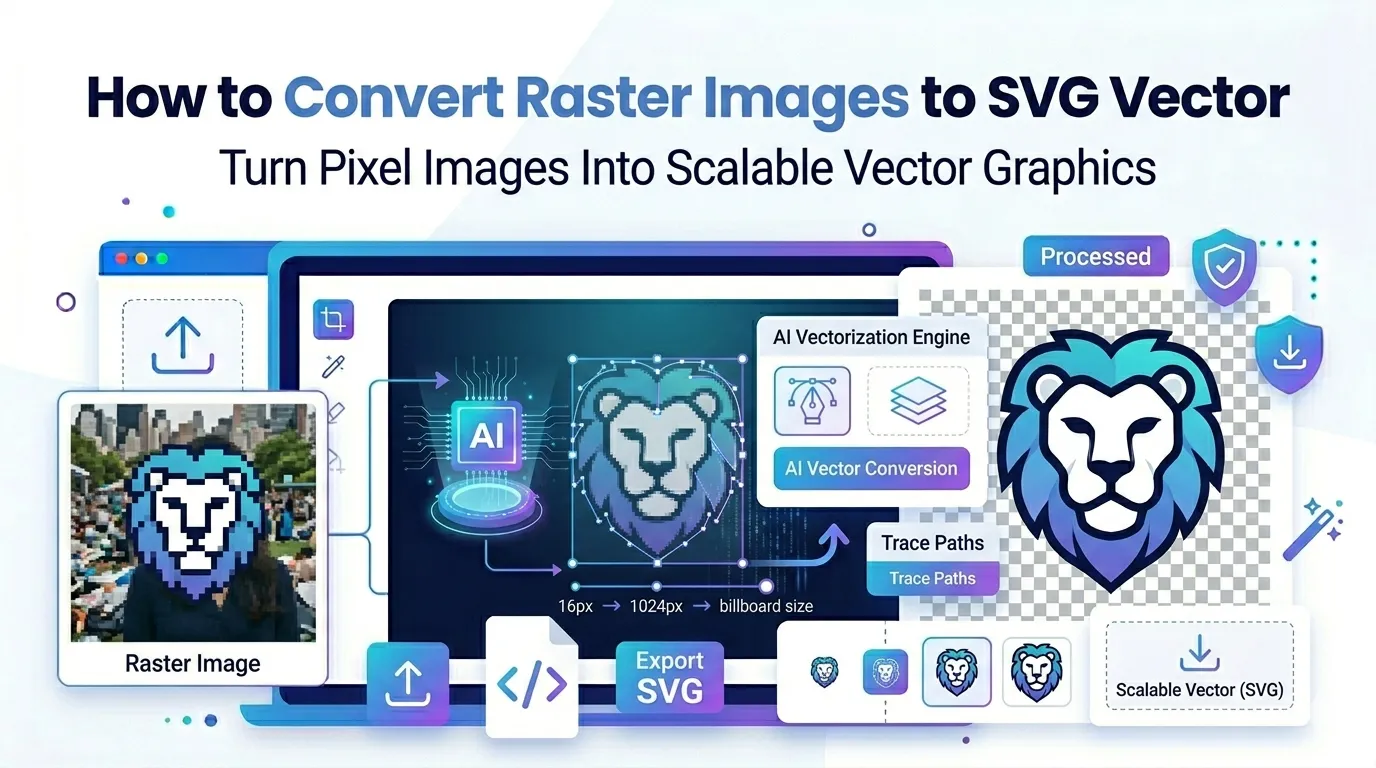
Want to convert raster images to SVG vector for crisp scaling at any size? You’re tapping into one of the smartest moves modern designers make. SVG files scale infinitely without pixelation, work everywhere, and stay incredibly lightweight when done right.
This guide explains why vectors beat raster for many use cases, walks through the easiest conversion method, and shares pro tips for clean results. By the end, you’ll handle SVG conversions like a designer.
Why SVG Matters in Modern Web Design
SVG files describe shapes mathematically. Browsers render them at any size without blur. A 16×16 favicon and a 1920×1080 hero graphic come from the same SVG file. That flexibility makes SVG the gold standard for logos and icons.
Furthermore, SVG files weigh tiny. A complex logo might run 5 KB versus 200 KB for the PNG equivalent. Fast-loading SVGs improve Core Web Vitals and reduce server costs at scale.
When SVG Wins Big
- Brand logos displayed at multiple sizes across websites
- UI icons in responsive applications
- Print materials needing scalable artwork
- Animated illustrations on landing pages
- Maps and infographics with crisp lines
- Vehicle wraps and large format prints from small originals
Step-by-Step: Convert Images to SVG Online
Online tools handle raster-to-SVG conversion in seconds. Results work best on simple shapes and logos. Photographs convert poorly since SVG isn’t designed for photographic detail.
Step 1: Upload Your Raster Image
Visit our Image to SVG converter. Drag your logo or icon into the upload zone. The tool accepts PNG, JPG, BMP, and GIF source files.
Step 2: Adjust Tracing Settings
Most converters offer threshold and color settings. Higher thresholds simplify shapes. More colors retain detail but inflate file size. Test settings until shapes look clean without becoming overly complex.
Step 3: Download the SVG File
Save the generated SVG. Open it in a browser or vector editor to verify quality. Edit further in Inkscape or Illustrator if needed before deploying to your website.
When Raster-to-SVG Works (and When It Doesn’t)
| Source Type | SVG Conversion Success |
|---|---|
| Simple logos with flat colors | Excellent results |
| Line drawings and icons | Very good |
| 2-3 color illustrations | Good with tuning |
| Photo-realistic images | Poor, avoid |
| Complex multi-color art | Mixed results |
Tips for Clean SVG Output
Smart prep work creates better SVGs. First, start with high-contrast source images. Sharp edges convert into clean vector paths. Blurry edges become messy curves.
Second, simplify your design before conversion. Two-color logos convert cleaner than 12-color illustrations. Third, optimize the SVG output afterward using tools like SVGO. The result strips unnecessary code for smaller files.
Common Raster-to-SVG Issues
- Massive SVG file: Reduce colors or increase threshold
- Jagged paths: Smooth source edges before converting
- Lost details: Use higher resolution sources
- Wrong colors: Adjust color quantization settings
- Photos look terrible: Use PNG/WebP for photos, not SVG
SVG Use Cases on Modern Websites
SVG shines across countless web contexts. Brand logos stay crisp in headers and footers. Icon sets scale across responsive layouts. Hero illustrations animate smoothly with CSS or JavaScript.
Furthermore, SVGs accept inline styling. CSS controls fill colors, stroke widths, and transparency dynamically. JavaScript animates paths for engaging interactions. That programmability beats static raster files for modern designs.
Privacy When Converting Brand Logos
Logos and brand graphics carry proprietary value. Pick SVG converters processing files in your browser. Assets stay on your device throughout, protecting design investments from third-party storage risks.
Read each tool’s privacy policy first. Reputable services delete uploads within an hour. Avoid platforms requiring account creation for one-off SVG conversion tasks involving confidential brand assets.
Combining SVG With Other Tools
SVG fits into bigger design workflows. Convert sources first using our Image to PNG converter for cleaner edges. For favicon use, run the SVG through our Image to ICO converter with multiple size outputs.
Need rasterized fallbacks? Switch to our Image to JPG converter for traditional formats. Each tool handles a niche, and together they form complete modern brand pipelines.
When SVG Isn’t the Right Choice
SVG isn’t suited for photographic content. Detailed photos balloon to massive SVG files filled with thousands of paths. Browsers struggle to render them efficiently. Stick with JPG, WebP, or AVIF for photographs.
Reserve SVG for logos, icons, illustrations, and graphics with limited colors. Match format to content type rather than defaulting to vector for everything.
Scale Your Brand Graphics Infinitely
Vector graphics solve scaling problems forever. SVG keeps logos crisp from favicon to billboard. With the right converter, transforming raster sources into scalable vectors takes seconds.
Try our Image to SVG converter today. Free, secure, and ready whenever your brand needs graphics that look sharp at any size, anywhere.