
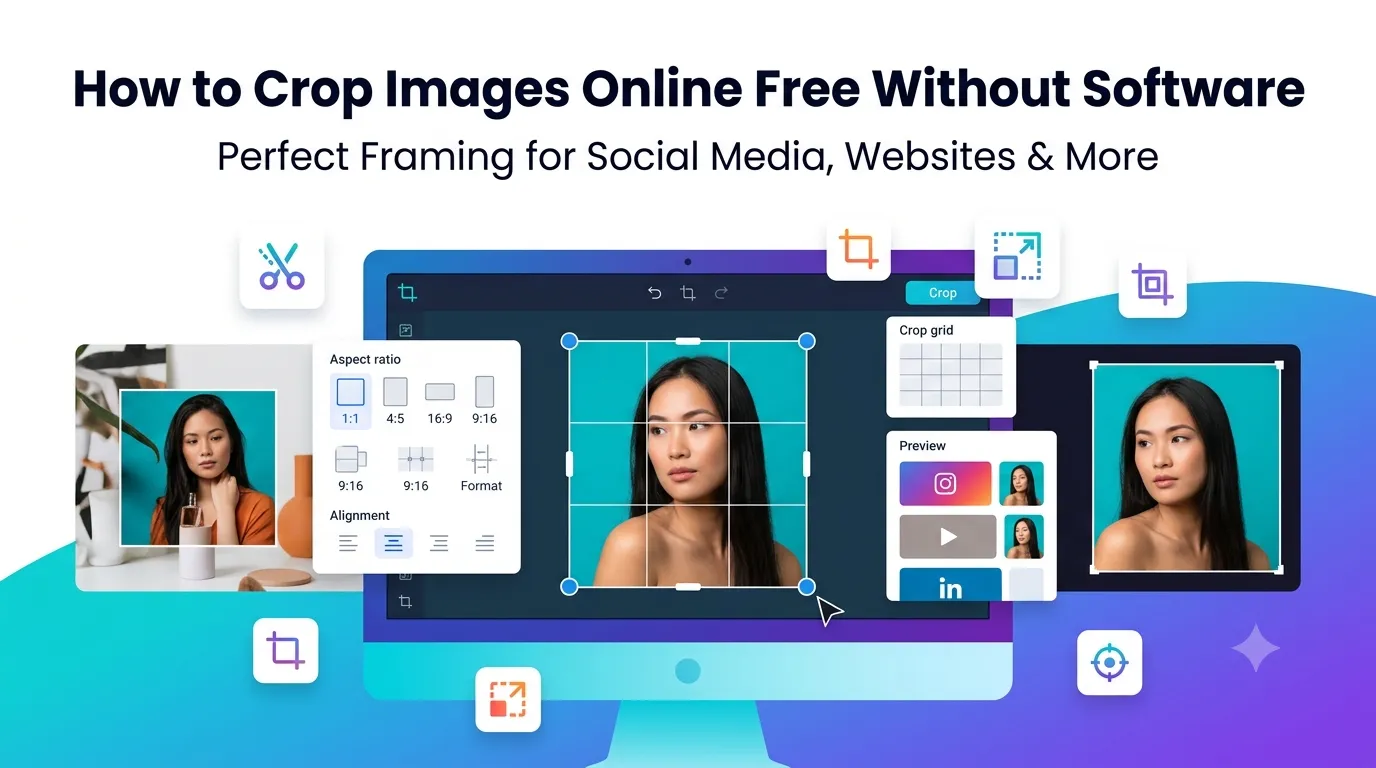
Looking to crop images online free without installing heavy software? Cropping focuses attention exactly where you want it. Whether you’re sharpening a portrait, fitting photos to social media specs, or trimming distractions, online cropping tools handle the job in seconds.
This guide walks through the easiest cropping method, explains optimal aspect ratios for different platforms, and shares pro tips for clean results. By the end, you’ll handle image cropping like a pro.
Why Cropping Matters More Than You Think
Cropping changes everything about a photo. Trimming the edges focuses attention on subjects. Removing distractions improves composition. Adjusting aspect ratios makes images fit perfectly across different platforms.
Furthermore, cropping reduces file size automatically. Smaller dimensions mean smaller files. Pages load faster. Email attachments fit limits. Cloud storage stretches further.
Where Cropping Pays Off
- Fitting headshots to LinkedIn and resume specs
- Adjusting product photos for e-commerce platforms
- Preparing Instagram squares from rectangular sources
- Trimming screenshots to focus on key UI elements
- Removing distracting backgrounds before background removal
- Creating thumbnail images for blog posts and videos
Step-by-Step: Crop Images Online
Browser-based cropping tools handle the work in seconds. No Photoshop or design software needed. Here’s the simplest workflow.
Step 1: Upload Your Image
Visit our Image Cropper. Drag your photo into the upload zone. The tool accepts JPG, PNG, WebP, and most common image formats.
Step 2: Set the Crop Area
Drag corners or sides to select what stays in the image. Lock aspect ratios for specific platforms. Most tools include presets for Instagram, Facebook, YouTube, and other social media specs.
Step 3: Download the Cropped Image
Click crop or apply. The tool generates the cropped image instantly. Save it locally and use it wherever you need a perfectly sized photo.
Common Aspect Ratios for Social Media
| Platform | Aspect Ratio | Pixel Dimensions |
|---|---|---|
| Instagram square | 1:1 | 1080×1080 |
| Instagram portrait | 4:5 | 1080×1350 |
| Instagram story | 9:16 | 1080×1920 |
| Facebook cover | 16:9 | 1640×924 |
| YouTube thumbnail | 16:9 | 1280×720 |
| LinkedIn banner | 4:1 | 1584×396 |
Tips for Better Image Cropping
Smart cropping habits create stronger photos. First, follow the rule of thirds. Place subjects along grid lines or intersection points for naturally balanced compositions.
Second, give subjects breathing room. Cramped crops feel tight and awkward. Third, preserve story context. Cropping too aggressively can strip meaning from a scene. Find the right balance for each image.
Common Cropping Mistakes
- Cutting through joints: Avoid cropping at wrists, ankles, or necks
- Tight crops without breathing room: Leave space around subjects
- Wrong aspect ratio: Match the platform’s required dimensions
- Off-center subjects without intent: Use rule of thirds purposefully
- Cropping low-resolution originals: Causes pixelation in the result
Combining Crop With Other Edits
Cropping pairs well with other image operations. Resize cropped images to specific dimensions using our Image Resizer. Compress final files with our Image Compressor for web speed gains.
For format conversion, route through our Image to JPG converter or Image to WebP converter. Each tool fits a specific job in modern image pipelines.
Privacy When Cropping Sensitive Photos
Photos often hold personal data. ID scans, family pictures, and proprietary screenshots deserve careful handling. Pick croppers processing files in your browser. Images stay on your device throughout.
Always check the privacy policy. Reputable services delete uploads within an hour. Avoid platforms requiring account creation for one-off image cropping tasks.
Cropping for Different Use Cases
Match cropping style to purpose. Professional headshots tighten on faces. Product photos isolate items against clean backgrounds. Landscape shots breathe with wide horizontal crops. Each context demands different cropping decisions.
Test multiple crops before committing. Save several versions of important images. Different crops suit different platforms, and having backup compositions saves rework when needs change later.
When Cropping Isn’t Enough
Sometimes cropping alone can’t save a photo. Out-of-focus subjects stay blurry no matter how you crop. Poor lighting persists across any aspect ratio. Major composition issues need reshooting, not cropping.
For salvageable photos with minor issues, cropping fixes plenty. For truly bad shots, accept the loss and reshoot. Cropping isn’t a magic wand for fundamental photography problems.
Sharpen Every Image With Smart Cropping
The right crop transforms ordinary photos into striking visuals. With the right tool, cropping takes seconds. Whether for social media, work, or personal projects, smart cropping makes every image perform better.
Try our Image Cropper today. Free, secure, and ready whenever your photos need precise framing for any digital destination.