
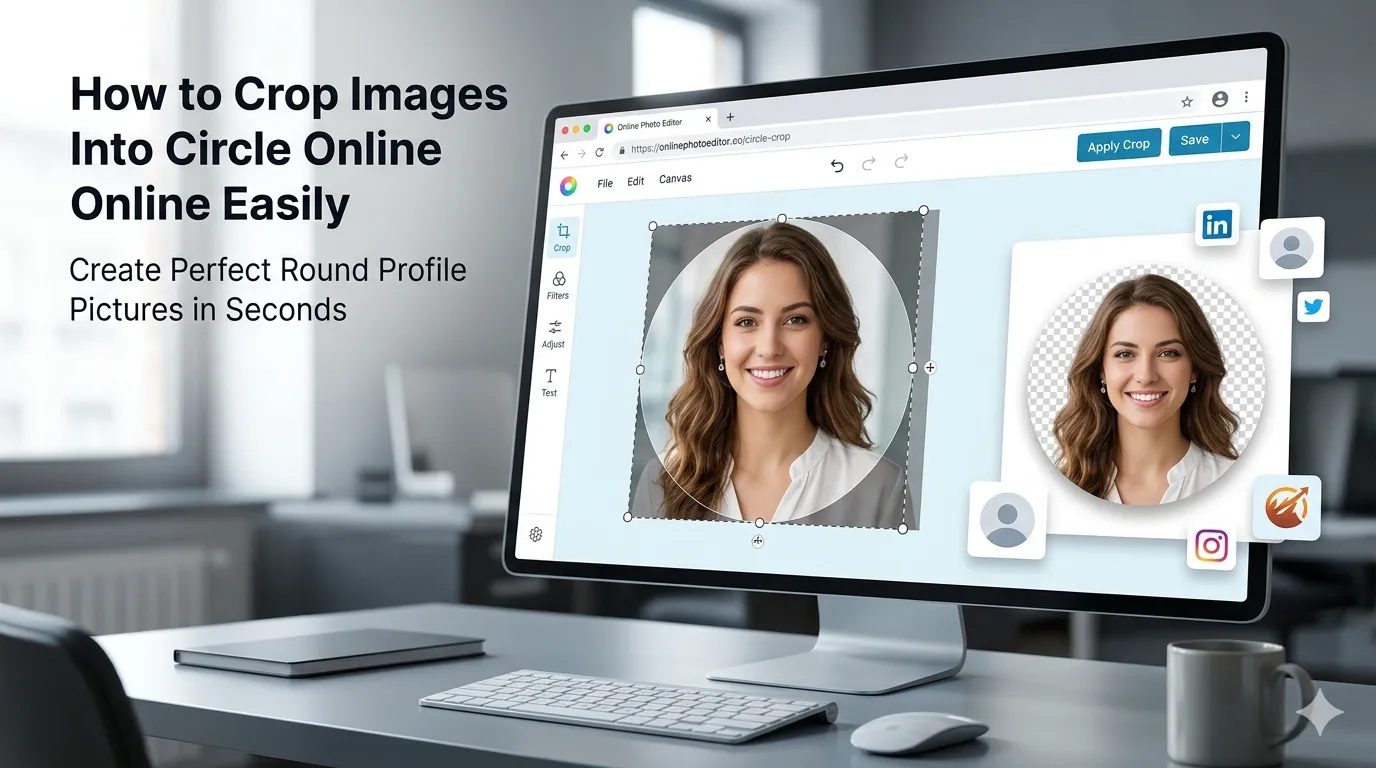
Want to crop images into circle shapes for profile pictures, brand assets, or unique designs? You’re in the right place. Round photo crops feel polished, modern, and instantly grab attention compared to rectangular images. Online round croppers handle the job in seconds.
This guide walks through the easiest method, explains common use cases, and shares pro tips for clean circular results. By the end, you’ll create perfect round images for any platform.
Why Circular Photos Make Strong Profile Pics
Round images feel friendlier than rectangles. They eliminate sharp corners that compete with photo subjects. Profile pictures on most platforms display as circles anyway. Pre-cropping to circle ensures your photo looks polished even in non-standard contexts.
Furthermore, circular crops focus attention on faces or central subjects. The eye follows the curve naturally toward the middle. Brand logos in circles feel rounded and approachable. The shape itself communicates warmth.
Common Round Crop Uses
- LinkedIn and social media profile pictures
- Team member portraits on About pages
- Logo cropping for website circular containers
- Avatar designs for community platforms
- Email signature headshots
- WhatsApp display pictures
Step-by-Step: Crop Images to Circle Online
Browser-based round croppers handle the work in seconds. No design software needed.
Step 1: Upload Your Photo
Visit our Round Image Cropper. Drag your photo into the upload zone. The tool accepts JPG, PNG, and WebP formats.
Step 2: Position the Circle
Drag and resize the circle to frame your subject. Most tools let you preview the result before committing. Adjust until faces and key subjects sit centered within the round area.
Step 3: Download as Transparent PNG
Save the cropped image with transparent background. Use it in profile sections, branded content, or designs requiring clean round photos. Transparent PNG keeps the circle clean against any background color.
Why PNG Beats JPG for Round Crops
| Format | Round Crop Suitability |
|---|---|
| PNG with transparency | Excellent for round shapes |
| JPG (no transparency) | Adds white box around circle |
| WebP with transparency | Modern alternative to PNG |
| GIF | Single-color transparency only |
Tips for Perfect Round Crops
Smart prep ensures clean circles. First, center subjects within the source photo. Off-center subjects get cropped awkwardly. Second, leave room around faces. Tight crops cut off hair or chins. Allow some breathing space.
Third, use square or near-square source photos. Long rectangles waste vertical or horizontal area during round cropping. Pre-crop to square first using our Image Cropper if needed.
Common Round Crop Mistakes
- Subject too close to edge: Get cut off in round area
- Saving as JPG: Loses transparency, adds white box
- Low resolution source: Circular crops magnify visible flaws
- Wrong aspect ratio: Rectangular sources waste cropping area
- No background plan: Test circle against intended placement context
Beyond Profile Pictures: Creative Uses
Round images work beyond avatars. Team grids on About pages benefit from consistent circular portraits. Product photos in circles feel friendlier than rectangular catalog shots. Testimonial cards with round headshots build trust quickly.
For website designs, circular images break up rectangular layouts. They add visual variety to long pages. Pair round photos with rectangular content blocks for dynamic, modern compositions.
Privacy When Cropping Headshots
Profile pictures carry biometric data worth protecting. Pick round crop tools processing files in your browser. Headshots stay on your device throughout the cropping process.
Read each tool’s privacy policy first. Reputable services delete uploads within an hour. Avoid platforms requiring permanent account creation for one-off round crop tasks.
Combining Round Crops With Other Tools
Round crops fit broader portrait workflows. Remove backgrounds first using our Background Remover for clean isolated subjects. Compress final images with our Image Compressor for fast loading on websites.
For favicon use, run circular logos through our Image to ICO converter. Each tool fits a specific niche in modern brand asset preparation.
When Rectangular Beats Circle
Some photos work better rectangular. Wide landscapes lose context in circles. Group photos with multiple subjects need rectangular framing. Storytelling photography depends on broader composition that circles eliminate.
Match crop shape to content purpose. Use circles for portraits and isolated subjects. Stick with rectangles for landscape, group, and editorial photography. The right shape amplifies the photo’s intent.
Create Polished Round Photos in Seconds
Circular images carry friendly, modern energy that rectangles can’t match. With the right tool, transforming photos into clean round crops takes seconds. Whether for profile pictures, brand assets, or design projects, round cropping elevates any photo.
Try our Round Image Cropper today. Free, secure, and ready whenever your photos need to fit perfectly into circular containers.