
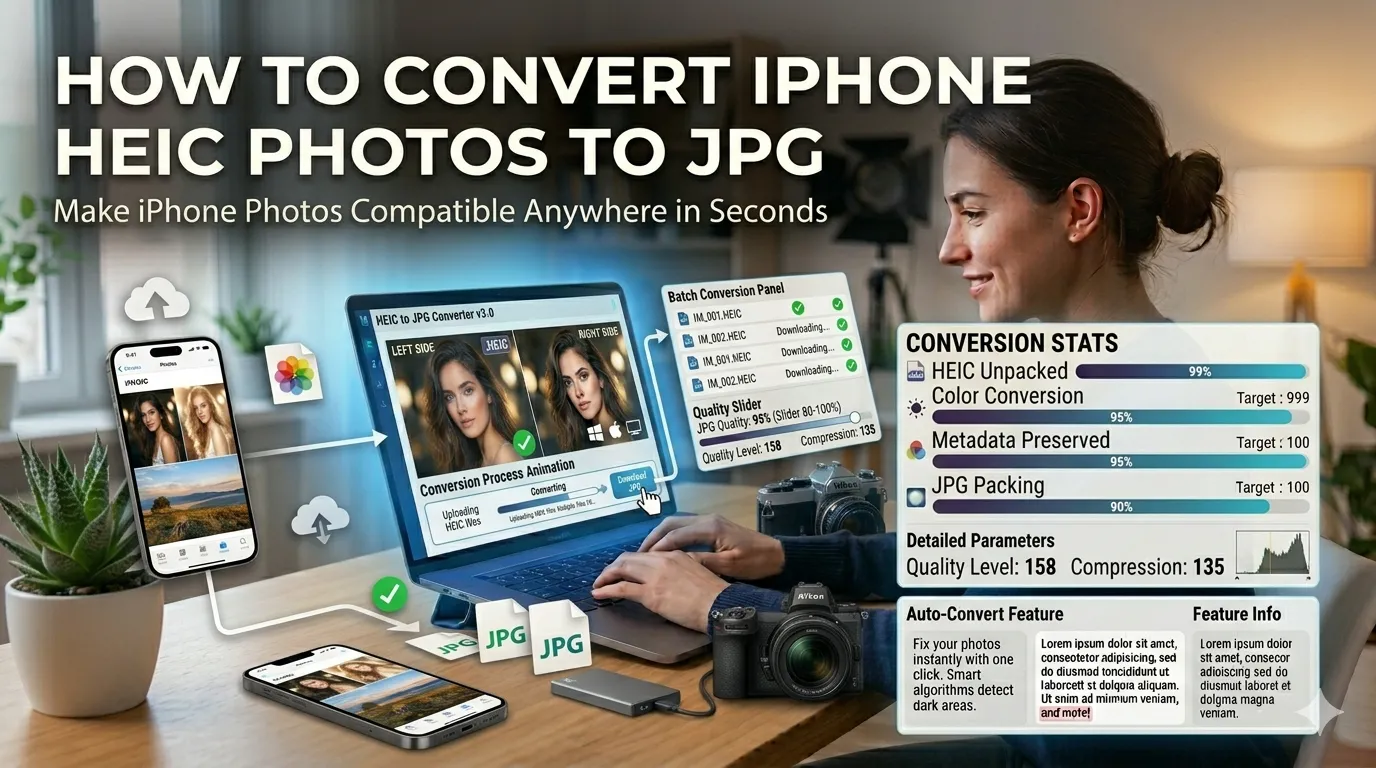
Trying to convert iPhone HEIC photos to JPG because Windows won’t open them? You’re not alone. Apple’s HEIC format saves phone storage brilliantly but causes compatibility headaches everywhere else. Online converters fix that completely in seconds.
This guide walks through the easiest method, explains why iPhones save HEIC by default, and shares pro tips for batch conversions. By the end, you’ll handle HEIC compatibility like a pro.
Why iPhones Use HEIC Format
Apple introduced HEIC in iOS 11 to save storage space. HEIC files weigh roughly half the size of equivalent JPGs at the same quality. For phones with limited storage, that 50% savings adds up across thousands of photos.
Furthermore, HEIC supports transparency and animation. Apple uses these advanced features for Live Photos and Burst Mode. The format technically beats JPG in nearly every way except universal compatibility.
Where HEIC Causes Problems
- Windows computers without recent updates
- Older Mac systems before macOS High Sierra
- Many web upload forms requiring JPG
- Email clients failing to display previews
- Print services rejecting HEIC submissions
- Photo editing apps still lacking HEIC support
Step-by-Step: Convert HEIC to JPG Online
Browser-based converters handle HEIC to JPG in seconds. No iPhone or Apple device required.
Step 1: Upload Your HEIC Files
Visit our HEIC to JPG converter. Drag your iPhone photos into the upload zone. The tool handles single files or batches of up to 50 photos at once.
Step 2: Set Quality Level
Pick JPG quality. 80-90% suits most use cases. Higher quality preserves more detail but creates larger files. For email or web use, 80% gives the best balance of size and quality.
Step 3: Download Converted JPGs
Save converted files individually or as ZIP. The JPGs work everywhere Windows, Mac, web platforms, email clients, and print services. Universal compatibility restored.
HEIC vs JPG: When to Use Each
| Format | Best Use Case |
|---|---|
| HEIC | iPhone storage, Apple ecosystem sharing |
| JPG | Universal sharing, web upload, print services |
| HEIC original | Keep on phone for full quality |
| JPG copy | Export for everywhere outside Apple |
Tips for Smooth HEIC Conversion
Smart habits prevent issues. First, transfer HEIC files from iPhone to computer via AirDrop, USB cable, or iCloud Photos web. Some methods auto-convert to JPG. Disable auto-conversion if you want true HEIC files for online tools.
Second, batch convert entire photo shoots together for consistency. Third, keep original HEIC files as backups. Phone storage stays optimized while you have compatible JPG copies for sharing.
Common HEIC Issues to Avoid
- Some Apple settings convert to JPG mid-transfer
- Losing transparency: JPG can’t preserve HEIC’s alpha channel features
- Live Photo motion lost: JPG saves only the static frame
- Quality degradation: Use 90% quality for important conversions
- Forgetting backup: Keep HEIC originals before converting
Setting iPhone to Capture in JPG
For permanent compatibility, change iPhone to capture JPG by default. Go to Settings, Camera, Formats, then pick Most Compatible instead of High Efficiency. New photos save as JPG automatically.
The trade-off: photos take twice as much storage. For users who never share photos outside Apple, HEIC’s storage benefits matter more. For users sharing constantly with Windows or web platforms, JPG-only mode prevents endless conversion headaches.
Privacy When Converting Personal Photos
iPhone photos often hold family moments worth protecting. Pick HEIC converters processing files in your browser. Photos stay on your device throughout conversion.
Read each tool’s privacy policy first. Reputable services delete uploads within an hour. Avoid platforms requiring permanent account creation just to convert a few HEIC files.
Combining HEIC With Other Tools
HEIC conversion fits broader workflows. For mass photo handling, convert HEIC to JPG first, then run through our Image Compressor for web optimization. Resize using our Image Resizer for specific platform dimensions.
For collage building from iPhone photos, convert to JPG first via our Image to JPG converter. Most other tools work better with universal JPG than HEIC sources.
When HEIC Stays the Better Choice
For Apple-only workflows, HEIC remains superior. Smaller files conserve iCloud storage. Shared albums between iPhones work natively. Mac users can edit HEIC directly in Photos app.
Keep HEIC originals on phone storage. Convert only the photos you actually need to share outside Apple’s ecosystem. This balanced approach maximizes both storage efficiency and universal compatibility.
Solve iPhone HEIC Compatibility Forever
HEIC saves iPhone storage but creates sharing headaches everywhere else. With the right converter, switching to universal JPG takes seconds. Whether sharing with Windows users or uploading to web platforms, JPG ensures everything works.
Try our HEIC to JPG converter today. Free, secure, and ready whenever iPhone photos need to travel beyond the Apple ecosystem.