
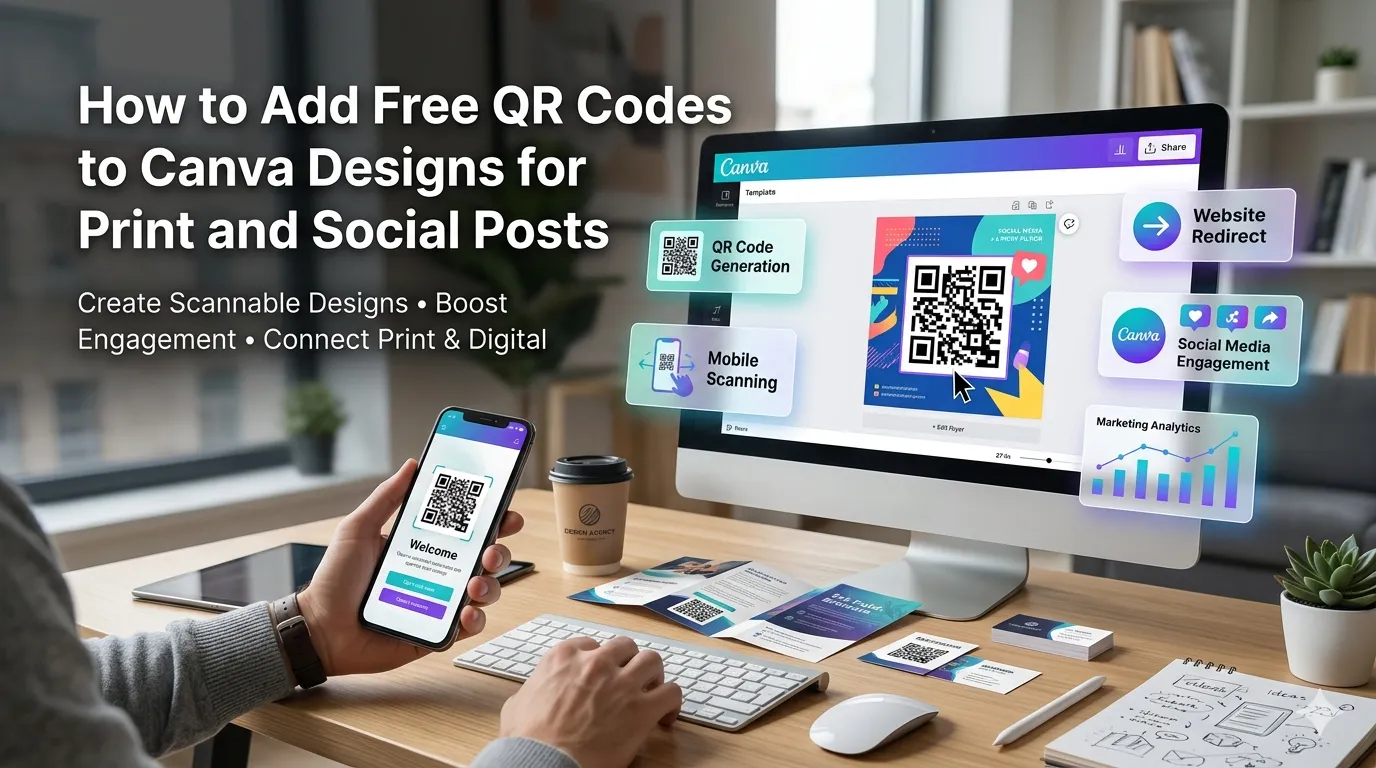
Canva makes design accessible yet sometimes lacks branded QR codes. Learning how to add free QR codes to Canva designs turns flyers and social posts into scannable experiences. This guide walks beginners through every step needed to merge tools without subscriptions.
Premium Canva plans bundle QR features behind upgrades. Free browser tools handle the same job instantly. The right workflow keeps creative budgets healthy.
Why pair QR codes with Canva designs
QR codes connect physical materials with digital experiences instantly. Canva designs feel even more powerful when audiences can tap or scan from them.
Solo marketers prepare campaign assets between calls. Additionally, classroom teachers create scannable activity cards. Such variety supports tooling whether you design weekly or daily.
Common scenarios that benefit from QR codes
Several Canva projects call for scannable touches. Recognize them inside every campaign.
- Designing flyers that link to event registrations
- Producing menus that surface ordering pages
- Crafting business cards with portfolio links
- Sharing social posts that lead to landing pages
- Creating posters with classroom resources
- Building Instagram story templates with CTA links
Step-by-step process to add QR codes to Canva designs
Follow this sequence whenever Canva campaigns launch. Each step protects polish.
Generate the QR code outside Canva
Open a trusted browser-based generator. Enter the destination URL and download the PNG or SVG. Save the file inside your campaign assets folder.
Upload the code into Canva
Open Canva and upload the saved QR image to the design. Resize without distorting the code. Confirm clarity by zooming inside Canva preview.
Test before publishing
Export the Canva file and scan with multiple phones. Confirm the URL loads on mobile devices. Document the workflow inside campaign notes.
Best practices for sustainable QR campaigns
Beyond the tools, supporting routines keep audiences engaged. Apply them every campaign.
Maintain a master spreadsheet of every QR destination. Document brand colors so codes match. Refresh URLs when campaigns end to avoid dead links.
| Need | Featured Tool | Smart Tip |
|---|---|---|
| QR design | QR Code Generator | Export as SVG |
| Slug cleanup | Slug Generator | Keep URLs short |
| Snippet polish | Meta Tag Generator | Match landing intent |
| Color match | Color Palette Generator | Use brand tones |
Tools that simplify the entire workflow
Free tools complete the Canva experience beautifully. Bookmark them inside your design browser. Pair them with Canva templates for scalable campaigns.
Try our QR Code Generator, Slug Generator, and Color Palette Generator alongside Canva. Pair them with the Meta Tag Generator for matching landing pages. Marketers also love combining them with the URL Shortener.
Common mistakes beginners should avoid
Several pitfalls trip up new designers. Watch out for these traps before publishing.
- Stretching QR codes until they fail to scan
- Forgetting to test on multiple operating systems
- Skipping branded slugs that look polished
- Letting QR codes link to outdated promo pages
- Ignoring accessibility text near the scannable area
Turning the workflow into branded experiences
Pairing QR codes with Canva turns paper into instant experiences. Pair tools with thoughtful CTAs for compounding wins. Encourage colleagues to share favorite designs.
Pair the workflow with our Favicon Generator when designing landing pages. Steady curation, accessible testing, and consistent branding turn Canva projects into manageable joy. Each QR code supports the next confident scan.