
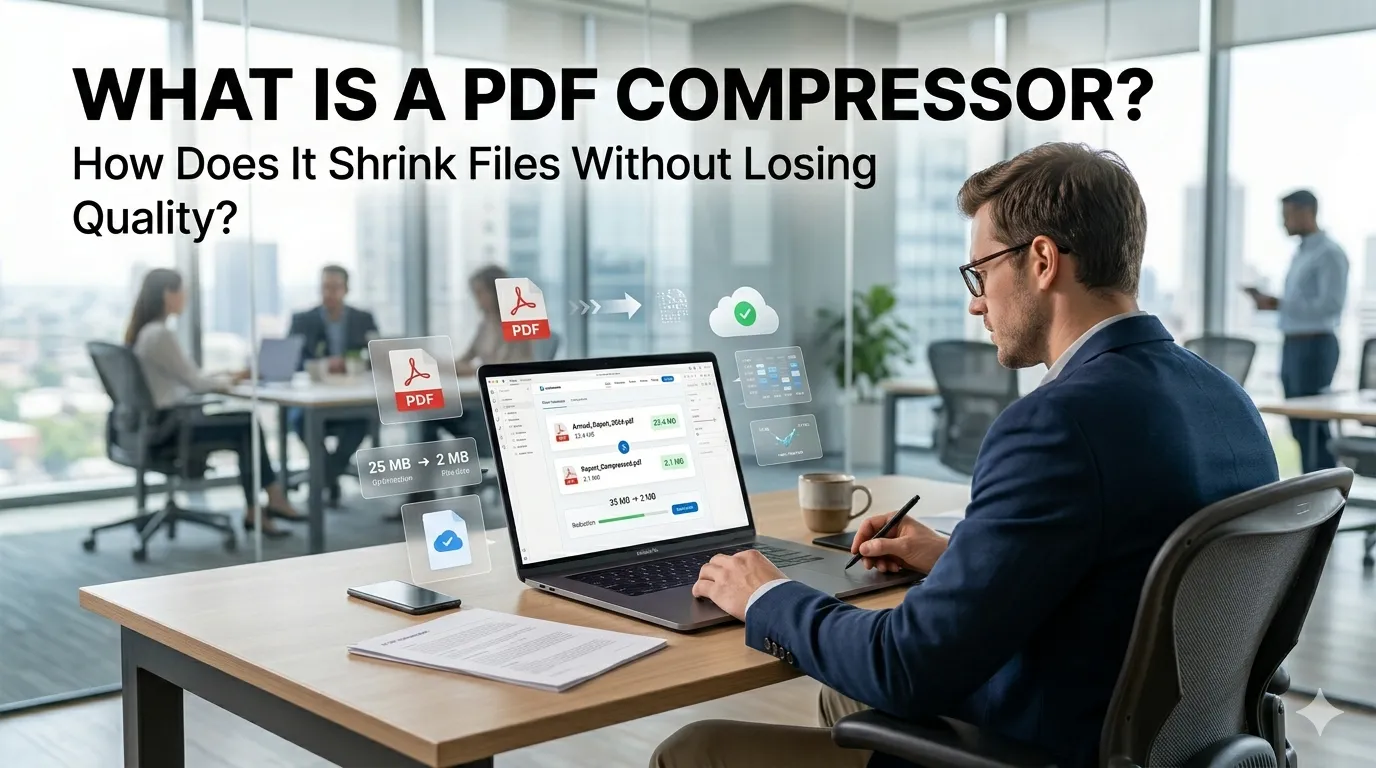
A PDF compressor is a tool that reduces the file size of a PDF while keeping the document readable and useful. It works by trimming hidden bloat, optimizing images, and rewriting the file in a leaner format that opens just as easily.
If you have ever struggled to email a PDF or upload one to a form with strict limits, a PDF compressor solves that problem in seconds. This guide explains what a PDF compressor is, how it shrinks files, and how to choose one that fits your work.
What is a PDF compressor in plain terms?
A PDF compressor is software that reads your PDF, finds the parts that take up the most space, and replaces them with smaller versions. The biggest savings usually come from images, embedded fonts, and unused metadata that no one ever sees.
Most compressors offer a few quality presets, such as high, medium, and low. Higher compression means a smaller file but slightly lower image fidelity. Lower compression keeps images crisp at the cost of a larger file.
How does a PDF compressor shrink files without losing quality?
Modern compressors blend several techniques. They downsample images to a screen-friendly resolution, switch heavy formats to efficient ones like JPEG or WebP, and apply lossless tricks to the underlying PDF objects.
They also remove duplicate fonts, strip unused embedded resources, and clean up old revision data. Combined, these changes can cut file size by 50 to 90 percent without a visible drop in quality for most documents.
The main compression techniques
- Image downsampling and re-encoding
- Font subsetting and deduplication
- Removal of unused objects and metadata
- Lossless stream compression like Flate
When should you use a PDF compressor?
Compress PDFs before emailing large attachments, uploading to forms, or storing many files in cloud drives. They also matter when you publish PDFs on a website, since smaller files load faster and improve user experience.
For sensitive documents, compress locally rather than in random online tools. If you do use a web compressor, pick one that deletes uploads quickly and shares a clear privacy policy.
What to look for in a good PDF compressor
- Clear quality presets with preview
- Batch compression for many files at once
- Support for OCR and searchable PDFs
- Honest file size estimates before download
- A clear privacy policy if it runs in the cloud
How to combine compression with other PDF tasks
Compression works best as part of a small workflow. Use a PDF merger to consolidate related documents, a PDF splitter for trimming long files, and a converter when you need DOCX or images.
For documents you publish online, pair compression with a word counter on summaries and an image resizer on cover thumbnails. Together they keep pages light and fast.
Tips to get the smallest size without ugly results
- Pick medium quality first and only drop to low if needed
- Crop unused white space before compressing
- Convert color images to grayscale when color is not required
- Re-save scanned PDFs as searchable text via OCR to remove huge image layers