
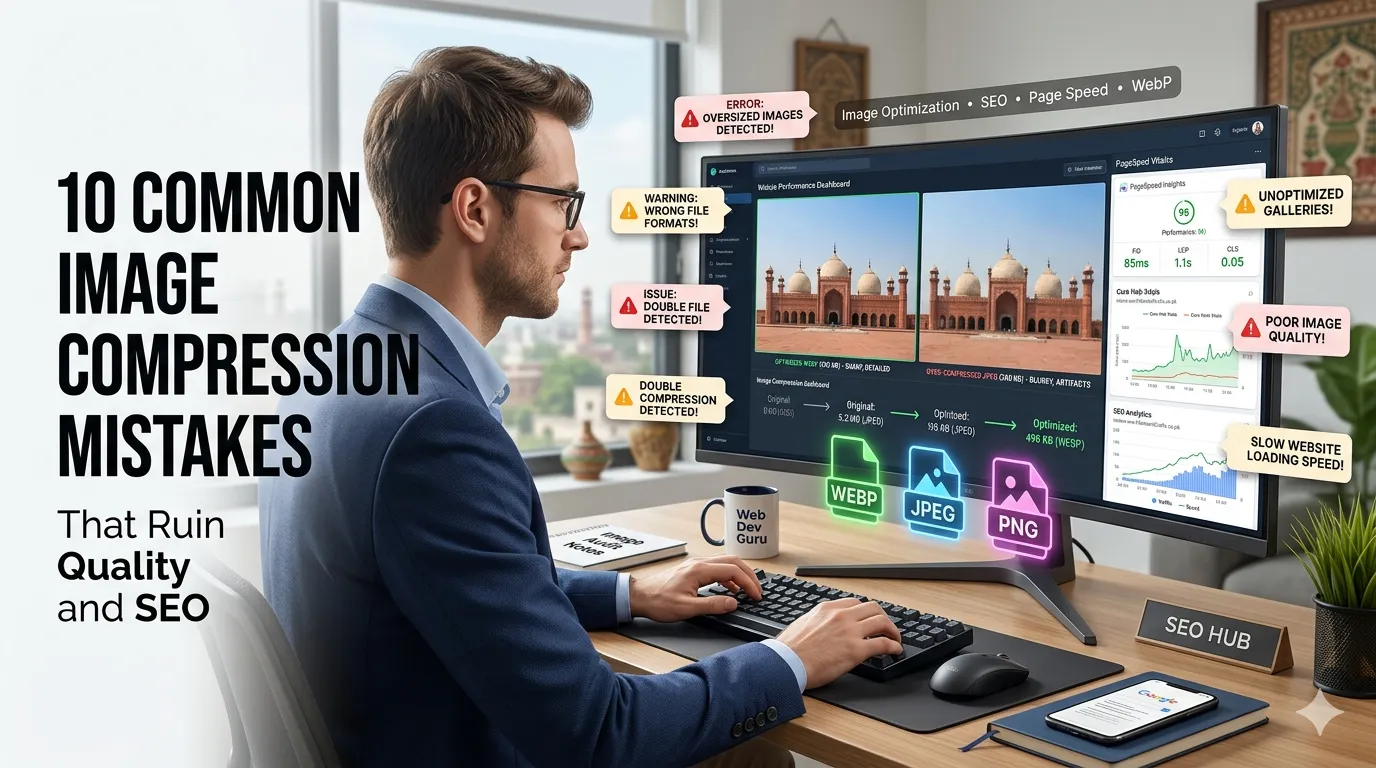
Common image compression mistakes either leave your pages slow or your images ugly. Done well, compression shrinks file size dramatically without visible quality loss. Done poorly, it kills SEO, conversions, or both.
This guide lists 10 common image compression mistakes and shows how to avoid each one. With a free image compressor and a few smart defaults, you can ship fast pages with crisp visuals every time.
1. Uploading the original 6000-pixel photo
WordPress and most CMS tools generate smaller versions, but they keep the giant original on the server. Resize to your max display width first with an image resizer before compression.
2. Picking the wrong format
JPEG is great for photos, PNG for screenshots, and WebP for almost everything modern. Use a PNG to JPG converter when you need to drop a heavy PNG to a smaller JPEG quickly.
3. Compressing twice
Each lossy compression pass loses data. Compress once from the original master file, not from already-compressed exports. Keep a master copy in a folder so you can re-export anytime without quality decay.
4. Choosing aggressive quality by default
Setting quality to 30 makes everything look blurry. Start at 75 or 80 and only drop lower when file size really matters. Most photos look great at high quality and still shrink dramatically.
5. Forgetting about responsive images
One large image for all screens wastes mobile bandwidth. Configure srcset so browsers fetch the right size for each device. Modern WordPress themes handle this automatically when images are sized correctly.
6. Ignoring alt text
Compression handles bytes, but SEO also needs words. Write descriptive alt text under 12 words and use a word counter to confirm. Alt text supports accessibility and image search rankings together.
7. Skipping EXIF cleanup
Original photos carry EXIF metadata: camera, GPS, time. Most compressors can strip this, which both shrinks the file and protects privacy. Always remove EXIF before publishing photos taken on a phone or camera.
8. Compressing diagrams as JPEG
JPEG smears the crisp edges of charts and screenshots. Keep these as PNG or WebP to preserve clarity. Compression in those formats stays lossless or visually identical, even at smaller file sizes.
9. Saving 12-image galleries without lazy loading
Even compressed images add up. Add native loading=”lazy” to non-hero images so the browser fetches them only when needed. The result is a fast first paint plus a smooth scroll experience.
10. Skipping a final speed check
After uploading, run the page through PageSpeed Insights. Track Largest Contentful Paint and image weight monthly. Use a percentage calculator to measure progress as you refine compression defaults.
Quick-fix workflow
- Resize to display max width
- Pick the right format per image type
- Compress once at quality 75-80
- Add alt text and lazy loading
- Spot-check page speed monthly