
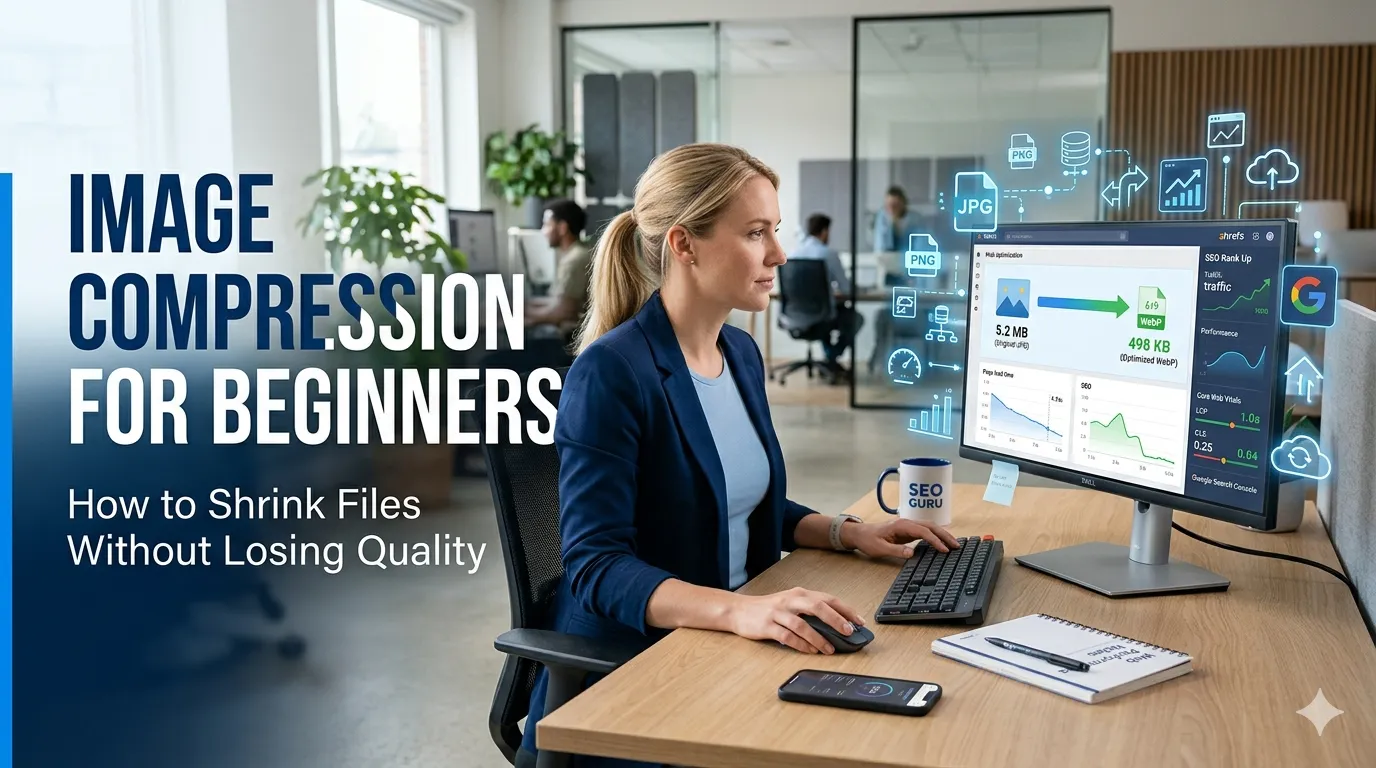
Image compression for beginners often feels like magic. You upload a 5 MB photo, a tool returns a 500 KB version, and the picture still looks great. This guide explains how that works and how to do it well.
By the end, you will know when to compress, which format to pick, and how to use a free image compressor to keep pages and emails fast.
What is image compression?
Image compression is the process of reducing file size by removing data the eye barely notices. Some methods are lossless and keep every pixel, while others are lossy and trade tiny detail for much smaller files.
The smarter compressors balance quality and size automatically. The result is an image that loads faster while still looking sharp on most screens.
Why bother compressing?
Big images slow down web pages and bloat email attachments. They also hog cloud storage and burn mobile data. Compression solves all four problems at once.
For websites, fast images improve Core Web Vitals and SEO. For email, smaller images get delivered without filters complaining about size.
Where compression pays off
- Blog hero images and in-body photos
- Product photos for ecommerce
- Email newsletter images
- Social media uploads
- Slide decks and PDFs
Pick the right format first
Format choice matters more than compression strength. Photos compress well as JPEG or WebP. Screenshots and diagrams stay sharp as PNG or WebP. Logos with transparency belong in PNG or SVG.
When in doubt, a PNG to JPG converter can move heavy PNG photos to lighter JPEGs in seconds. Modern WebP delivers smaller files at the same quality for both photos and graphics.
Resize before you compress
Uploading a 6000-pixel photo into a 1200-pixel slot wastes space. Resize first with an image resizer to your target display width, then compress for an extra speed boost.
For most blogs, 1200 to 1600 pixels wide is plenty. Heroes can go larger, but rarely above 2000 pixels for typical screens.
Beginner-friendly compression workflow
- Pick the right format for the image type
- Resize to your max display width
- Compress at quality 75 to 80 percent
- Preview the result on desktop and mobile
- Save the optimized file with a clear, descriptive name
Common beginner mistakes
Compressing the same file repeatedly degrades quality. Always start from the original master. Saving JPEGs at quality 30 might be tempting but blurs important detail unnecessarily.
Forgetting alt text is another miss. Smart compression handles bytes, but SEO also needs descriptive text. Use a word counter to keep alt text under 12 words.
Quick tools to know
- Image compressor for fast size cuts
- Image resizer to set max dimensions
- Format converter when switching JPG, PNG, WebP
- Color picker for matching brand visuals
- SVG optimizer for crisp logos and icons