
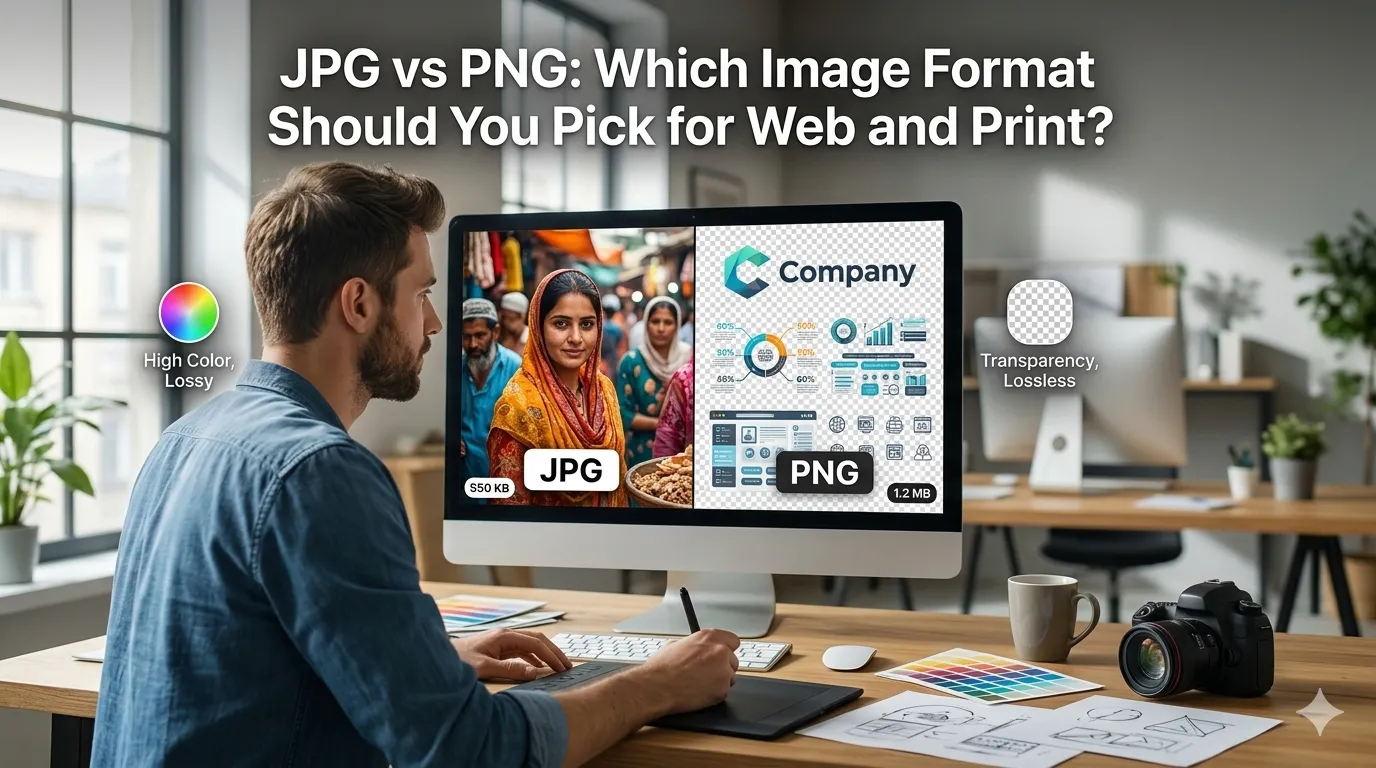
JPG vs PNG is the most common image format question on the internet. Both formats are everywhere, both look fine at a glance, yet they shine in very different situations. Picking the wrong one wastes bandwidth or ruins quality.
This guide settles JPG vs PNG with clear examples, a quick comparison table, and tools that bridge the two. Free tools like an image compressor and a PNG to JPG converter make switching easy.
The core difference in one line
JPG is best for photos, PNG is best for graphics with sharp edges or transparency. JPG uses lossy compression that smooths smooth tones beautifully, while PNG uses lossless compression that preserves every pixel.
That single rule covers most decisions. The rest is fine-tuning based on file size, quality, and use case.
When to use JPG
- Photos, including portraits, landscapes, and product shots
- Social media uploads where file size matters
- Email attachments that must stay small
- Blog hero images and in-body photos
- Stock photo libraries with thousands of images
When to use PNG
- Logos with transparency
- Screenshots and tutorial graphics
- Diagrams, charts, and infographics
- UI mockups and icon sets
- Anything with crisp edges or text overlays
Side-by-side comparison
| Feature | JPG | PNG |
|---|---|---|
| Best use | Photos | Graphics |
| Compression | Lossy | Lossless |
| Transparency | No | Yes |
| File size | Smaller | Larger |
| Edge quality | Slight smearing | Crisp |
What about WebP and AVIF?
WebP and AVIF are newer formats that often beat both JPG and PNG. They deliver smaller files at the same quality and support transparency. Modern WordPress sites serve them automatically.
Keep JPG and PNG fallbacks for older browsers. The combination delivers fast pages without breaking on legacy devices that still get web traffic from time to time.
Common mistakes
Saving photos as PNG creates massive files for no benefit. Saving diagrams as JPG smears crisp edges and adds visible compression artifacts. Match the format to the image type for clean results.
Also avoid compressing the same image repeatedly. Each lossy pass loses a little quality, so always start from the original master file when re-exporting.
Workflow tips for either format
- Resize with an image resizer to your max display width
- Compress at quality 75 to 80 percent for photos
- Use the PNG to JPG converter when shrinking heavy PNG photos
- Add descriptive alt text under 12 words with a word counter
- Use a percentage calculator to track storage savings
So, which one should you use?
Photos go to JPG, graphics go to PNG, modern sites add WebP. Most workflows use all three. Format choice plus smart compression keeps pages fast and images crisp every day.