
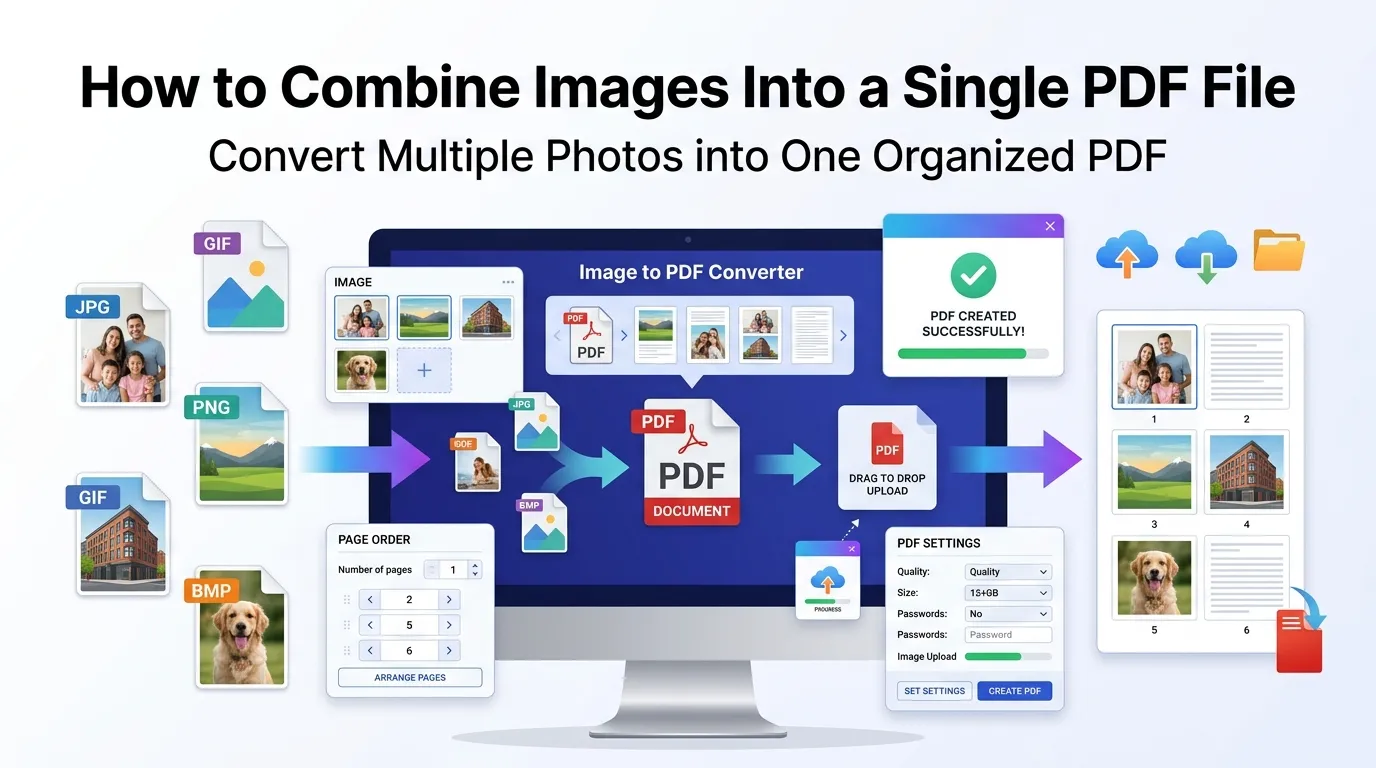
Sitting on a folder full of photos that need to travel together? Learning how to combine images into a single PDF saves you from juggling dozens of attachments. One clean file replaces messy email threads while keeping every visual exactly where it belongs.
This guide explains why combine images into a single PDF methods beat sharing folders, walks through the easy online process, and shares tips for crisp output. You’ll handle photo bundles like a pro by the end.
Why Turn Multiple Images Into One PDF?
Sending 20 individual images annoys everyone. Recipients lose track. Some attachments fail to deliver. Cloud links expire. A single PDF bundles everything tidily and arrives intact.
Furthermore, PDFs preserve order. Random folder uploads scramble image sequences. Your PDF stays sorted exactly as you arranged it, making it easier to follow a visual story.
Practical Reasons to Combine Images
- Compiling property photos for real estate listings
- Bundling event pictures into a single share-friendly file
- Submitting visual evidence in insurance claims
- Creating portfolios for design or photography work
- Archiving family memories in chronological order
- Sending screenshots as one organized document
Step-by-Step: Combine Images Online
Browser-based tools handle multi-image PDFs in seconds. No software downloads or fiddly settings. Just drop your images in and download the combined PDF.
Step 1: Upload Your Images
Visit our Image to PDF converter. Drag all images into the upload box at once. Common formats like JPG, PNG, GIF, and BMP work without conversion hassles.
Step 2: Arrange the Order
Drag thumbnails into the order you prefer. Most tools let you rearrange before merging. Sequence matters for stories, evidence, or portfolios.
Step 3: Generate and Download
Click “Combine” or “Merge.” The tool stitches images into one PDF in seconds. Save the file and share with confidence — every photo arrives in your intended order.
Best Settings for Different Image Types
Photos, scans, and screenshots have different needs. Choosing the right settings keeps your PDF lean without sacrificing quality.
| Image Type | Recommended Setting |
|---|---|
| High-res photos | Use medium compression to balance size |
| Scanned documents | Keep original resolution for clarity |
| Screenshots | Lossless compression to preserve sharpness |
| Phone snapshots | Slight compression saves space |
| Mixed content | Medium compression handles everything well |
Tips for Crisp, Professional PDFs
A few prep steps lift output quality. First, rotate images correctly before uploading. Sideways photos in the PDF look unprofessional and force recipients to tilt their screens.
Second, crop unnecessary borders or backgrounds. Trimmed images look intentional. Third, name files descriptively so the upload order stays sensible if you rely on alphabetical sorting.
Common Issues and Quick Fixes
- Huge file size: Compress images before uploading
- Wrong orientation: Rotate originals before adding to the tool
- Inconsistent page sizes: Pick a fixed page size in the converter
- Order shuffled: Drag thumbnails manually in the tool
- Loss of color quality: Choose a tool with lossless options
Online Tools vs Manual Methods
You could print images to PDF one at a time and then merge. That works but eats your afternoon. Online tools handle dozens of images in seconds without any manual steps.
Dedicated converters also let you customize page size, orientation, and margins from one screen. Smart for portfolios where presentation matters.
Privacy When Combining Personal Photos
Photos carry valuable data. Family pictures, ID scans, and event memories deserve careful handling. Pick converters processing files in your browser. Photos stay on your machine throughout.
Review each tool’s privacy policy. Reputable services delete files within an hour. Skip platforms requiring account creation for one-off image bundles.
After Combining: What’s Next?
The PDF starts a workflow. Shrink large image PDFs with our PDF Compressor. Combine the result with related documents using the PDF Merger.
Need to drop a stray page? The Remove PDF Pages tool trims unwanted images. For batch shipping, pack the final PDF along with related files using our PDF to ZIP converter.
When NOT to Combine Images Into PDF
Single high-resolution photos rarely benefit from PDF conversion. Sharing them as raw JPGs keeps quality intact. PDFs also lose image-specific metadata that photographers may need.
Reserve PDF bundles for collections, evidence, and presentations. Use cloud galleries for casual sharing where recipients want to scroll naturally instead of flipping pages.
Bundle Your Photos Into One Clean File
Image folders chaos no more. A single PDF replaces dozens of attachments while keeping every visual exactly where you want it. The whole process takes under a minute with the right tool.
Try our Image to PDF converter right now. Free, secure, and ready whenever multiple images need to travel as one tidy document.