
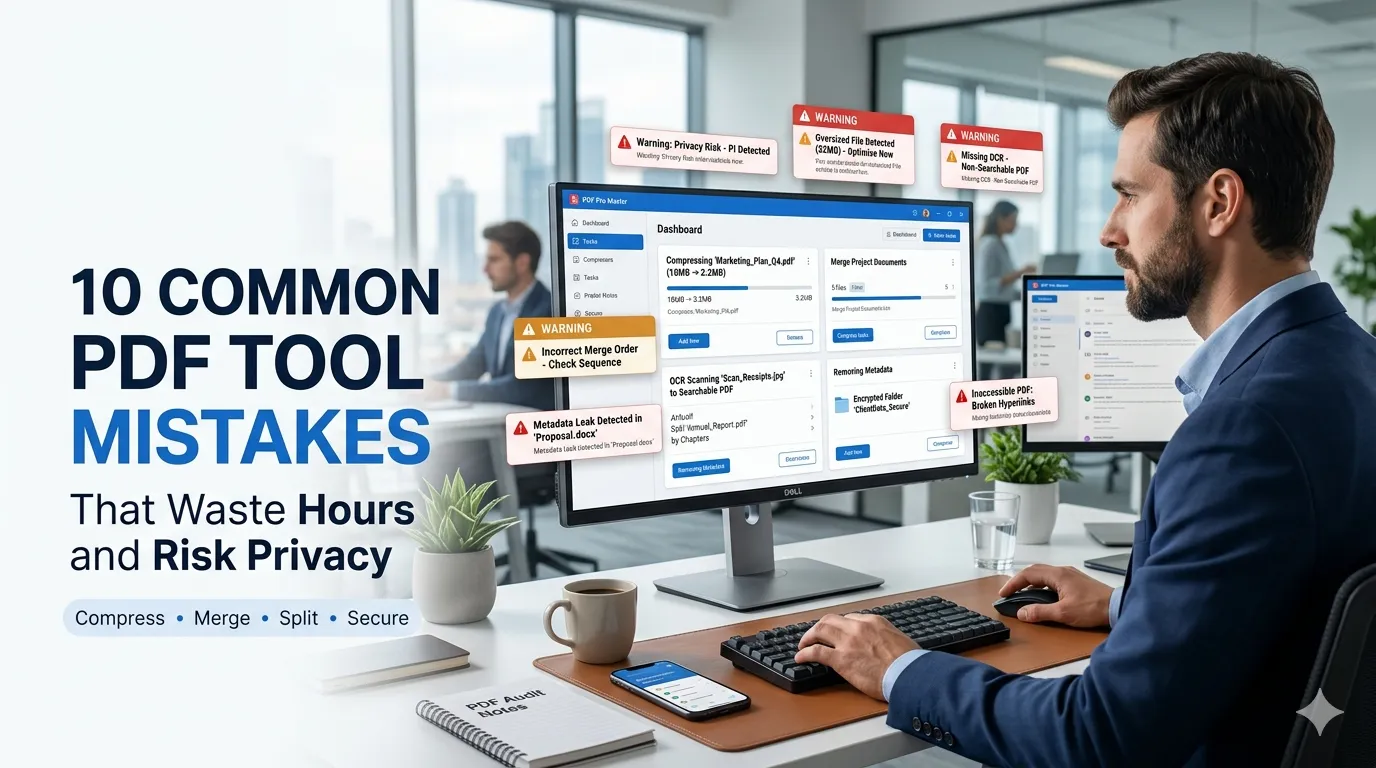
Common PDF tool mistakes turn a five-minute task into a slow, risky chore. Files end up too big to email, scans cannot be searched, and sensitive documents pass through services that hold them longer than expected.
This guide breaks down 10 common PDF tool mistakes and shows the cleaner path. With a free PDF compressor, PDF merger, and a few habits, your workflow becomes faster and safer.
1. Emailing oversized PDFs
Big PDFs bounce, get clipped, or sit in queues. Compress first to fit common 10 MB to 25 MB limits. A medium quality preset usually shrinks files by 50 to 80 percent with no visible change.
2. Uploading sensitive docs to unknown tools
Random online PDF tools may keep your files longer than you expect. For sensitive documents, prefer offline tools or providers with clear delete-after policies and strong privacy practices.
3. Skipping OCR on scanned files
Scanned PDFs without OCR are giant images. They are not searchable, hard to copy, and slow to read. Run OCR before saving so text becomes selectable and file size drops dramatically.
4. Merging in the wrong order
Merging dozens of files in random order leads to embarrassing rework. Name files with leading numbers like 01-cover, 02-summary, 03-appendix before using a PDF merger so the order is predictable.
5. Splitting without keeping the original
Splitting a PDF and overwriting the original loses page-level context. Keep the source file safe and save splits to a new folder. You can always rebuild from the original if a teammate needs the full document.
6. Ignoring metadata leaks
PDFs carry author, software, and revision history. Strip metadata before sharing publicly, especially for documents that move across organizations or get posted online for general download.
7. Forgetting accessibility
Inaccessible PDFs block screen readers. Add tagged structure, alt text on images, and a clear reading order. Accessible PDFs help every user and meet legal requirements in many regions.
8. Letting fonts bloat the file
Embedded fonts can balloon size, especially with multiple font families. Subset fonts during export so only the characters you use travel with the file, which keeps quality high and weight low.
9. Skipping a final review
After compressing, merging, or splitting, always open the result and scroll through. Hidden issues like missing pages or mangled images become obvious in seconds and save hours of rework.
10. Storing copies in scattered folders
Multiple versions of the same PDF in different folders breed confusion. Pick a clear storage path, use a word counter on file names to keep them short, and audit quarterly with a percentage calculator to track cleanup progress.
PDF workflow checklist
- Compress before emailing
- OCR every scanned file
- Name merge inputs with leading numbers
- Strip metadata on public documents
- Audit storage quarterly