
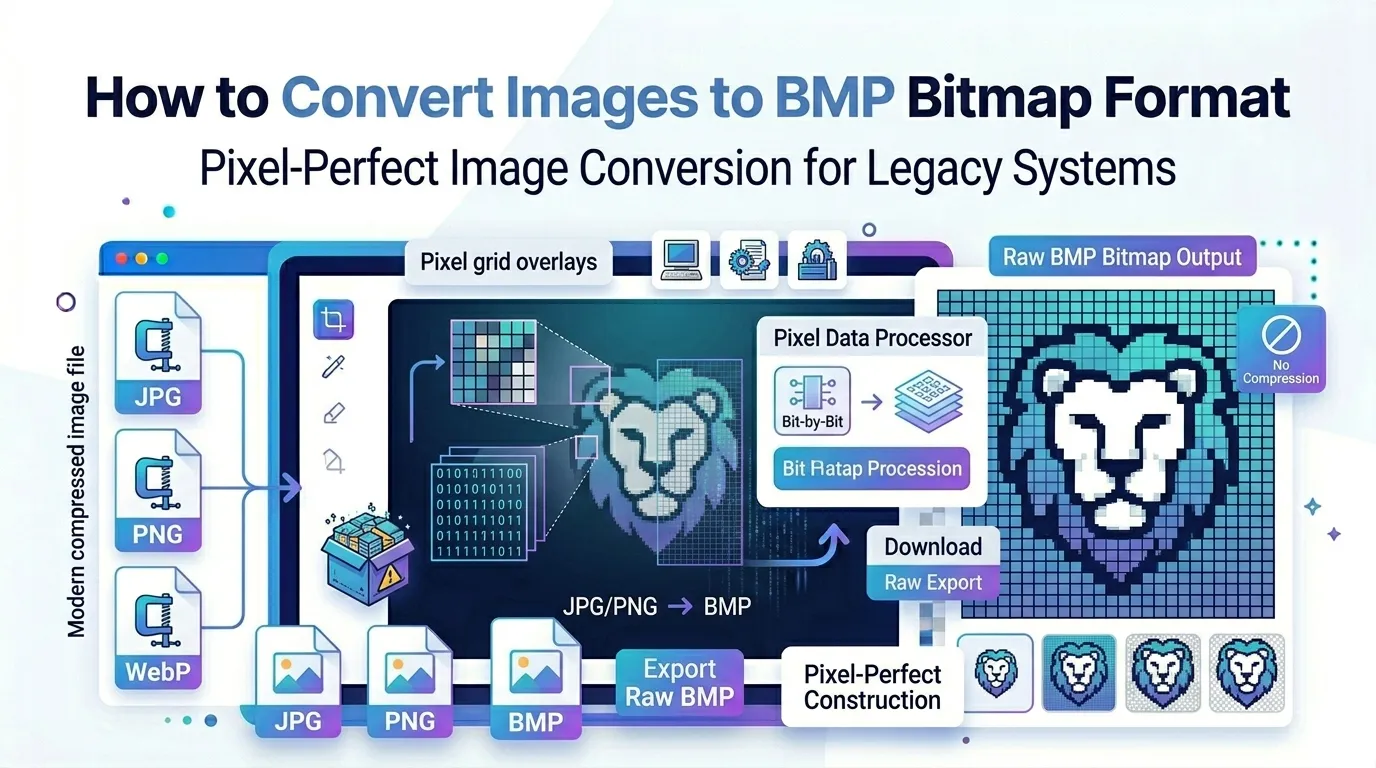
Need to convert images to BMP bitmap format for legacy software or specific workflows? You’re not alone. BMP feels old-school, yet certain industries still rely on it. Knowing how to convert correctly keeps your projects moving without surprises.
This guide explains why BMP still matters in 2026, walks through the easiest method online, and shares pro tips for clean results. By the end, you’ll handle BMP conversions confidently for any compatibility need.
Why BMP Still Has a Place in 2026
BMP stores every pixel exactly, with no compression. That makes it heavy, but also pixel-perfect. Older Windows applications, industrial software, and certain printing workflows still expect BMP input.
Furthermore, BMP serves as a safe intermediate format. Some image editors work cleaner with bitmap data than with compressed sources. For pixel-precise editing, BMP keeps everything intact.
Practical Uses for BMP Conversion
- Feeding images into legacy Windows software
- Preparing assets for industrial printing equipment
- Working with embroidery design tools that require BMP
- Sharing pixel-perfect screenshots without compression
- Creating intermediate files for advanced image editing
- Submitting graphics to game engines accepting BMP only
Step-by-Step: Convert Images to BMP Online
Online tools handle BMP conversion in seconds. The workflow stays simple even for unusual format requirements.
Step 1: Upload Your Images
Visit our Image to BMP converter. Drag photos into the upload zone. Most tools accept JPG, PNG, WebP, and many other formats.
Step 2: Choose Color Depth
BMP supports 1-bit, 8-bit, and 24-bit color depths. Pick 24-bit for photos. Use 8-bit for icons or simple graphics. Lower bit depths produce smaller files for compatible workflows.
Step 3: Download the BMP Files
Save the converted files individually or as a ZIP. Note BMP files tend to be much larger than JPG since no compression happens. Plan for storage accordingly.
BMP vs Other Formats: Quick Comparison
| Format | Compression | Best Use Case |
|---|---|---|
| BMP | None | Legacy software, pixel-perfect editing |
| PNG | Lossless | Graphics with transparency |
| JPG | Lossy | Photographs, web sharing |
| TIFF | Lossless or none | Professional print and archives |
| WebP | Both options | Modern web pages |
Tips for Clean BMP Conversion
Source quality shapes everything. First, start from the highest-resolution original possible. BMP preserves every pixel exactly, so any source flaws stay visible at full strength.
Second, pick the right bit depth for your destination software. Some legacy tools struggle with 24-bit images. Test with smaller samples first if compatibility matters.
Common BMP Conversion Issues
- Massive file sizes: Expected; BMP doesn’t compress data
- Color shifts at lower bit depths: Use 24-bit for accurate colors
- Transparency lost: Standard BMP doesn’t support alpha channels
- Slow uploads to destination software: Compress to ZIP first if transferring online
- Unexpected color profiles: Use sRGB sources for predictable results
Storage and Transfer Considerations
BMP files run massive compared to JPG. A 10-megapixel photo can weigh 30 MB or more as BMP. Plan storage carefully when working with large batches.
For transferring BMPs over email or cloud, bundle them via ZIP first. Compression often reduces total size by 10-30%. Combine with our other tools for cleaner workflows.
Privacy When Converting Sensitive Images
BMP files often hold uncompressed personal data. Family photos, ID scans, and proprietary designs deserve careful handling. Pick converters processing files in your browser. Images stay on your device throughout.
Check each tool’s privacy policy. Reputable services delete uploads within an hour. Avoid platforms requiring account creation for one-off format conversions.
Combining BMP With Other Tools
BMP files often integrate into bigger workflows. Resize first using our Image Resizer. For web use later, convert back to modern formats with our Image to JPG converter.
Need transparency support? Switch to PNG through our Image to PNG converter. Each tool handles a specific niche, and together they cover every format conversion need.
When BMP Isn’t the Right Choice
BMP wastes space for modern web use. Websites should never serve BMP files. Email attachments balloon when using BMP. Cloud storage costs climb with large bitmap libraries.
Reserve BMP for legacy compatibility, industrial workflows, and pixel-perfect editing intermediates. Use JPG, PNG, WebP, or AVIF for everything else. Picking the right format saves money and bandwidth.
Solve Compatibility Headaches in Seconds
Legacy software demands legacy formats. BMP keeps countless industrial, embroidery, and Windows workflows alive. With the right converter, switching formats takes seconds and unlocks compatibility for any tool that demands bitmap input.
Try our Image to BMP converter today. Free, secure, and ready whenever your photos need to travel as the universal bitmap format.