
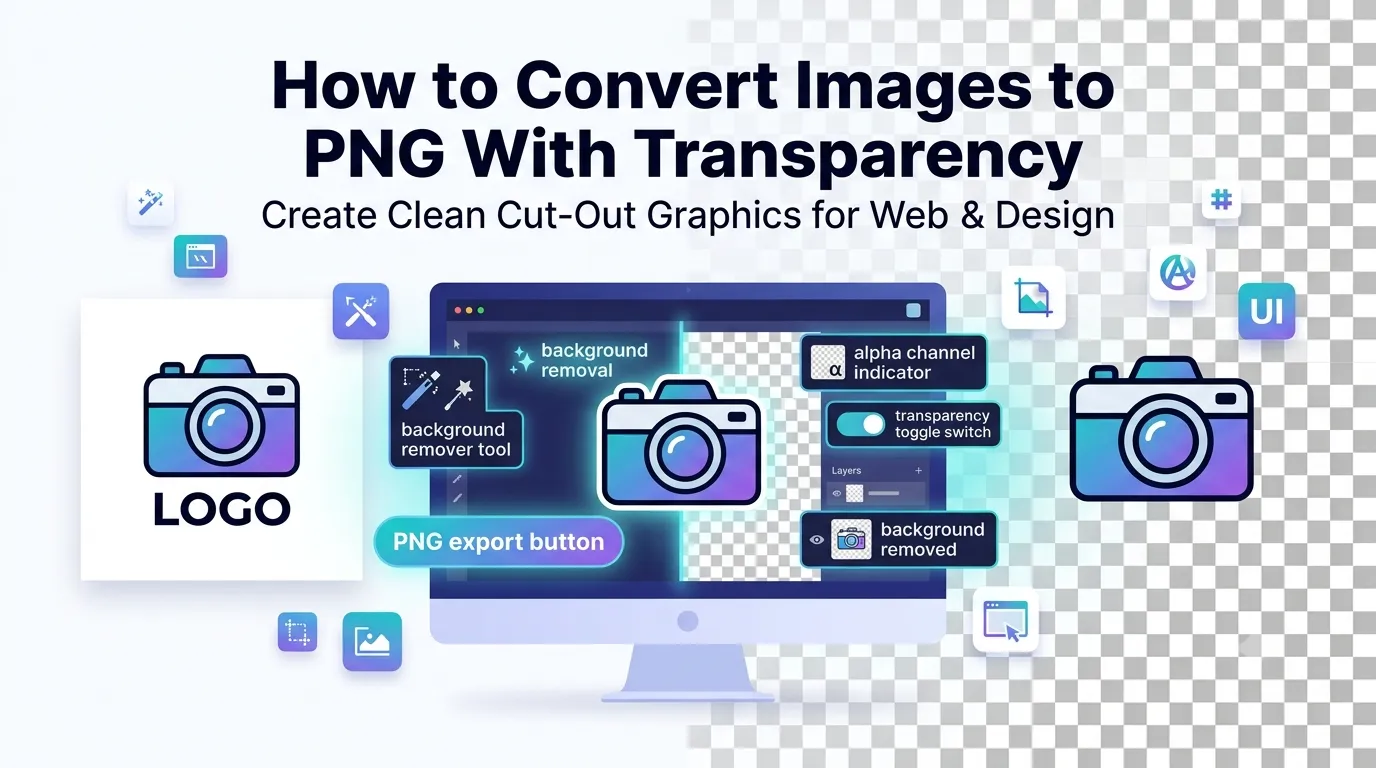
Need to convert images to PNG with transparency for design work or web overlays? You’re in the right place. PNG handles transparent backgrounds beautifully, making it the go-to format for logos, icons, and graphics that need to sit cleanly on any background.
This guide explains why PNG transparency matters, walks through the easiest conversion method, and shares pro tips for crisp results. By the end, you’ll handle transparent images like a designer.
Why PNG Transparency Matters So Much
Transparency unlocks design flexibility. Logos blend with any background color. Icons overlay buttons cleanly. Watermarks float without ugly white boxes around them. PNG makes all of that possible thanks to its alpha channel support.
Furthermore, transparency keeps designs professional. Replacing a logo’s white background with PNG transparency lets it adapt to dark headers, colored hero sections, or photographic backgrounds without visual clashes.
When You Need Transparent PNG
- Brand logos placed over varying website backgrounds
- Product photos with white backgrounds for e-commerce
- Icons and UI elements overlaying buttons
- Watermarks on photographs
- Social media graphics needing seamless overlays
- Email signatures that work across themes
Step-by-Step: Convert Images to PNG Online
Online tools handle PNG conversion in seconds while preserving transparency. No design software or technical skills required.
Step 1: Upload Your Images
Visit our Image to PNG converter. Drag photos into the upload zone. Most tools accept JPG, WebP, BMP, GIF, and other formats alongside images that already include transparency.
Step 2: Preserve Transparency Settings
If converting from JPG, transparency isn’t possible since JPG doesn’t store it. For PNG sources with existing transparency, ensure the converter retains the alpha channel through the process.
Step 3: Download Converted PNGs
Save the PNG files individually or as a ZIP. Open one in a transparent-background viewer to confirm transparency was preserved. Test on dark and light backgrounds to verify clean edges.
PNG vs JPG vs WebP: Quick Comparison
| Format | Transparency | Best For |
|---|---|---|
| PNG | Yes, full alpha channel | Logos, icons, graphics |
| JPG | No | Photos, web images |
| WebP | Yes | Modern web with smaller files |
| GIF | Single transparent color | Simple animations |
| SVG | Yes, plus scalable | Vector logos and icons |
Removing Backgrounds Before PNG Conversion
Source images often need background removal first. JPG photos have solid backgrounds that need stripping before transparency works. Use a background-removal tool to isolate your subject, then save the result as PNG.
Many online tools combine background removal with PNG conversion. Single-step workflows save time when batch-processing product photos or marketing graphics.
Tips for High-Quality Transparent PNGs
Smart habits keep PNG transparency clean. First, work from the highest-resolution source available. Pixelated edges become noticeable when transparent images sit on contrasting backgrounds.
Second, avoid anti-aliasing artifacts. Slightly soft edges blend nicely with any background. Hard pixel-perfect edges look jarring against varying colors. Third, optimize file size after conversion using our Image Compressor.
Common PNG Conversion Issues
- Transparency turned black: Pick a converter that respects alpha channels
- White halos around objects: Use better background removal or feathering
- File size huge: Compress the PNG after conversion
- Jagged edges: Increase source resolution before converting
- Color shifts: Ensure RGB color mode in the original
When PNG Isn’t the Best Format
PNG suits graphics with transparency. For photographs, JPG saves much more space. For modern websites, WebP delivers similar transparency with smaller files. Pick format based on intended use rather than defaulting to PNG.
Vector graphics like SVG outperform PNG for scalable logos. SVG files scale to any size without quality loss. Use SVG for resizable icons and PNG for fixed-resolution graphics with photographic detail.
Privacy When Converting Brand Assets
Logos and brand assets carry proprietary value. Pick converters processing files in your browser. Brand materials stay on your device throughout conversion.
Read each tool’s privacy policy first. Reputable services delete uploads within an hour. Avoid platforms requiring permanent account creation for one-off conversions of confidential design files.
Combining PNG With Other Tools
PNG conversion fits into bigger workflows. Bundle transparent PNGs for designers using our PNG to PDF converter. Resize design assets first with the Image Resizer.
For modern web optimization, follow up with our Image to WebP converter for smaller file sizes. Each tool fits a specific job in the asset pipeline.
When PNG Stays the Right Choice
PNG remains the safest format for transparency-dependent graphics. Browser support is universal. Quality stays lossless. Edge handling outperforms most other transparent formats.
Use PNG confidently for logos, icons, screenshots, and any graphic where transparency or sharp detail matters. Save WebP for modern web pipelines where every kilobyte counts and browser support permits.
Create Crisp Transparent Graphics in Seconds
Transparent PNGs power countless design needs, from logos to icons to overlays. Converting images correctly preserves transparency while keeping edges sharp. The right tool handles the job in seconds without specialty software.
Try our Image to PNG converter today. Free, secure, and ready whenever transparent graphics need to look polished against any background.