
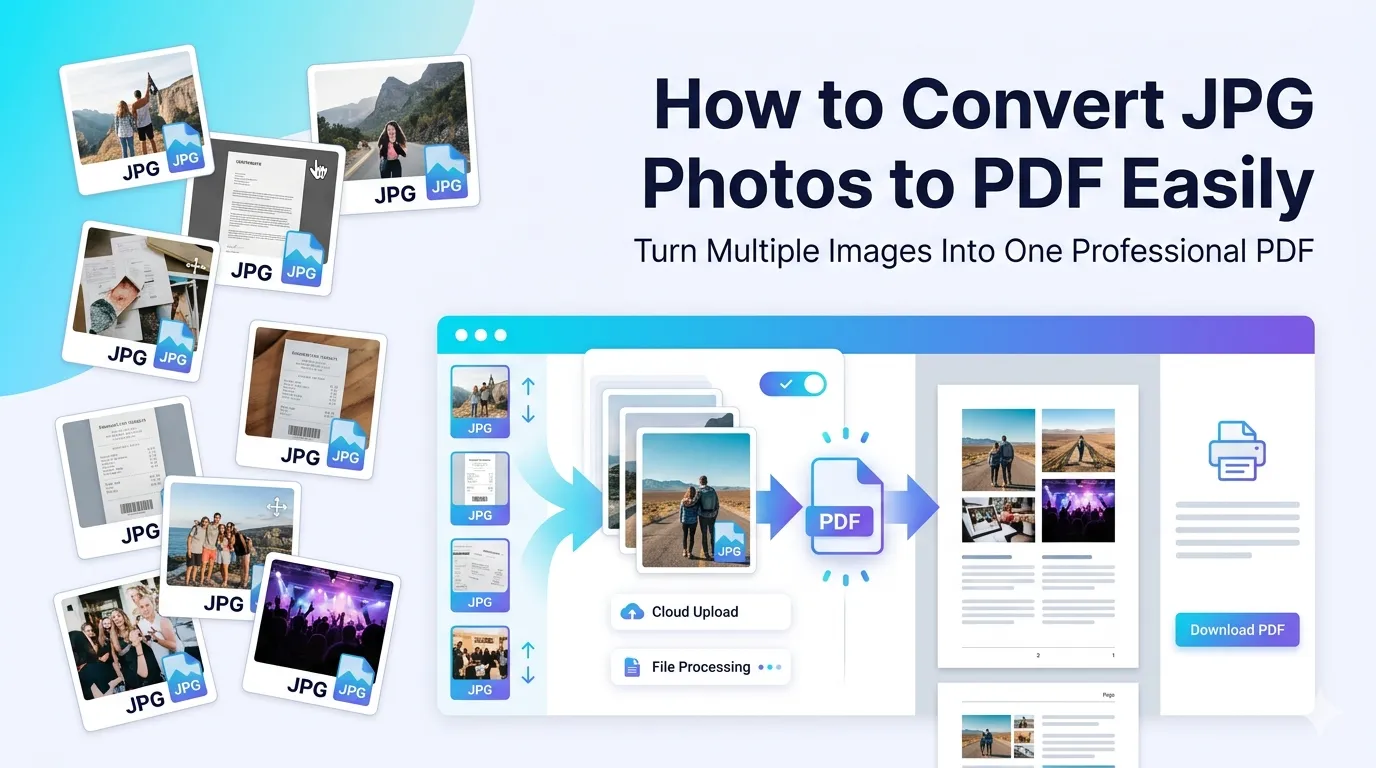
Stuck wondering how to convert JPG photos to PDF when you need a clean, shareable file? You’re tackling one of the most common photo-management headaches. JPGs work great individually, but bundling them into a polished PDF makes sharing, archiving, and printing much easier.
This guide explains why JPG-to-PDF conversion matters, walks through the fastest method, and shows how to keep quality high. By the end, you’ll handle photo collections like a pro.
Why Convert JPG to PDF in the First Place?
JPG files travel well alone but get messy in groups. Recipients juggle multiple attachments. Email clients sometimes reorder them. Cloud links expire. A single PDF solves all those headaches at once.
Furthermore, PDFs print cleanly. Multi-page photo collections fit neatly onto letter or A4 sheets. JPG batches require manual setup for every photo, eating valuable time.
When JPG to PDF Saves the Day
- Submitting property photos to landlords or agents
- Sharing event memories with friends and family
- Compiling visual evidence for insurance claims
- Building lookbooks for fashion or interior design
- Documenting damage for warranty claims
- Archiving scanned receipts in chronological order
Step-by-Step: Convert JPG to PDF Online
Browser-based tools handle JPG to PDF conversion in seconds. The process stays simple even for non-technical users. Here’s the fastest workflow.
Step 1: Upload Your JPG Files
Visit our JPG to PDF converter. Drag photos into the upload zone. Add as many as you need — most tools handle dozens without slowing down.
Step 2: Arrange and Customize
Drag thumbnails to set the order. Some tools let you pick page size or orientation. Choose settings that fit your final purpose, whether print or digital sharing.
Step 3: Generate and Download the PDF
Click the convert button. Within seconds, your PDF appears ready for download. Save it locally, attach to email, or upload to cloud storage instantly.
Tips for Crisp JPG to PDF Output
Quality input creates quality output. First, rotate photos correctly before uploading. Sideways images in PDFs look unprofessional and force recipients to tilt their heads.
Second, crop excessive whitespace or distracting backgrounds. Cleaner photos look intentional. Third, pick the right resolution. Web-sized images stay small, while print-ready files need 300 DPI for sharpness.
Choosing the Right Page Size and Layout
| Use Case | Recommended Setting |
|---|---|
| Printing on home printer | Letter or A4, portrait |
| Photo album style | Fit to image, landscape |
| Real estate brochure | A4 with margin, landscape |
| Quick screenshot bundle | Fit to image, mixed orientation |
| Mobile sharing | Fit to image with light compression |
Common Issues and Quick Fixes
- Huge file size: Compress JPGs before adding to the converter
- Wrong orientation: Rotate originals first
- Pixelated output: Use higher-resolution source images
- Order shuffled: Rearrange thumbnails in the converter
- Loss of color: Pick a tool offering lossless conversion
JPG to PDF vs Other Image Formats
JPG handles photos well but isn’t always the best source. PNG keeps transparent backgrounds. HEIC saves iPhone snapshots in smaller files. Knowing the strengths helps you pick the right starting format.
For mixed image batches, convert formats to JPG first using a dedicated image converter. Most tools support PNG, HEIC, and BMP alongside JPG, removing the need for prep work.
Privacy When Converting Personal Photos
Family photos and ID scans deserve careful handling. Pick converters processing files in your browser. Your photos stay on your device the whole time, even during conversion.
Always check the tool’s privacy policy. Look for quick automatic deletion. Avoid services requiring permanent account creation just to bundle a handful of holiday photos.
After Conversion: Sharing and Storing
The PDF starts a workflow. Shrink large photo PDFs with our PDF Compressor. Combine related image documents using the PDF Merger.
Need to drop a few pages? The Remove PDF Pages tool trims unwanted images. For mixed format collections, also try the PNG to PDF converter.
When JPG to PDF Might Not Suit You
One or two photos rarely justify conversion. Sharing JPGs individually works fine for quick chats. Professional photographers often need RAW or TIFF files preserved, not flattened into PDFs.
Reserve PDF bundling for collections, evidence, or printable documents. For social media or messaging, native image formats stay better suited to the platform’s compression rules.
Bundle Your JPGs Into Pro-Looking PDFs
Loose photo collections are hard to share, harder to print, and easy to lose. Converting them to a single PDF fixes everything in seconds. Whether for clients, family, or insurance, the right tool keeps quality and order intact.
Try our JPG to PDF converter today. Free, secure, and built to deliver clean PDFs whenever your photos need to travel as one polished file.