
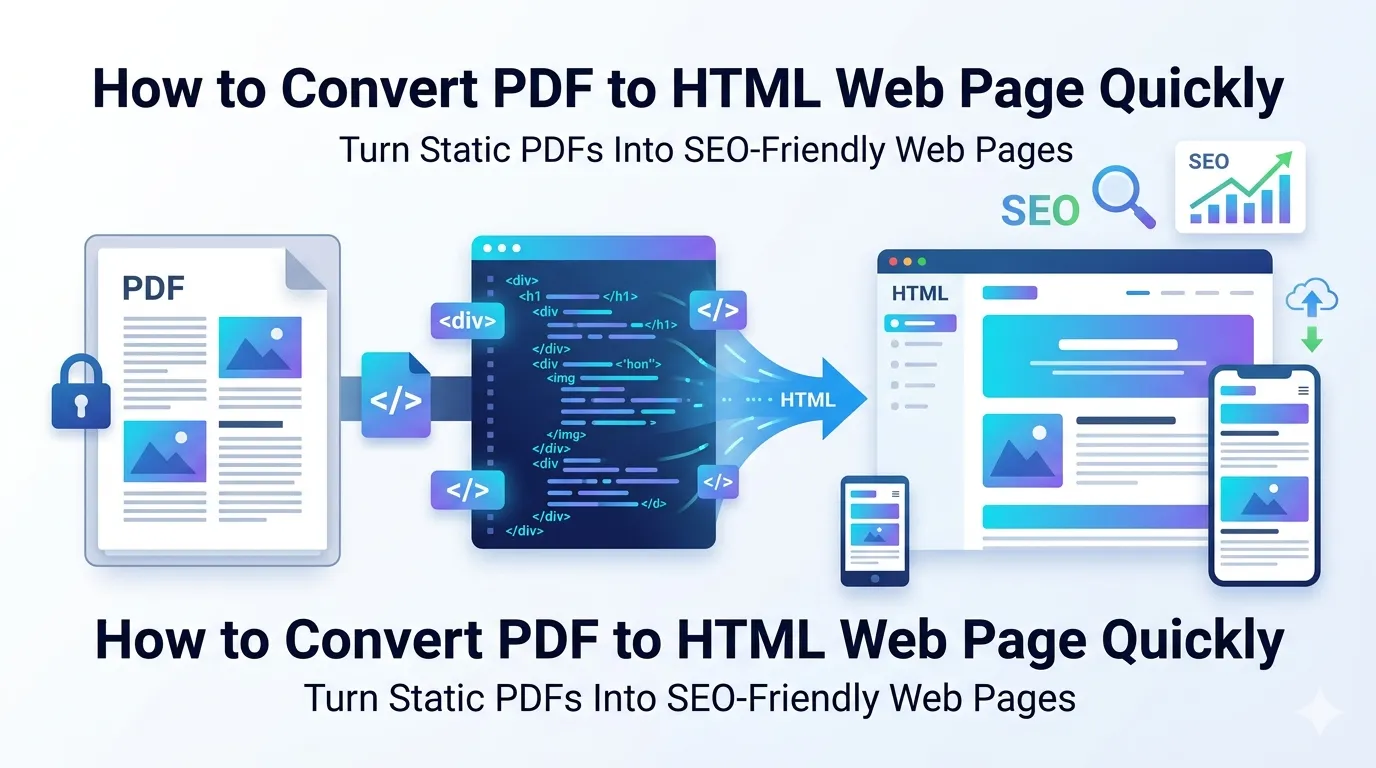
Want to convert PDF to HTML web page content without writing code? You’re not alone. Static PDFs trap your content in a hard-to-read format for the web. Turning them into clean HTML makes content searchable, mobile-friendly, and SEO-ready in minutes.
This guide explains why HTML beats PDF for online publishing, how to convert files in seconds, and what to expect from the output. By the end, you’ll move PDF content to the web without manual rebuilding.
Why Convert PDF to HTML for the Web?
PDFs aren’t web-native. Mobile users pinch and zoom endlessly. Search engines crawl them weakly. Page load drags. HTML solves all three problems. Browsers render HTML instantly while keeping content searchable and responsive.
Moreover, HTML gives you SEO power. Google indexes HTML text more deeply than PDF content. Header tags, meta descriptions, and internal links work properly. Your old PDFs gain new ranking potential overnight.
Practical Reasons to Make the Switch
- Publishing white papers as blog posts for SEO
- Embedding research reports into knowledge bases
- Making product manuals searchable on your help center
- Converting legal documents into accessible web pages
- Repurposing old PDFs as fresh content
- Adding analytics tracking to formerly static documents
Step-by-Step: Convert PDF to HTML Online
Browser-based converters handle the conversion in seconds. No coding skills needed. The output drops cleanly into your website or CMS afterwards.
Step 1: Upload Your PDF
Visit our PDF to HTML converter. Drag your file into the upload zone. The page processes files quickly without demanding signups.
Step 2: Choose Your Output Options
Some converters offer settings like inline CSS or external stylesheets. Pick what fits your project. For most blog uses, inline CSS keeps things simple.
Step 3: Download or Copy HTML
Save the .html file when ready. Open it in any browser to preview. Copy the source code directly into your CMS, blog editor, or static site generator.
What the Converted HTML Looks Like
Converted HTML mirrors the original PDF structure. Headings become h1, h2, h3 tags. Paragraphs wrap in p tags. Images embed inline. Lists keep their hierarchy. The result reads naturally in any browser.
| PDF Element | HTML Output |
|---|---|
| Heading text | h1, h2, h3 tags |
| Body paragraphs | p tags with classes |
| Bullet lists | ul and li tags |
| Tables | table, tr, td tags |
| Images | img tags with src |
| Links | a tags with hrefs |
Tips for Better PDF to HTML Conversion
Cleaner inputs produce cleaner outputs. First, start with a structured PDF that uses proper headings. Documents built with styles convert more accurately than visually formatted ones.
Second, trim unwanted pages before conversion using our Remove PDF Pages tool. Less noise means tighter HTML output. Third, plan for light cleanup afterward — even great converters need touchups for complex layouts.
Making Converted HTML SEO-Friendly
Raw HTML from conversion needs SEO polish. Add proper meta titles and descriptions to your page wrapper. Insert internal links to related content on your site. Optimize images with alt text describing each visual.
Furthermore, review heading hierarchy. Conversion may produce multiple h1 tags when only one belongs. Editors should keep one h1 per page for search engine clarity.
Mobile Responsiveness After Conversion
Default HTML output usually flows well on phones. Still, hardcoded widths can break responsive design. Replace fixed pixel widths with percentages or max-width CSS rules for true mobile friendliness.
Test the converted page on various screen sizes. Browser dev tools simulate mobile easily. Adjust styles where needed before publishing live.
Privacy Considerations Before Uploading
Conversion handles real content. Pick browser-based tools when working with private material. Files stay on your device throughout the process, keeping confidential reports and proprietary docs secure.
Read each converter’s privacy policy. Reputable services delete uploads quickly. Avoid services requiring permanent account creation just for one-off PDF to HTML jobs.
After Conversion: Building Your Workflow
Conversion is rarely the last step. For editing source content, route through the PDF to Word converter first. Need plain text instead? The PDF to Text converter strips formatting completely.
When publishing many PDFs at once, batch the work. Convert one as a template, refine the workflow, then process the rest using the same settings. Pair with the PDF Compressor when storing originals.
When PDF to HTML Isn’t the Right Move
HTML conversion doesn’t suit every PDF. Print-ready brochures lose visual punch in plain HTML. Legal contracts need stamped signatures preserved. Forms with complex calculations stay PDF-only.
Use HTML for content you want indexed and read online. Keep PDF for documents needing locked layout, signatures, or printable consistency. Many publishers offer both formats side-by-side.
Bring Your PDFs to the Web Today
Static PDFs hold valuable content hostage. Converting them to HTML unlocks SEO traffic, mobile readers, and analytics tracking. The whole switch takes seconds with the right tool.
Try our PDF to HTML converter now. Free, secure, and ready to push your content into the modern web in just a few clicks.