
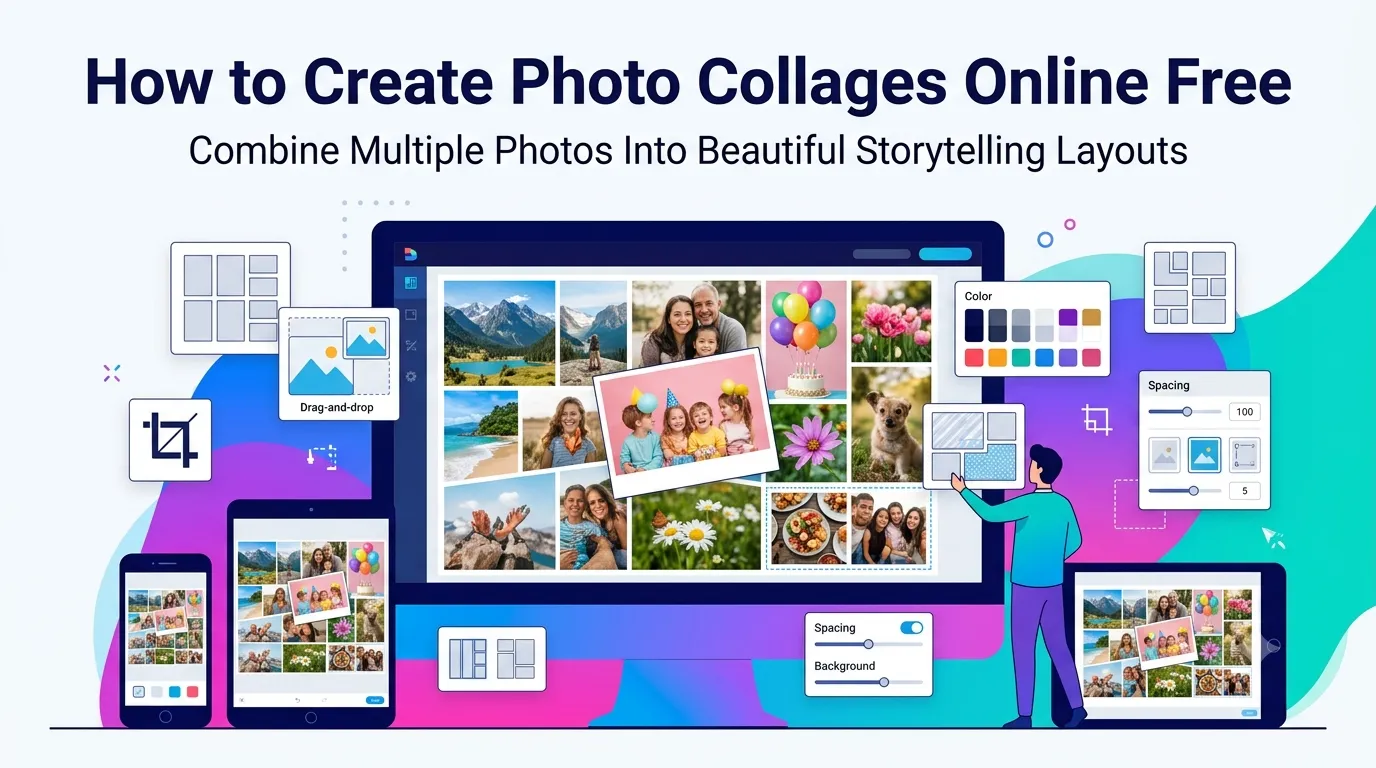
Want to create photo collages online free that look professionally designed? You’re tapping into one of the most popular ways to combine memories, products, or moments into one shareable image. Collage makers handle grids, layouts, and customization in seconds without design software.
This guide walks through the easiest method, explains popular layout choices, and shares pro tips for stunning results. By the end, you’ll build eye-catching collages for any occasion.
Why Collages Tell Better Stories
Single photos show one moment. Collages tell complete stories. They combine multiple images into cohesive narratives that pack emotion, context, and visual impact into one shareable file.
Furthermore, collages dominate social feeds. Birthday recaps, travel summaries, before-and-after transformations, and product showcases all perform better as collages than as multiple separate posts.
Popular Collage Use Cases
- Birthday montages celebrating milestones
- Wedding recaps capturing the full day
- Travel posts showing multi-destination journeys
- Product comparison images for e-commerce
- Before-and-after transformation showcases
- Year-end reviews bundling top moments
Step-by-Step: Make Collages Online
Browser-based collage makers handle the work in seconds. No design skills required.
Step 1: Upload Your Photos
Visit our Photo Collage Maker. Drag multiple photos into the upload zone. Most tools accept 2-20 images at once for flexible collage building.
Step 2: Choose Layout and Style
Pick from grid, freeform, magazine, or themed layouts. Adjust spacing, borders, and background colors. Most tools show real-time previews so you can iterate quickly without committing.
Step 3: Download the Finished Collage
Save the collage as JPG or PNG. Share on social media, print as keepsakes, or use in design projects. High-resolution downloads work great for both digital and print use.
Popular Collage Layouts Compared
| Layout Style | Best Use |
|---|---|
| Grid (3×3, 2×2) | Clean, organized photo showcases |
| Freeform | Creative, playful arrangements |
| Magazine | Editorial-style story layouts |
| Frame collage | Vintage photo album aesthetics |
| Heart or shape | Romantic gifts and themed posts |
Tips for Professional-Looking Collages
Smart habits make collages shine. First, use photos with consistent style. Mixed lighting and color schemes look cluttered. Apply the same filter to all photos using our Photo Filter for cohesion.
Second, balance visual weight across the layout. Don’t cluster busy photos in one corner and leave empty space elsewhere. Third, leave consistent gaps between photos. Even spacing reads as intentional design rather than random arrangement.
Common Collage Mistakes
- Too many photos:
- 10+ photos crowd visual storytelling; pick highlights
- Inconsistent filters: Match all photos to same color scheme
- Wrong aspect ratios: Mix portrait and landscape carefully
- Distracting backgrounds: Use solid colors that complement photos
- Skipping focal point: Pick one dominant photo as the centerpiece
Building Themed Collage Series
Themed collages amplify impact. Wedding collages tell the story from preparation through ceremony to reception. Travel collages show destinations chronologically. Each themed series teaches the audience something the photos alone wouldn’t.
For brand accounts, themed collages build authority. Recipe collages show step-by-step processes. Product launch collages tell brand stories. The format works wherever storytelling matters more than individual photos.
Privacy When Building Collages
Personal photos often appear in collages. Pick collage tools processing files in your browser. Family pictures stay on your device throughout the creation process.
Read each tool’s privacy policy first. Reputable services delete uploads within an hour. Avoid platforms requiring permanent account creation just to build a few collages.
Combining Collages With Other Tools
Collages fit broader photo workflows. Crop source photos consistently using our Image Cropper. Apply matching filters via our Photo Filter before collage building.
For final social-ready files, compress with our Image Compressor. For print delivery, save TIFF via our Image to TIFF converter.
When Single Photos Beat Collages
Not every moment needs a collage. Single dramatic photos work better for striking individual statements. Portraits, hero shots, and product photography often perform stronger on their own without collage clutter.
Reserve collages for story-telling moments. Use single photos when the image itself carries the entire weight. Match format to content rather than defaulting to collages for everything.
Tell Bigger Stories With Stunning Collages
Single photos capture moments. Collages tell complete stories. With the right tool, you turn multiple photos into eye-catching visual narratives in seconds, perfect for social media, gifts, or personal keepsakes.
Try our Photo Collage Maker today. Free, secure, and ready whenever your memories deserve more than one frame.