
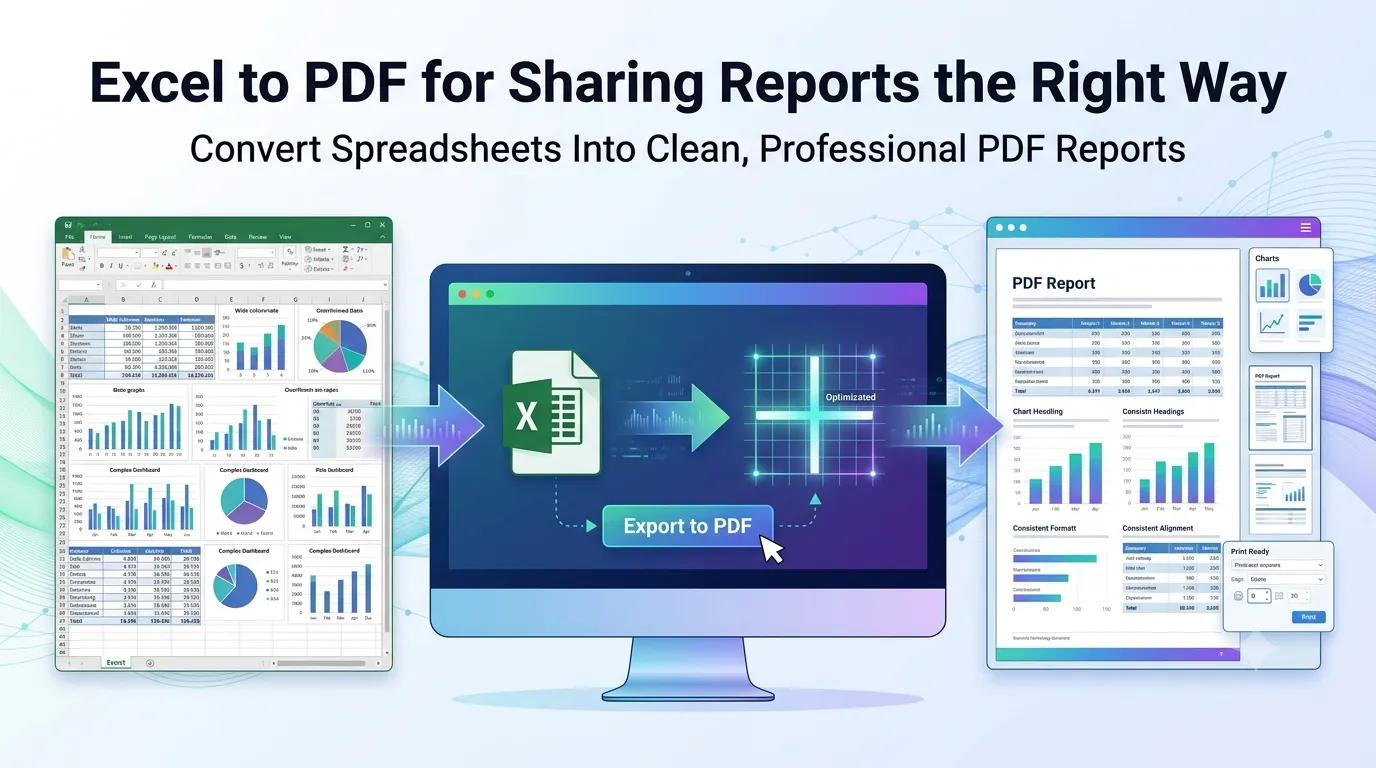
Sharing spreadsheets gets messy fast. Columns shift when colleagues open them. Formulas break on different versions. Charts move around unpredictably. Converting Excel to PDF for sharing reports fixes all of that in seconds. Your data stays exactly where you put it.
This guide walks through the smartest way to export Excel files into clean, professional PDFs. You’ll learn how to handle wide spreadsheets, multi-sheet workbooks, and visual reports without surprises.
Why Convert Excel to PDF Instead of Sending the Workbook?
Workbooks reveal too much. Hidden tabs, helper columns, and formula trails travel with the file. Recipients see everything you didn’t want them to see. PDF strips that exposure away.
Furthermore, PDFs prevent accidental edits. One stray click in Excel can break a key formula. PDFs lock the report at its finished state, exactly the way you intended.
When PDFs Beat Raw Excel Files
- Sending monthly financial summaries to executives
- Sharing sales dashboards with non-technical teams
- Submitting invoices to clients for approval
- Archiving quarterly reports for compliance
- Publishing data snapshots on internal portals
- Distributing pricing sheets to sales representatives
Step-by-Step: Excel to PDF Online
Online converters do the job in seconds. Drop your workbook in, pick settings, and grab a clean PDF. No installations or paid subscriptions required.
Step 1: Upload Your Excel File
Open our Excel to PDF converter. Drag your .xlsx or .xls file into the upload zone. The tool accepts both old and new Excel formats without issue.
Step 2: Wait for Conversion
The tool processes each sheet automatically. Workbooks with multiple tabs become multi-page PDFs. Charts and conditional formatting carry over cleanly.
Step 3: Download the PDF Report
Save the converted file. Open it before sending to confirm everything looks right. Check page breaks, column widths, and chart positioning across all sheets.
Handling Wide Spreadsheets Without Cutoff
Wide tables often get clipped on PDF pages. Avoiding that is straightforward. First, set print areas in Excel before converting. Highlight only the cells you want in the PDF.
Second, switch page orientation to landscape for wide reports. Third, use Excel’s “Fit to Page” scaling to shrink content automatically. These three tweaks prevent cutoff issues during conversion.
Common Excel to PDF Issues and Fixes
| Problem | Fix |
|---|---|
| Columns cut off mid-page | Set print area, use landscape mode |
| Charts look pixelated | Use vector chart formats in Excel |
| Multiple sheets merge incorrectly | Select sheets manually before exporting |
| Conditional formatting missing | Confirm tool supports color preservation |
| Hidden rows still showing | Confirm hidden ranges stay hidden in source |
Tips for Better Excel to PDF Output
A few prep steps lift output quality dramatically. First, format cells consistently — same fonts, sizes, and alignment throughout each sheet. Mixed styles look unprofessional in PDF form.
Second, hide unnecessary columns or sheets before conversion. Recipients shouldn’t see your scratch work. Third, freeze header rows so they repeat on every PDF page for easy reading.
Online Tools vs Excel’s Built-In Export
Excel exports PDFs directly through File > Save As. The built-in tool works for simple workbooks. However, online converters often produce cleaner results for complex sheets, especially with embedded charts or pivot tables.
Online tools also shine for batch jobs. Drop multiple workbooks in at once. Useful when you finalize many reports before sending them to stakeholders.
Privacy When Converting Sensitive Reports
Financial reports demand careful handling. Salary data, sales numbers, and customer lists belong inside your control. Pick converters that process files in your browser. Nothing reaches third-party servers.
Always review privacy policies. Tools deleting files within an hour offer reasonable security. Avoid platforms requiring account creation just to convert a single workbook.
Polishing PDFs After Conversion
Conversion is the start, not the end. Shrink large reports with our PDF Compressor. Combine multiple converted reports using the PDF Merger.
Need to remove draft sheets before sending? The Remove PDF Pages tool handles trimming. For long reports, split into manageable chapters using our PDF Splitter.
When Excel Stays the Better Format
Conversion isn’t always the answer. Working drafts that need ongoing changes stay easier in Excel. Collaborative spreadsheets with live formulas belong in their native format.
Convert to PDF when the report is final. Many teams share both versions — Excel for analysis, PDF for review. This dual approach keeps stakeholders happy and analysts productive.
Send Reports That Actually Get Read
Locked, clean PDFs respect your recipients’ time. They open instantly, look identical everywhere, and protect the work you put into structuring the data. Conversion takes seconds with the right tool.
Try our Excel to PDF converter right now. Free, secure, and ready whenever a polished report needs to go out the door.