
Need to extract text from PDF files without retyping every word? You’re in the right place. PDFs guard their content stubbornly, which makes pulling out text feel harder than it should. The right online tool changes that immediately.
This guide explains why extraction matters, how to do it in seconds, and what to expect with scanned documents. By the end, you’ll handle text extraction whether the source has selectable letters or pure image scans.
Why Pull Text Out of a PDF in the First Place?
PDFs lock content in place. Copy-pasting often returns messy line breaks or fails entirely. Extracting clean text lets you reuse content for blogs, reports, translations, and data analysis without manual cleanup.
Furthermore, extracted text feeds into other tools easily. Word counters, summarizers, and translation services need plain text input. Working from raw PDFs simply isn’t practical.
Common Use Cases for Text Extraction
- Quoting passages from research papers in your own writing
- Translating contracts into other languages
- Feeding articles into summarization tools
- Building searchable knowledge bases from PDF archives
- Counting words in long manuscripts
- Indexing legal documents for case research
Step-by-Step: Extract Text From PDF Online
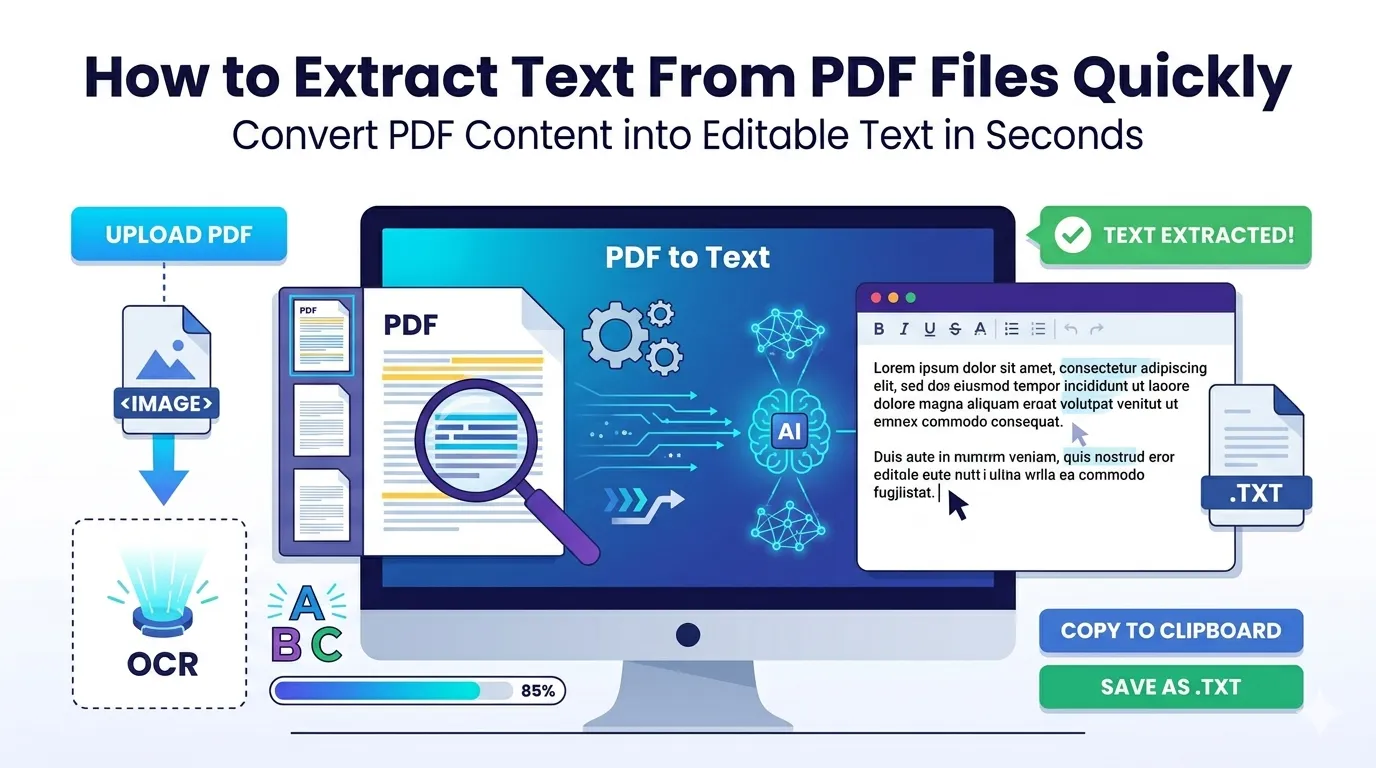
Browser-based tools handle extraction in seconds. The whole process stays simple even for huge documents. Here’s the path from PDF to plain text.
Step 1: Upload Your PDF
Head to our PDF to Text converter. Drag your file into the upload zone. The page loads instantly without distracting popups or signups.
Step 2: Let the Tool Process the File
The converter scans every page and pulls out text content. Most PDFs process within seconds. Image-based PDFs trigger OCR for slightly longer wait times.
Step 3: Download or Copy the Text
Save the .txt file or copy text directly. Some tools let you preview before downloading. Either way, you walk away with clean, editable content in moments.
Text-Based vs Scanned PDFs: What’s the Difference?
Not all PDFs are equal. Some contain real selectable text. Others are essentially images with no underlying text layer. The extraction method depends on which type you have.
| PDF Type | How to Identify | Extraction Method |
|---|---|---|
| Native digital PDF | Text is selectable | Direct extraction |
| Scanned document | Text won’t highlight | OCR required |
| Mixed PDF | Some pages selectable | OCR for scanned pages only |
| Form PDF | Has fillable fields | Direct + field extraction |
When You’ll Need OCR (and When You Won’t)
Try to select text in your PDF first. If letters highlight normally, skip OCR entirely. Selectable text extracts perfectly without recognition processing.
If selection fails, you’re dealing with scanned content. OCR (Optical Character Recognition) reads the image and converts pixels into letters. Quality depends on scan resolution and clarity.
Tips for Cleaner Text Extraction Results
A few habits improve output quality dramatically. First, use the highest-quality PDF available. Compressed or low-res files extract poorly compared to clean originals.
Second, clean your PDF before extraction. Remove unnecessary pages via the Remove PDF Pages tool. This trims noise and speeds up processing. Third, review extracted text quickly for OCR errors like “rn” being read as “m”.
Common Extraction Issues and How to Fix Them
- Broken line breaks: Run text through a paragraph fixer afterward
- Missing spaces: Common with multi-column PDFs — use OCR with layout detection
- Wrong characters: Indicates low-quality OCR; rescan source if possible
- Empty output: The PDF may be password-protected or fully image-based
- Garbled symbols: Font encoding issues; try a different converter
Privacy: Handling Confidential PDFs Safely
Sensitive documents need careful handling. Pick converters processing files in your browser. Tax forms, medical records, and contracts stay private when nothing leaves your machine.
Always check privacy policies before uploading. Reputable services delete files within an hour. Avoid tools requiring registration just to extract a few paragraphs of text.
What to Do With Extracted Text Next
Extraction usually starts a workflow. Feed text into a writing tool, summarizer, or translator. For polished output, run the cleaned content back through our Text to PDF converter.
Need to edit before re-exporting? Try the PDF to Word converter instead for structured editing. Combine results with the PDF Merger when bundling new documents.
When NOT to Extract PDF Text
Extraction strips formatting completely. Tables, columns, and visual hierarchy disappear. For documents where layout matters, keep the PDF intact or convert to Word instead.
Also respect copyright and ownership. Extracting text from someone else’s published work for redistribution requires permission. Stick to your own documents or properly licensed content.
Pull Text From PDFs in Seconds
Manual retyping wastes hours. Online extraction puts PDF content at your fingertips instantly. Whether you need quotes for an article or paragraphs for translation, the right tool makes everything painless.
Try our PDF to Text converter right now. Free, secure, and ready whenever raw content matters most.