
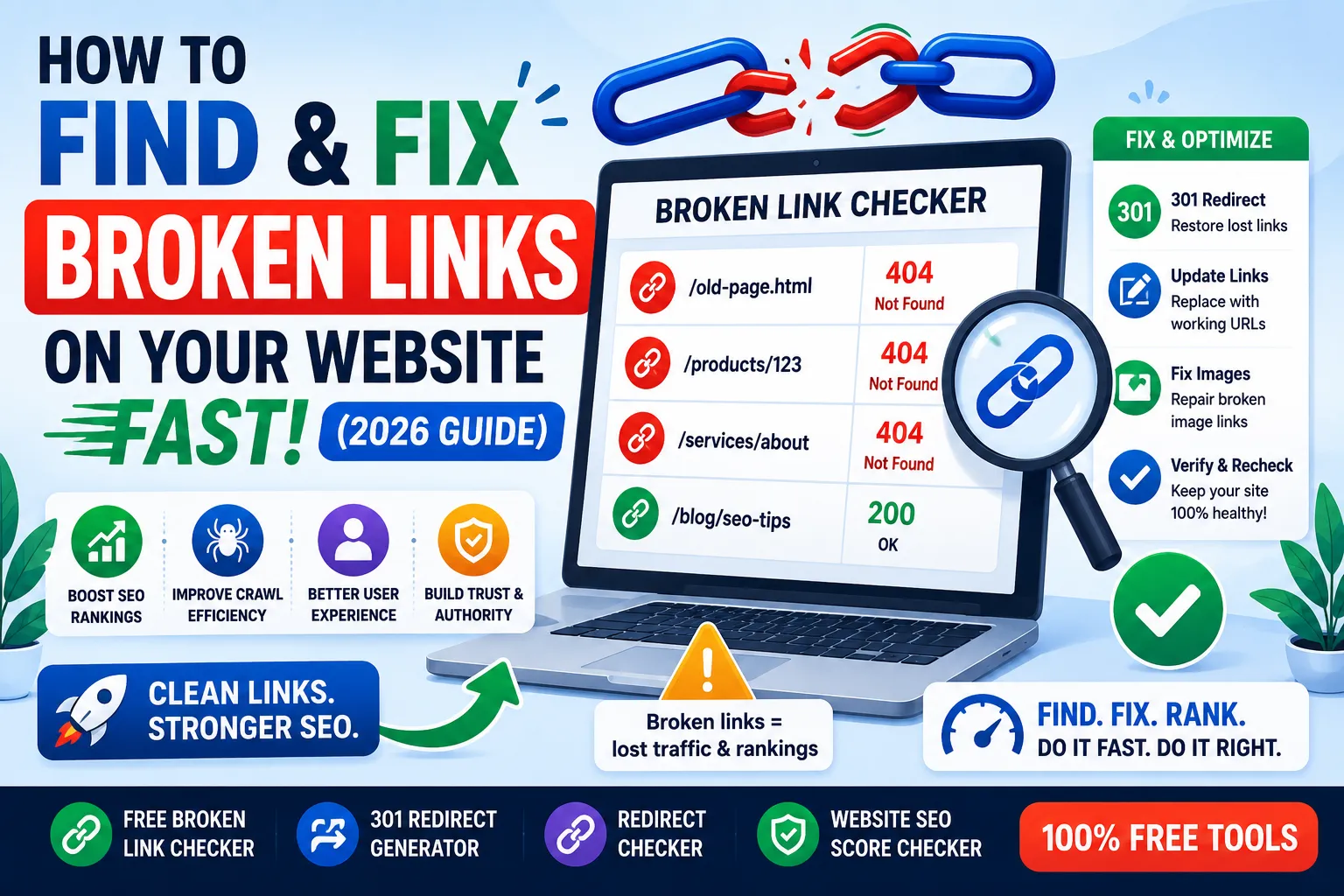
Broken links are silent SEO killers. They frustrate users, waste crawl budget, and quietly lower your rankings. So if you want to grow traffic in 2026, you must learn how to find and fix broken links on your website fast.
Every site collects broken links over time. Pages get renamed, products go away, and partner sites disappear. The trick is not to avoid them — it is to fix them quickly and consistently.
This guide explains why broken links matter, how to audit your site in minutes, and the best free tools to find and fix broken links across your entire website.
What Are Broken Links?
A broken link is any link that no longer leads to a working web page. Clicking it usually shows a 404 error, a blank screen, or a wrong destination. So broken links damage both user experience and SEO.
They include internal links pointing to deleted pages, external links to closed websites, and outdated affiliate or product URLs.
Why Broken Links Hurt SEO
- Crawlers waste budget on dead URLs
- Pages lose link equity and PageRank
- User bounce rate increases
- Indexing slows for new content
- Trust signals to Google weaken over time
Even just a handful of broken links can quietly hurt long-term rankings.
Types of Broken Links You Need to Fix
1. Internal Broken Links
Links inside your site that point to deleted, moved, or renamed pages.
2. Outbound Broken Links
External links to other sites that no longer exist or have moved permanently.
3. Inbound Broken Links
Other websites link to your old pages. Fixing them via redirects recovers SEO juice instantly.
4. Image and Media Links
Broken image URLs cause missing visuals and hurt page quality scores.
How to Find Broken Links Fast
Step 1 — Use a Free Broken Link Checker
Our free Broken Link Checker scans your URL and instantly shows internal and external broken links.
Step 2 — Audit Search Console Errors
Open Google Search Console > Pages. Look for “Not Found (404)” reports. These are real broken URLs Google saw on your site.
Step 3 — Check Backlinks for Lost Pages
Use our Backlinks Checker to find inbound links pointing to dead pages — perfect for redirect recovery.
Step 4 — Crawl Your Site Manually
Use Screaming Frog or Sitebulb for deeper crawls. So you catch every broken link, image, or asset across the site.
How to Fix Broken Links Step-by-Step
1. Redirect Dead URLs
If a page was deleted, 301-redirect it to the closest relevant URL. Use our Htaccess Redirect Generator for clean .htaccess rules.
2. Replace Outdated External Links
Swap dead outbound links with updated, working alternatives. So your content stays useful and trusted.
3. Update Internal Anchor Text
Re-link to active pages. Update menus, footers, and contextual links.
4. Fix Broken Image Sources
Re-upload missing images or restore the original URL. Use our Alt Attribute Checker to clean accessibility issues at the same time.
5. Verify the Fix
Re-run our Broken Link Checker to confirm 100% clean status.
Common Causes of Broken Links
- Deleted blog posts
- Changed URL slugs without redirects
- Plugin or theme migrations
- Hosting changes that affect file paths
- External sites going offline
Knowing the cause helps you fix issues faster and prevent them long term.
How Often Should You Audit Broken Links?
| Site Type | Audit Frequency |
|---|---|
| Small blog | Every 2–3 months |
| E-commerce store | Every month |
| Large content site | Every 2 weeks |
| News/Publishing | Weekly |
Regular audits stop small issues from compounding into ranking drops.
SEO Benefits of Fixing Broken Links
- Restored PageRank flow inside your site
- Better crawl efficiency for new content
- Lower bounce rate and higher engagement
- Faster indexing across the site
- Better user trust and brand experience
Every fix pays off in rankings, conversions, and customer satisfaction.
Common Broken Link Mistakes to Avoid
- Letting 404s pile up unaddressed
- Redirecting every dead URL to the homepage (bad UX)
- Ignoring external broken links in old content
- Forgetting to test changes after fixes
- Skipping menu and footer audits
Smart fixes mean redirecting to the most useful destination, not just any page.
Smart Tools to Find and Fix Broken Links
- Broken Link Checker — instant site-wide scan
- Htaccess Redirect Generator — build clean 301s
- Redirect Checker — verify redirect chains
- Website SEO Score Checker — overall site health
Together, these tools cover every step of a complete broken link recovery.
Bonus: Turn Broken Backlinks Into SEO Wins
If other sites link to dead pages on your site, you can recover that SEO power by:
- Redirecting old URLs to relevant new ones
- Updating linking sites with the new URL
- Replacing missing content with fresh, in-depth posts
This is one of the easiest ways to gain “free” SEO authority you forgot you had.
Final Thoughts
Learning how to find and fix broken links is one of the highest-ROI tasks in SEO. With one audit, you recover lost authority, improve user experience, and boost rankings instantly.
Start today with our free Broken Link Checker. Find every dead URL, redirect it smartly, and keep your site clean, trusted, and SEO-strong throughout 2026.
FAQs
Run a free broken link checker, audit Search Console 404 reports, then redirect or replace each dead URL.
Yes. They waste crawl budget, lose PageRank flow, and reduce user trust over time.
Update them to the right new URL or set a 301 redirect to a related, still-active page.
No. Always redirect to the most relevant active page. Homepage redirects can harm user experience and SEO.
Small sites need quarterly audits. Larger ones should be checked monthly or even weekly.
Yes. Redirect old dead URLs to new ones or reach out to linking sites to update the URL.
Yes. Free tools combined with Search Console reports give complete coverage for most websites.