
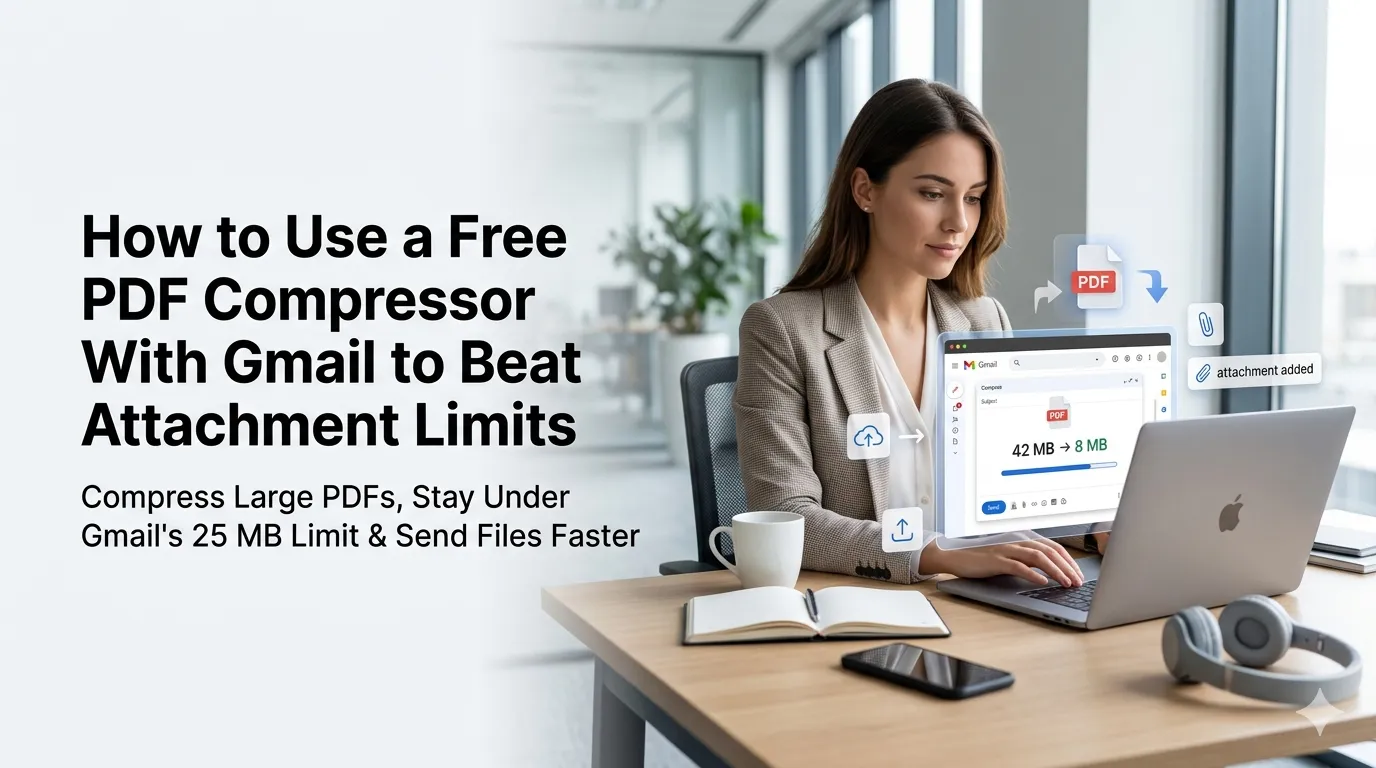
Gmail still caps every attachment at 25 megabytes during a chaotic workday. Learning how to use a free PDF compressor with Gmail turns rejected messages into smooth sends. This guide walks beginners through every step needed to ship bigger files without paid storage hacks.
Premium add-ons promise instant compression yet cost monthly fees. Free browser tools handle the same task in seconds. The right workflow keeps inboxes happy and clients satisfied.
Why pairing a PDF compressor with Gmail matters
Heavy PDFs slow delivery and trigger rejected attachments. Quick compression keeps every send moving fast.
Solo founders ship proposals daily between meetings. Additionally, support teams send reports across global clients. Such variety supports tooling whether you email occasionally or constantly.
Common scenarios that demand quick compression
Several Gmail moments call for a free compressor. Recognize them inside daily routines.
- Sending sales proposals before Gmail rejects the email
- Sharing scanned receipts during expense reports
- Distributing onboarding manuals to remote teammates
- Mailing legal contracts before deadlines close
- Sending portfolio PDFs to interview panels
- Forwarding marketing decks to journalists
Step-by-step process to use a PDF compressor with Gmail
Follow this sequence whenever attachments balloon. Each step protects delivery.
Open the source PDF
Save the original inside a project folder. Confirm contents remain unchanged before compression. Note the file size so you can compare later.
Run the compressor inside your browser
Upload the file into the free tool and confirm it stays local. Pick the best compression level for your scenario. Save the compressed copy alongside the original.
Attach and send through Gmail
Drag the compressed PDF into a new email. Confirm Gmail accepts it without warnings. Document the workflow inside your inbox playbook.
Best practices for sustainable email habits
Beyond the tool, supporting routines protect deliverability. Apply them every send.
Maintain naming conventions that highlight compressed files. Document recipient preferences inside contact notes. Encourage colleagues to follow the same workflow.
| Need | Featured Tool | Smart Tip |
|---|---|---|
| Attachments | PDF Compressor | Stay under 25 MB |
| Security | Password Generator | Pair with email portal |
| Tracking | URL Shortener | Replace huge links |
| Branding | Meta Tag Generator | Update follow-up pages |
Tools that simplify the entire workflow
Free utilities solve daily attachment friction beautifully. Bookmark them inside your email browser. Pair them with cloud storage when files truly exceed limits.
Try our PDF Compressor, Password Generator, and URL Shortener inside the browser. Pair them with the Meta Tag Generator when emails link to landing pages. Solopreneurs also love combining them with the QR Code Generator.
Common mistakes beginners should avoid
Several pitfalls trip up new senders. Watch out for these traps before clicking send.
- Skipping a quick test send to yourself first
- Forgetting to update recipients about the compressed format
- Sending compressed PDFs without confirming readability
- Trusting compression to fix corrupted source files
- Ignoring backup copies inside cloud storage
Turning the workflow into smooth sends
Reliable compression keeps Gmail attachments flowing every day. Pair tools with thoughtful subject lines. Encourage teammates to share favorite workflows inside team docs.
Pair the workflow with our Percentage Calculator when tracking attachment savings. Steady habits, accurate compression, and clear instructions turn email chaos into manageable joy. Each send supports the next confident message.