
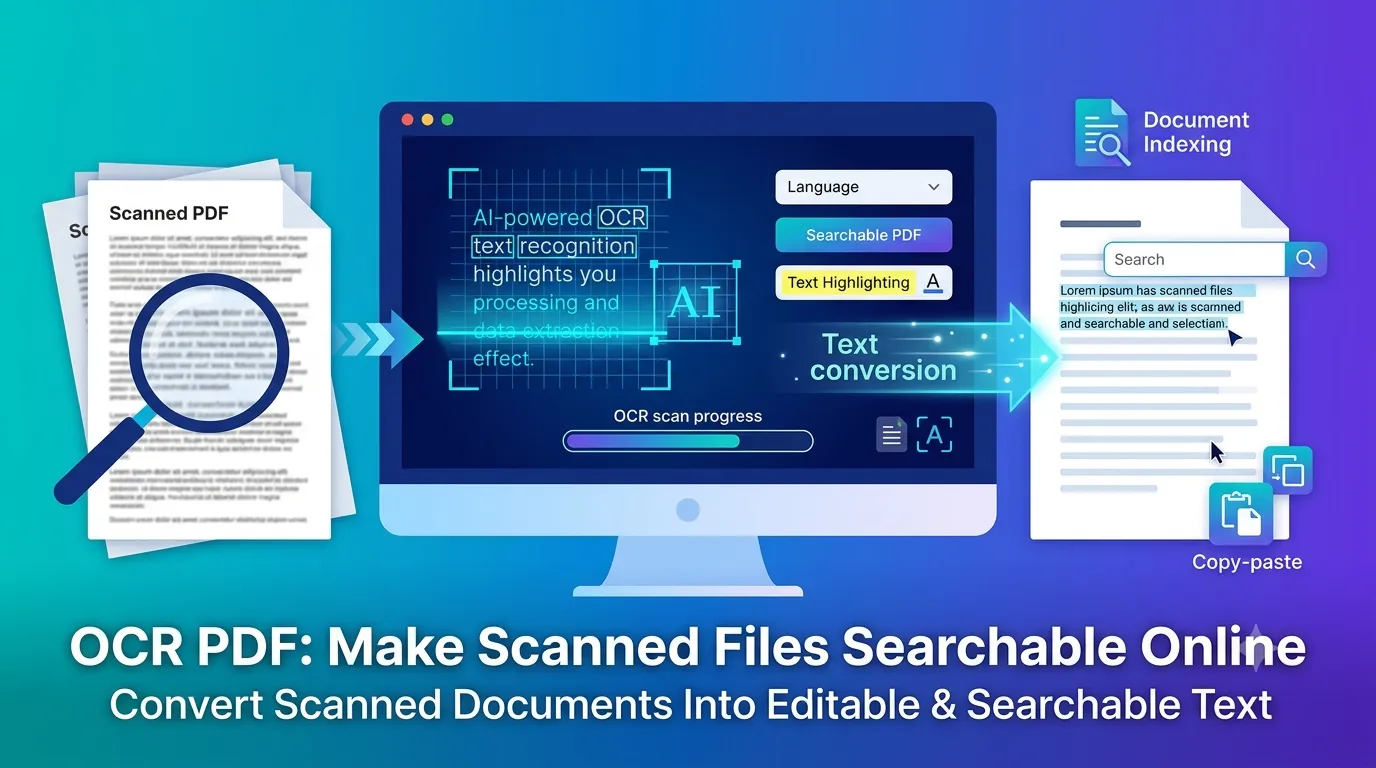
Got a stack of scanned PDFs you can’t search through? Using OCR PDF technology turns those image-based pages into searchable, copyable text in seconds. Optical Character Recognition reads scanned content and transforms it into actual letters your computer can work with.
This guide explains why OCR matters, walks through the easiest method online, and shares tips for accurate results. By the end, you’ll handle scanned files like fully digital documents.
Why Scanned PDFs Frustrate Most Users
Scanned PDFs look like documents but behave like images. You can’t search text. Additionally, you can’t copy paragraphs. Furthermore, you can’t translate content with one click.
Every interaction requires manual effort that wastes hours over time.
Furthermore, scanned archives become unsearchable libraries. Finding a specific contract clause means flipping through hundreds of pages manually. OCR fixes that by adding a hidden text layer behind every scanned page.
Real-World Use Cases for OCR
- Searching old scanned contracts for specific clauses
- Copying paragraphs from research papers without retyping
- Translating scanned foreign documents
- Indexing scanned receipts for accounting software
- Making digitized books accessible to screen readers
- Pulling data from scanned invoices into spreadsheets
Step-by-Step: OCR a PDF Online
Online OCR tools handle the heavy lifting in seconds. No software installations needed. Here’s the simplest path from scan to searchable PDF.
Step 1: Upload the Scanned PDF
Visit our PDF OCR tool. Drag your scanned document into the upload zone. The tool detects image-based pages automatically.
Step 2: Choose Recognition Language
Select the document’s language for accuracy. English defaults work for most users. Multi-language tools handle French, German, Spanish, and dozens more. Picking the right language boosts recognition accuracy.
Step 3: Download the Searchable PDF
Save the OCR-processed file. Open it and try searching — you’ll see results highlighted instantly. Copy paragraphs, translate sections, or feed content into other applications.
What Affects OCR Accuracy
Source quality shapes everything. Clean, high-resolution scans produce excellent results. Blurry, low-DPI documents struggle. Knowing the factors helps you set expectations.
| Factor | Effect on Accuracy |
|---|---|
| Scan resolution at 300+ DPI | Excellent results |
| Sharp, clear typography | Near-perfect recognition |
| Standard printed fonts | High accuracy |
| Skewed or rotated pages | Reduced accuracy |
| Handwriting | Variable, often poor |
Tips for Better OCR Results
Smart prep steps boost recognition dramatically. First, rescan documents at 300 DPI or higher when possible. Older 150 DPI scans introduce errors that cleaner inputs avoid entirely.
Second, deskew rotated pages before OCR processing. Tilted text confuses recognition engines. Third, remove dust or marks from physical originals before scanning to get the cleanest possible source.
Common OCR Issues and Fixes
- Letters swapped (rn becomes m): Use higher-resolution sources
- Missing punctuation: Pick OCR engines with strict accuracy modes
- Wrong language detected: Manually set the language before processing
- Tables broken into loose text: Try a table-aware OCR engine
- Multi-column layouts merged: Use layout-preserving OCR options
What You Can Do With OCR Output
OCR opens countless workflows. Search across thousands of pages instantly. Copy clean paragraphs into emails or reports. Translate foreign documents using browser-based tools. Feed text into accounting systems for automated processing.
Furthermore, OCR documents become accessible. Screen readers help visually impaired users navigate the content. Search engines index OCR PDFs uploaded to websites for better discoverability.
Privacy When OCRing Sensitive Documents
Scanned PDFs often hold confidential data. Tax returns, medical records, and contracts deserve careful handling. Pick OCR tools processing files in your browser. Content stays on your device that way.
Read each tool’s privacy policy first. Reputable services delete files within an hour. Avoid platforms requiring account creation just to OCR a single document.
Combining OCR With Other PDF Tools
OCR starts bigger workflows. Convert the searchable result through our PDF to Word converter for editing. Extract clean text via the PDF to Text converter.
Pull data into spreadsheets with our PDF to Excel converter. Or push pure data into systems through our PDF to CSV converter. OCR enables all these downstream possibilities.
When OCR Isn’t Worth Running
Already-digital PDFs don’t need OCR. Native text PDFs are already searchable. Running OCR on them adds no value and wastes processing time.
Also, very poor-quality scans rarely benefit from OCR. If text is illegible to human eyes, software won’t read it either. Rescan such documents first at higher resolution for genuine results.
Turn Scanned Stacks Into Searchable Gold
Image-based PDFs slow down every workflow they touch. OCR breaks that barrier instantly, letting you search, copy, and extract content from previously locked scans. Whether you’re cleaning up archives or processing contracts, OCR pays back the time investment fast.
Try our PDF OCR tool today. Free, secure, and ready whenever your scanned documents need to behave like proper digital files.