
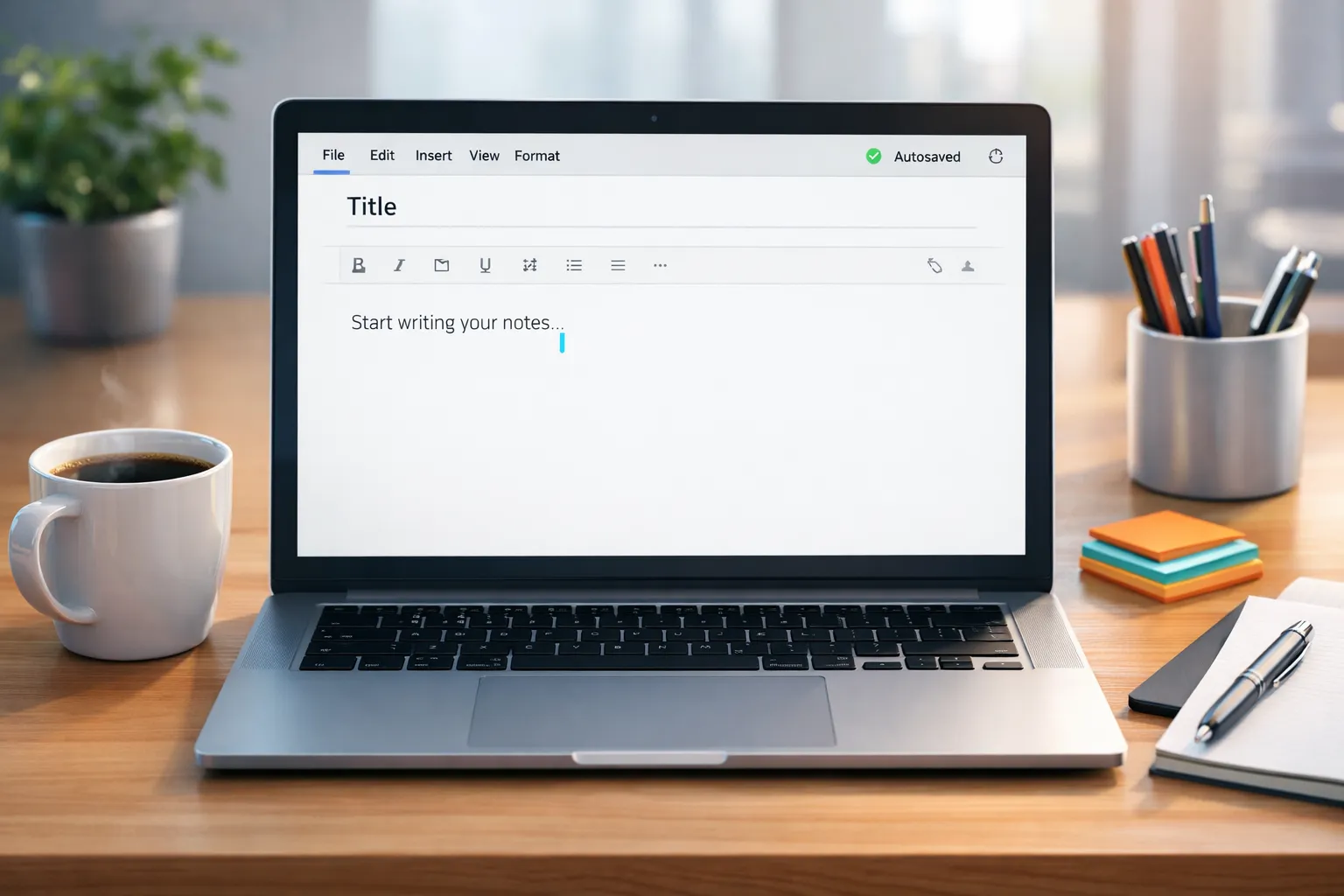
Whether you’re a student, writer, professional, or someone who needs quick notes online, an Online Notepad With Autosave is essential. In this digital era, losing your written content is one of the most frustrating things. That’s where an online notepad with an autosave feature comes to the rescue — it automatically saves your work as you type, so you never lose a single word.
In this complete guide, we’ll explore:
- What is an online notepad with autosave is
- Key features and advantages
- Who should use it
- How it works
- Best tools available
- Tips for using it effectively
- FAQs
Let’s dive in!
What Is an Online Notepad With Autosave?
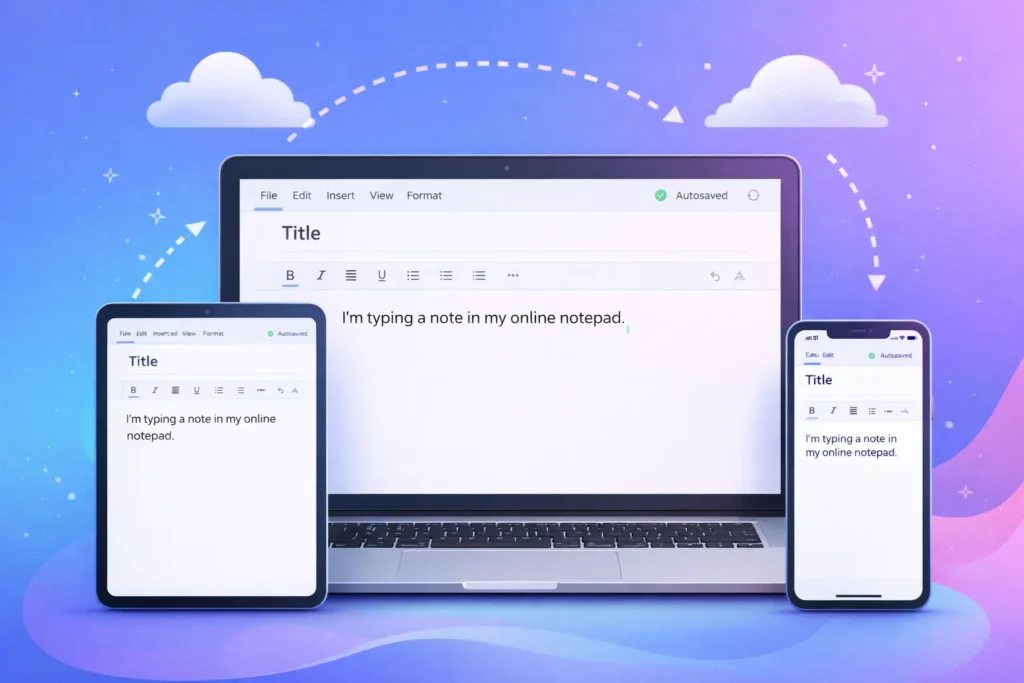
An Online Notepad With Autosave is a web‑based text editor that automatically saves everything you write as you type — without you having to press save manually. This means your content is stored either in your browser or in the cloud, so you don’t lose it accidentally.
Unlike traditional desktop applications that require installation, online notepads work purely in your browser. Whether you’re on a PC, laptop, tablet, or smartphone, you can access your notes instantly and edit them anytime.
Key Features of an Online Notepad With Autosave
These features make online notepads powerful, user-friendly, and ideal for everyday note-taking.
1. Instant Autosave
This is the most important feature — your text gets saved every second or every time you type. You don’t lose work due to power outages, crashes, or accidental tab closure.
2. No Installation or Downloads
You don’t need to install software. Just open the site and start typing. It works on all modern browsers.
3. Privacy & Security
Many notepads save data locally in your browser, meaning your notes stay private unless you choose to sync them to the cloud.
4. Cross‑Device Support
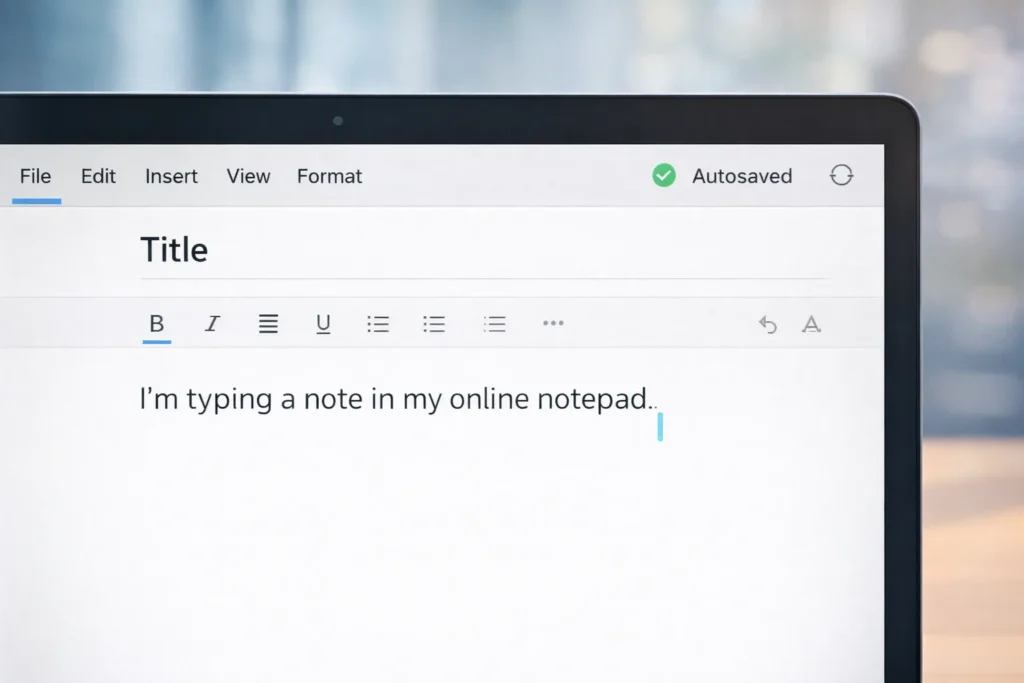
Autosave ensures notes are stored locally or in cloud storage, which helps you access them from any device once synced.
5. Simple Interface
Online notepads typically have a minimal UI so you can focus on writing, not learning complex tools.
6. Formatting & Extras
Many also provide features like find & replace, spell check, word count, and even export options (PDF, TXT, HTML).
Why Use an Online Notepad With Autosave?
Here are some of the most compelling reasons people prefer online notepads with autosave over regular note apps:
1. Never Lose Your Work
Imagine typing a long paragraph or idea, and your browser crashes — autosave makes sure nothing disappears.
2. Start Writing Instantly
No installs, no setup — open your browser and type. Simple productivity at its best.
3. Works Across All Devices
Whether you’re on mobile, laptop, or tablet, you can continue where you left off.
4. Great for Quick Thoughts
Perfect for jotting down ideas, reminders, meeting notes, to‑dos, or even drafting emails.
5. Privacy First
Some services store your notes locally instead of on servers, so no third-party access.
Who Should Use an Online Notepad With Autosave?
An online notepad with autosave is for everyone, but especially:
Students
To take lecture notes, draft essays, or prepare study summaries.
Writers & Bloggers
Perfect for jotting down ideas, outlines, drafts, and editing text online.
Professionals
Capture quick memos, meeting points, or reminders without waiting for software to load.
Developers / Coders
Keep code snippets, notes, or documentation safe without loss.
Anyone Who Writes Online
If you write content, reminders, or lists, this tool makes your life easier.
How Does an Online Notepad With Autosave Work?
Most online notepads use one of two methods:
1. Browser Local Storage
When you type, the text is automatically saved in your browser’s local storage — meaning it stays safe even if you close the tab.
2. Cloud Sync (Optional)
Some notepads let you connect with Google or a cloud account so that notes are stored securely online and sync across devices.
Both methods ensure your content isn’t lost accidentally.
Top Online Notepad With Autosave Tools (Free & Easy)
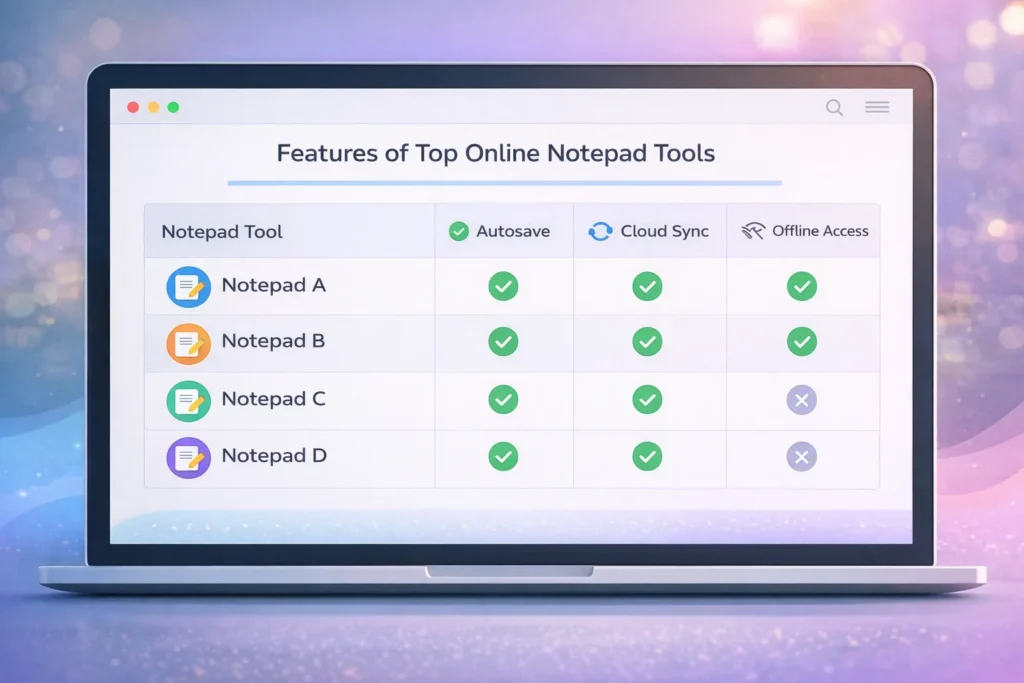
Here are some of the most popular online notepad options based on ease of use, autosave reliability, and features:
1. EasyNotePad
- Instant autosave
- Spell check & word count
- Export TXT, PDF, DOCX
- Works offline once loaded
2. Notepadly
- Auto‑saves every second
- Cloud sync option
- Export to different formats
- Works on all devices
3. Hyper Notepad
- Real‑time autosave
- Rich formatting
- Share & export notes easily
- Simple and fast UI
4. Standard Free Online Notepads
- Minimal, distraction‑free notepad
- No login needed
- Autosaves locally in the browser
Each of these tools offers autosave functionality, fast loading, and easy accessibility — all without complex setup.
Tips to Use Online Notepads Effectively
Here are some practical tips for getting the most from your online notepad:
Use Clear Titles
Create separate notes with clear headings to stay organized.
Backup Important Notes
Even with autosave, export your notes (PDF, TXT) periodically for extra safety.
Sync to Cloud When Possible
If the tool supports cloud sync, enable it to access notes across devices.
Use Shortcuts
Learn basic keyboard shortcuts (like Ctrl + S, Ctrl + F) to speed up typing and editing.
Don’t Clear Browser Storage
Since many autosave locally, clearing browser storage may remove notes — take periodic backups.
Conclusion
An Online Notepad With Autosave is a must‑have tool for anyone who writes, plans, or captures ideas online. Its effortless autosave feature protects your content, while the web‑based environment makes note‑taking fast, reliable, and accessible anywhere. Whether you’re a student, writer, developer, or professional, this tool boosts productivity and takes away the fear of losing your work — forever.
Start using one today and see how much smoother your note‑taking becomes!
Faqs
An online notepad with autosave is a browser‑based text editor that automatically saves your writing as you type so you never lose your work.
Yes — if your online notepad supports cloud sync. Without cloud sync, notes are saved locally in your browser.
Many online notepads with autosave require no login — just open and start typing.
Most store notes locally or securely in cloud storage. Always check the privacy policy for details.
Some online notepads with autosave continue to save notes in local browser storage even when offline.