
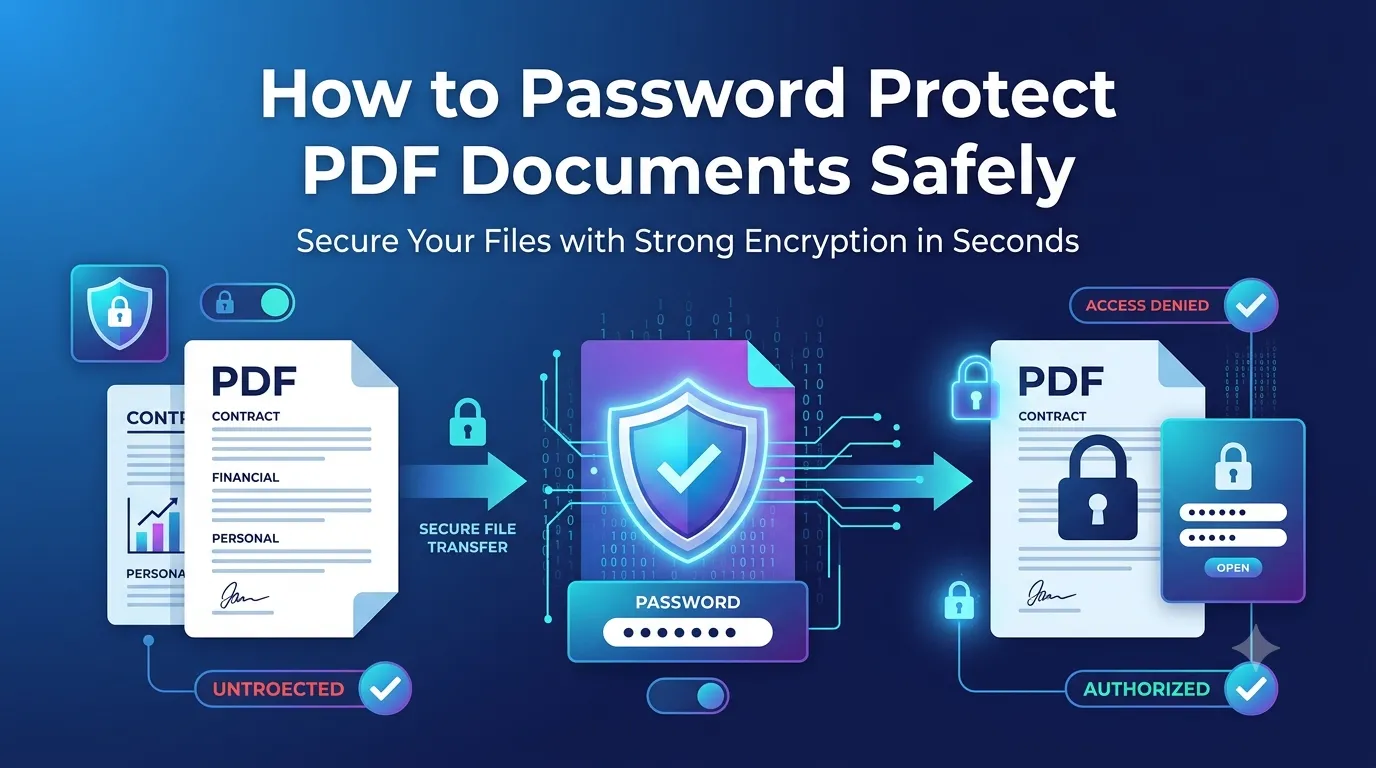
Sharing sensitive contracts, tax forms, or HR records over email? Learning how to password protect PDF documents keeps unauthorized eyes out instantly. A simple password adds a serious layer of security to anything you send, store, or back up.
This guide walks through the fastest method to encrypt PDFs online, explains how strong protection actually works, and shares tips for password handling. By the end, you’ll secure documents like an IT pro.
Why Add a Password to Your PDF?
Unprotected PDFs travel freely once sent. Email forwarding, accidental sharing, and lost devices all expose your content. Adding a password limits access to people who actually need it.
Furthermore, regulations often require encryption. Healthcare records, financial data, and personal information have legal protection requirements. Password-protecting PDFs supports compliance and protects you legally.
When Password Protection Becomes Essential
- Sharing client contracts with confidential terms
- Sending salary slips or payroll information
- Distributing internal financial reports
- Submitting medical records electronically
- Archiving tax returns long-term
- Backing up legal documents to the cloud
Step-by-Step: Password Protect a PDF Online
Browser-based encryption tools add passwords in seconds. No expensive software or technical setup required. Here’s the smoothest workflow.
Step 1: Upload Your PDF
Visit our PDF encryption tool. Drag your file into the upload zone. The tool accepts files up to 100 MB without issue.
Step 2: Set Your Password
Enter a strong password in the input box. Confirm it once more to avoid typos. Some tools offer permission options too, like preventing copying or printing.
Step 3: Download the Encrypted PDF
Save the protected file. Test opening it to confirm the password works. Share the file separately from the password — sending both in one email defeats the purpose.
Choosing a Strong Password
Weak passwords give a false sense of security. “Password123” cracks in seconds. Strong passwords mix length, case, and special characters. Aim for at least 12 characters minimum.
| Password Type | Strength Rating |
|---|---|
| company2024 | Very weak |
| P@ssword123 | Weak |
| Tr3eHouse!47 | Medium |
| R4inb0wHors3Stapl3 | Strong |
| Random 16+ char string | Excellent |
Tips for Managing PDF Passwords
Password protection only works if you handle credentials well. First, use a password manager to store strong codes. Sticky notes and Excel sheets defeat the purpose.
Second, send passwords through a different channel. Email the PDF, then text or call with the password. Third, change passwords periodically for files you reuse, especially shared workspaces.
Two Types of PDF Passwords Explained
PDFs support two distinct passwords. User passwords block opening the file. Owner passwords restrict editing, copying, or printing while leaving viewing open. Many tools handle both for layered security.
Pick based on your needs. User passwords work for confidential documents. Owner passwords help when you want people to read but not modify the PDF, like distributing read-only manuals.
Common Mistakes to Avoid
- Sharing passwords in the same email: Use a separate channel
- Reusing the same password across files: Unique passwords beat shared ones
- Forgetting the password yourself: Store it securely in a manager
- Using overly simple passwords: Aim for randomness and length
- Skipping owner passwords: Add them to prevent unauthorized editing
Online Tools vs Desktop Encryption
Desktop apps like Acrobat handle encryption well. However, online tools work everywhere and require no setup. They suit casual users and quick one-off jobs perfectly without sacrificing security.
For enterprise compliance, desktop encryption often integrates with broader security stacks. Online tools work great for personal and small business needs without those advanced features.
Privacy When Encrypting Sensitive PDFs
Encryption tools often process highly sensitive content. Pick services running locally in your browser. Files never reach external servers, keeping legal contracts and personal records private throughout the process.
Always read the privacy policy. Reputable services delete files within an hour. Avoid tools requiring permanent account creation for one-off encryption tasks involving sensitive data.
After Encryption: Distributing Protected PDFs
Encryption is one piece of secure sharing. Compress large protected files with our PDF Compressor before emailing. Combine multiple secured documents using the PDF Merger when needed.
For wider distribution, pack encrypted PDFs into a ZIP archive using our PDF to ZIP converter. Layered protection makes data extraction extremely difficult for unauthorized recipients.
When Password Protection Isn’t Enough
Passwords protect the file at rest and in transit. They don’t defend against recipients sharing content after opening. For extremely sensitive data, use dedicated secure document platforms with audit trails.
Also remember, weak passwords break under brute force. Strong, unique passwords paired with secure delivery beat encryption alone every time. The encryption is only as strong as the credential controlling it.
Lock Down Sensitive PDFs in Seconds
Unprotected documents put your privacy at risk every day. Adding a password takes seconds yet prevents unauthorized eyes from ever touching your content. Whether for clients, employees, or compliance, encryption is the easiest security win available.
Try our PDF encryption tool today. Free, secure, and ready whenever sensitive files need a serious layer of protection before leaving your hands.