
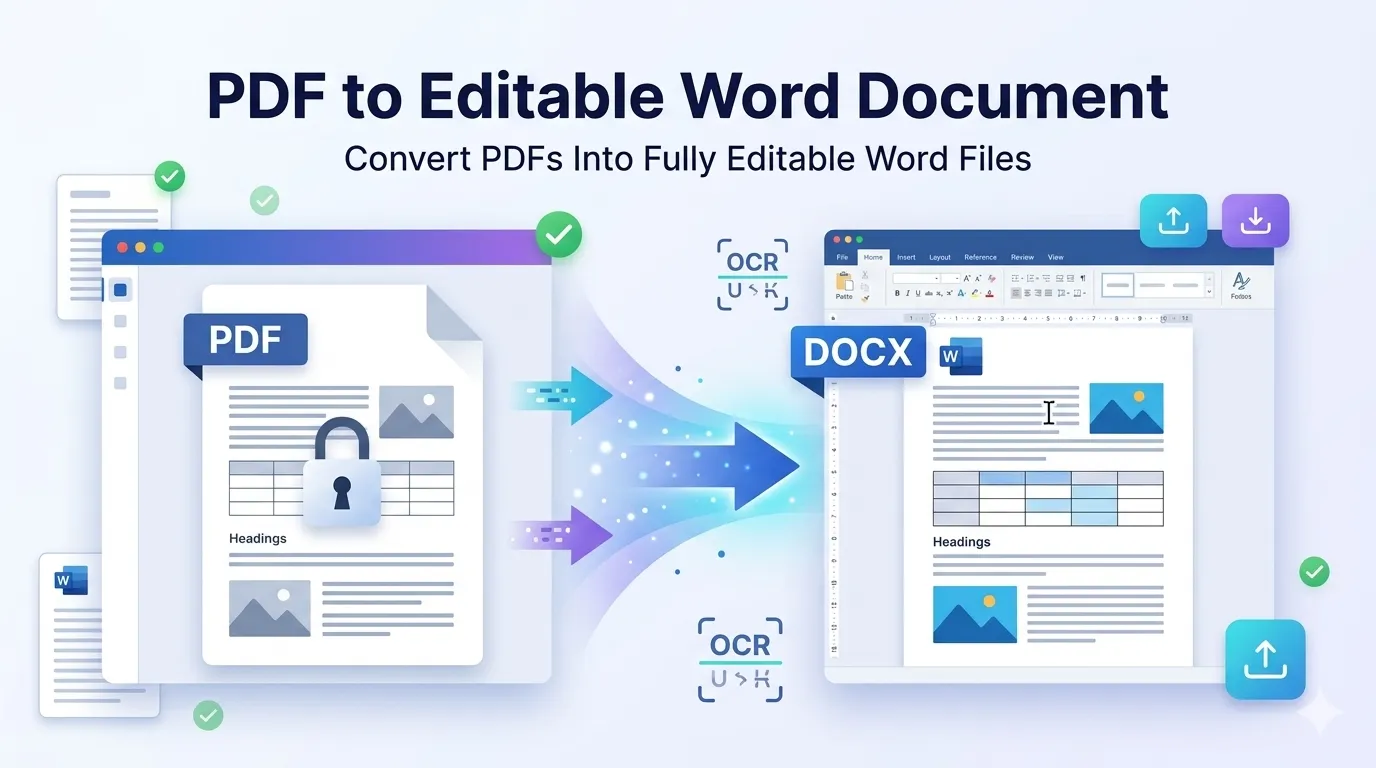
Stuck with a PDF you can’t change? Converting PDF to editable Word document fixes that fast. Whether you need to update a resume, edit a contract, or rework a research paper, the right converter saves hours of retyping. This guide walks you through every step.
We’ll cover why PDFs resist edits, how online converters bypass that limitation, and which features matter most. By the end, you’ll handle conversions confidently and avoid common formatting traps.
Why PDFs Are Hard to Edit in the First Place
PDFs preserve layout above everything else. They’re designed for sharing and printing, not editing. Text behaves like an image baked into the page. Changing a single word means rebuilding entire paragraphs.
Furthermore, PDFs often lack the underlying structure Word uses. Tables collapse into loose text. Bullet points lose their hierarchy. Conversion tools reverse this by reconstructing editable elements from visual layout.
Common Reasons You Need Editable Word Output
- Updating an old resume saved only as PDF
- Editing legal contracts received from clients
- Modifying research papers without retyping
- Translating documents into different languages
- Adding comments and tracked changes for review
- Repurposing print-ready files for digital distribution
Step-by-Step: Convert PDF to Word Online
Online converters make this process painless. No software downloads or expensive subscriptions required. Just upload, wait, and download the Word file.
Step 1: Upload Your PDF
Visit the PDF to Word converter. Drag your file into the upload box. Most tools accept PDFs up to 100 MB without complaints.
Step 2: Wait for the Conversion
The tool processes your document automatically. Simple text PDFs convert in seconds. Complex layouts with tables and images take a little longer.
Step 3: Download and Edit
Save the .docx file when prompted. Open it in Microsoft Word, Google Docs, or any compatible editor. Make your changes and re-export to PDF when finished.
What to Expect After Conversion
Quality varies based on the original PDF. Text-based PDFs convert almost perfectly. Scanned documents need OCR to extract text from image layers. Heavily formatted reports may need light cleanup.
| PDF Type | Conversion Quality |
|---|---|
| Text-only documents | Excellent, near-perfect |
| Simple reports with images | Very good, minor cleanup |
| Complex multi-column layouts | Good, expect adjustments |
| Scanned pages | Depends on OCR quality |
| Forms with fields | Variable, often editable |
Tips for Better PDF to Word Conversion
A few habits improve every conversion. First, start with high-quality source PDFs. Blurry scans produce messy Word files. Sharp, clean documents convert cleanly.
Second, pick a tool that handles your specific content type. Some converters specialize in tables, others in text-heavy documents. Third, always review the output before sharing edits. Even great converters occasionally misread complex layouts.
Handling Tables, Images, and Special Formatting
Tables and images often need extra attention post-conversion. Tables sometimes import as separate text boxes. Images may shift positions slightly. Knowing the common quirks helps you fix them quickly.
- Tables: Re-apply Word’s table styles for consistent borders
- Images: Right-click and set wrap text to “in line” for cleaner layout
- Lists: Verify bullet hierarchy after conversion
- Fonts: Reapply if Word substitutes missing typefaces
- Headers/footers: Recreate manually if they don’t transfer cleanly
When to Use OCR for Scanned PDFs
Scanned PDFs contain images, not selectable text. Standard conversion won’t extract editable content. Optical Character Recognition (OCR) reads the image and creates real text.
Many modern converters include OCR automatically. Look for the feature when choosing a tool. Good OCR handles printed text accurately, though handwriting still trips most systems.
Privacy When Converting Confidential PDFs
Many PDFs hold sensitive content. Tax returns, contracts, and medical records demand careful handling. Pick converters that process files in your browser. No server uploads means no data leaks.
Always check the privacy policy. Tools deleting files within an hour offer reasonable security. Avoid platforms that store uploads indefinitely or require account creation for one-off conversions.
After Conversion: Common Next Steps
Once edits are done, you’ll likely re-export to PDF. Reconverting works through built-in Word export or online tools. Need other formats? Try our PDF to Text converter for plain text dumps.
Shrinking the new file? Our PDF Compressor reduces size. Bundle multiple finished documents using the PDF Merger. Each tool extends the editing workflow.
When Conversion Isn’t the Best Option
Conversion isn’t always necessary. Quick edits like adding a comment or signature work directly inside a PDF editor. Highlighting or annotation doesn’t need Word at all.
Save conversion for serious rewrites. Pulling text into Word makes sense when restructuring whole sections or translating language. For small touchups, stay in PDF and save the conversion overhead.
Edit PDFs Without the Headache
Locked PDFs no longer mean retyping. The right converter pulls your content into Word in seconds. Update resumes, contracts, or reports without losing original formatting effort.
Try our PDF to Word converter for fast, accurate results. Free, secure, and ready whenever editable content matters most.