
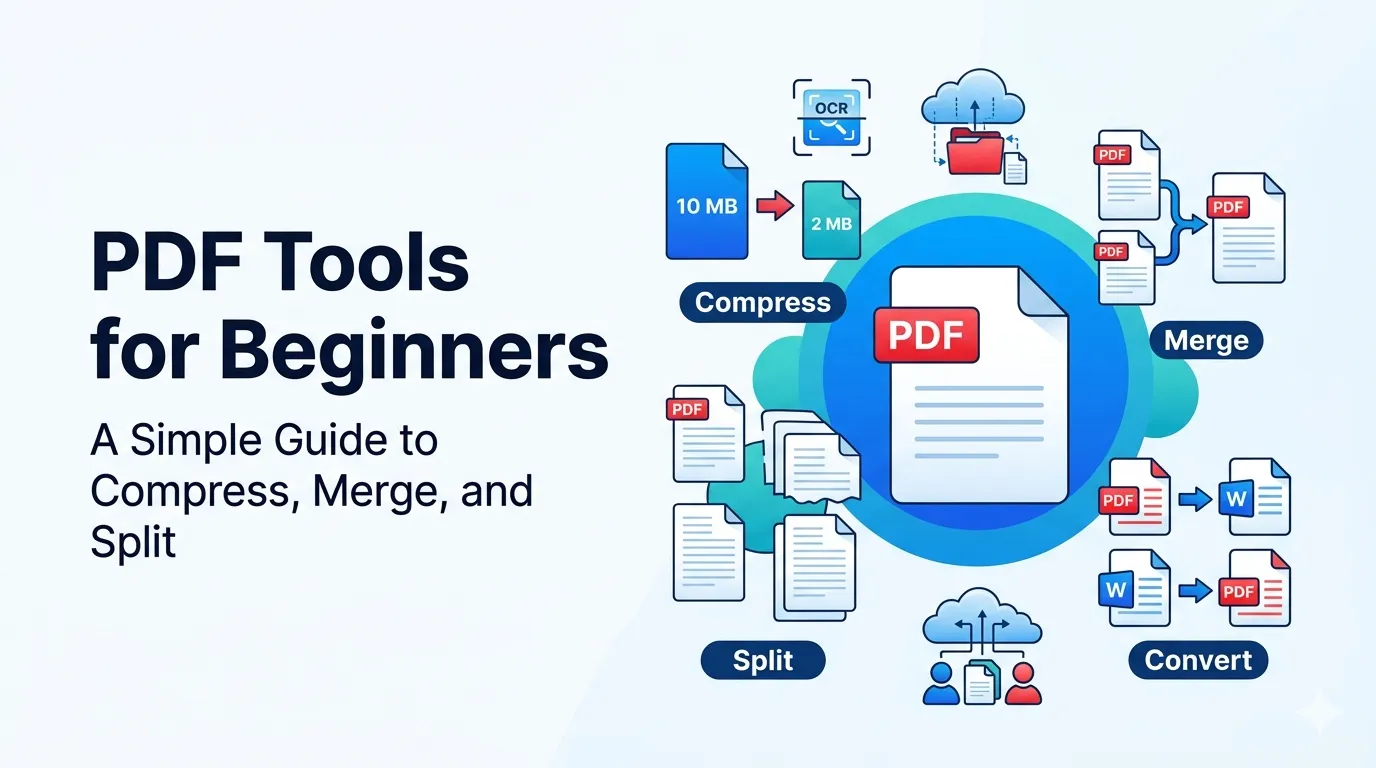
PDF tools for beginners often look like a wall of buttons. Compress, merge, split, convert, OCR, redact — what does each one actually do? This guide demystifies the basics in plain language.
By the end, you will know which tool fits which job and how to handle the most common PDF tasks with free options. No design or tech background required.
Why PDFs need their own tools
PDFs are designed to look identical on every device. That stability comes at a cost: editing them feels harder than editing a Word doc, and large files quickly hit attachment limits.
Dedicated PDF tools solve these problems. Each one focuses on a single task so you do not need expensive editing software for everyday work.
The four PDF tools every beginner needs
- A PDF compressor shrinks big files for email and uploads
- A PDF merger joins multiple files into one
- A PDF splitter pulls specific pages out
- A converter turns PDFs into Word, images, or other formats
Tool 1: PDF compressor
Compress when you cannot attach a PDF to email or upload to a form. The tool reduces file size by re-encoding images and removing hidden bloat, often shrinking files by 50 to 80 percent.
Start with a medium quality preset. Most documents look the same to the eye and easily fit common 10 MB to 25 MB attachment limits.
Tool 2: PDF merger
Merge when several smaller PDFs belong together as one. Think report sections, invoices, or signed contracts that arrived separately. The merged file is easier to share and archive.
Name your input files with leading numbers like 01-, 02-, 03- before merging. Most tools sort alphabetically, so this trick keeps your final document in the exact order you want.
Tool 3: PDF splitter
Split when you only need certain pages. Maybe a vendor sent a 200-page catalog and you only want pages 12 to 18. A splitter exports those pages as a new file in seconds.
Keep the original safe. Always save splits to a separate folder so you can rebuild the full document later if a teammate needs the complete file.
Tool 4: PDF converter
Convert when you need to edit the content in Word, drop a page into a slide deck, or extract an image for social. Each conversion direction has its own dedicated tool.
Check the output after conversion. Complex layouts may shift slightly, so quick proofreading saves embarrassing slip-ups before sharing the file widely.
Smart beginner habits
- Compress before emailing every PDF
- OCR scanned files so the text is searchable
- Strip metadata on public documents
- Use a word counter on filenames to keep them short
- Audit your PDF folders quarterly
Privacy and safety
For sensitive documents, prefer offline software or a tool that deletes uploads quickly and publishes clear privacy practices. Avoid pasting confidential PDFs into unknown online tools.
For everyday work, trusted free tools work great. Look for HTTPS, a clear data policy, and active customer support before uploading anything important.