
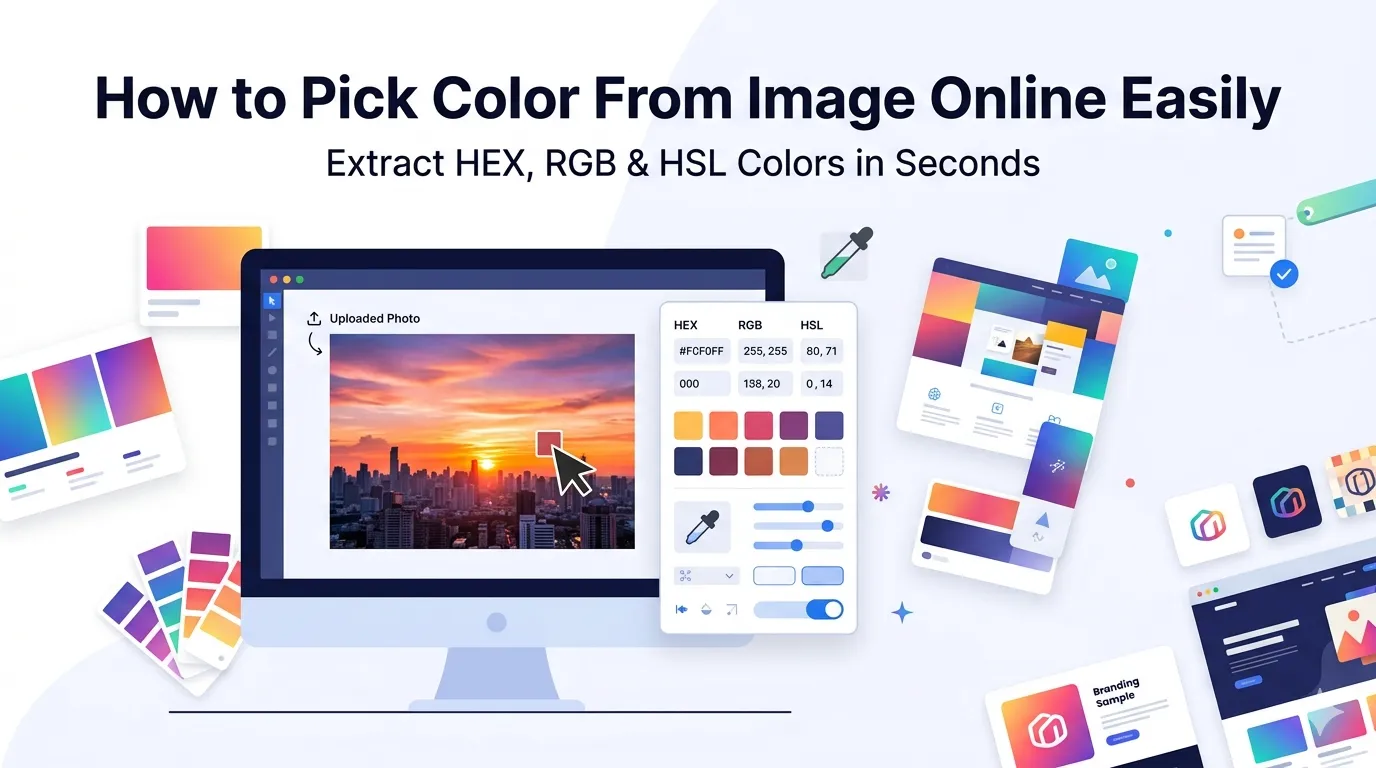
Need to pick color from image online quickly? You’re tapping into one of the smartest design shortcuts available. Whether you’re matching a logo color, sampling palette inspiration, or extracting brand shades, online color pickers make the job painless.
This guide walks through the easiest method, explains color codes you’ll encounter, and shares pro tips for accurate sampling. By the end, you’ll pull exact colors from any image in seconds.
Why Picking Colors From Images Matters
Design depends on color accuracy. Matching a client’s logo demands exact hex codes. Building a website palette requires consistent color sampling. Recreating a brand mood requires identifying every shade precisely.
Furthermore, photo inspiration delivers natural palettes. Sunset photos teach gradient harmony. Nature shots reveal balanced earth tones. Sampling colors from real images creates more authentic designs than guessing hex codes blindly.
Where Color Picking Helps
- Matching exact brand colors from logos
- Building website palettes from photo inspiration
- Identifying competitor color schemes
- Sampling product colors for marketing campaigns
- Recreating Pinterest mood boards in actual designs
- Extracting CSS-ready hex codes for development
Step-by-Step: Pick Colors From Images Online
Browser-based pickers do the work in seconds. No installations or expensive design software required.
Step 1: Upload Your Image
Visit our Image Color Picker. Drag your image into the upload zone. JPG, PNG, WebP, and most common formats work without issue.
Step 2: Click on Colors You Want
Hover over any pixel in the image. Click to sample that exact color. The tool shows hex, RGB, and HSL values instantly. Most tools also let you build a saved palette as you click.
Step 3: Copy Color Codes
Click to copy the hex code with one tap. Paste it into your design tool, CSS file, or brand document. Most tools store recent picks in case you need to compare colors later.
Color Code Formats Explained
| Format | Example | Best For |
|---|---|---|
| Hex | #FF5733 | Web design and CSS |
| RGB | rgb(255, 87, 51) | Digital displays |
| HSL | hsl(11, 100%, 60%) | Color theory work |
| CMYK | 0, 66, 80, 0 | Print design |
| Pantone | PMS 165 | Brand standards |
Tips for Accurate Color Sampling
Smart sampling habits create better palettes. First, use high-quality source images. JPG compression introduces color shifts that distort samples. PNGs preserve colors better for sampling.
Second, sample multiple points across an area. Single pixels can be outliers. Average several samples for more accurate brand color extraction. Third, calibrate your monitor for color-critical work. Uncalibrated displays show different colors than the source actually contains.
Common Color Picking Mistakes
- Sampling compressed JPGs: Use PNG or TIFF for accurate colors
- Single-pixel samples: Average multiple samples for reliability
- Uncalibrated screens: Display variations affect perceived colors
- Wrong color profile: sRGB matches most web contexts
- Ignoring screen brightness: Bright displays show different shades
Building Color Palettes From Photos
Nature delivers gorgeous palettes free. Sample colors from sunset photos for warm gradients. Pull greens from forest shots for organic brand schemes. Extract earth tones from desert landscapes for grounded aesthetic.
For comprehensive palettes, sample 5-8 colors per image. Pick one dominant shade, two secondary tones, and 2-4 accent colors. This balance creates rich, harmonious palettes ready for any design context.
Privacy When Sampling Brand Images
Brand assets often carry proprietary value. Pick color tools that process files in your browser. Logos and design assets stay on your device throughout sampling.
Read each tool’s privacy policy first. Reputable services delete uploads within an hour. Avoid platforms requiring account creation for one-off color sampling tasks involving sensitive brand materials.
Combining Color Picking With Other Tools
Color sampling pairs well with other design tools. Resize source images first using our Image Resizer for faster picker performance. Crop relevant areas with our Image Cropper to focus on key colors.
For complete brand workflows, our Image to PNG converter preserves color accuracy better than JPG. Each tool fits a specific need in modern design pipelines.
When Online Tools Aren’t Enough
Quick sampling works perfectly online. For deep color theory work, dedicated design apps offer more features. Adobe Color, Coolors, and similar specialized tools provide palette generation, color harmony rules, and accessibility checks.
For everyday brand matching and casual palette building, online color pickers handle the job perfectly. Save advanced tools for serious design projects requiring color theory analysis.
Extract Perfect Colors From Any Image
The right color sets the tone for every design. With the right picker, sampling exact shades takes seconds. Whether matching brand colors or building palette inspiration, online tools deliver pixel-perfect results.
Try our Image Color Picker today. Free, secure, and ready whenever your design needs colors pulled straight from real images.