
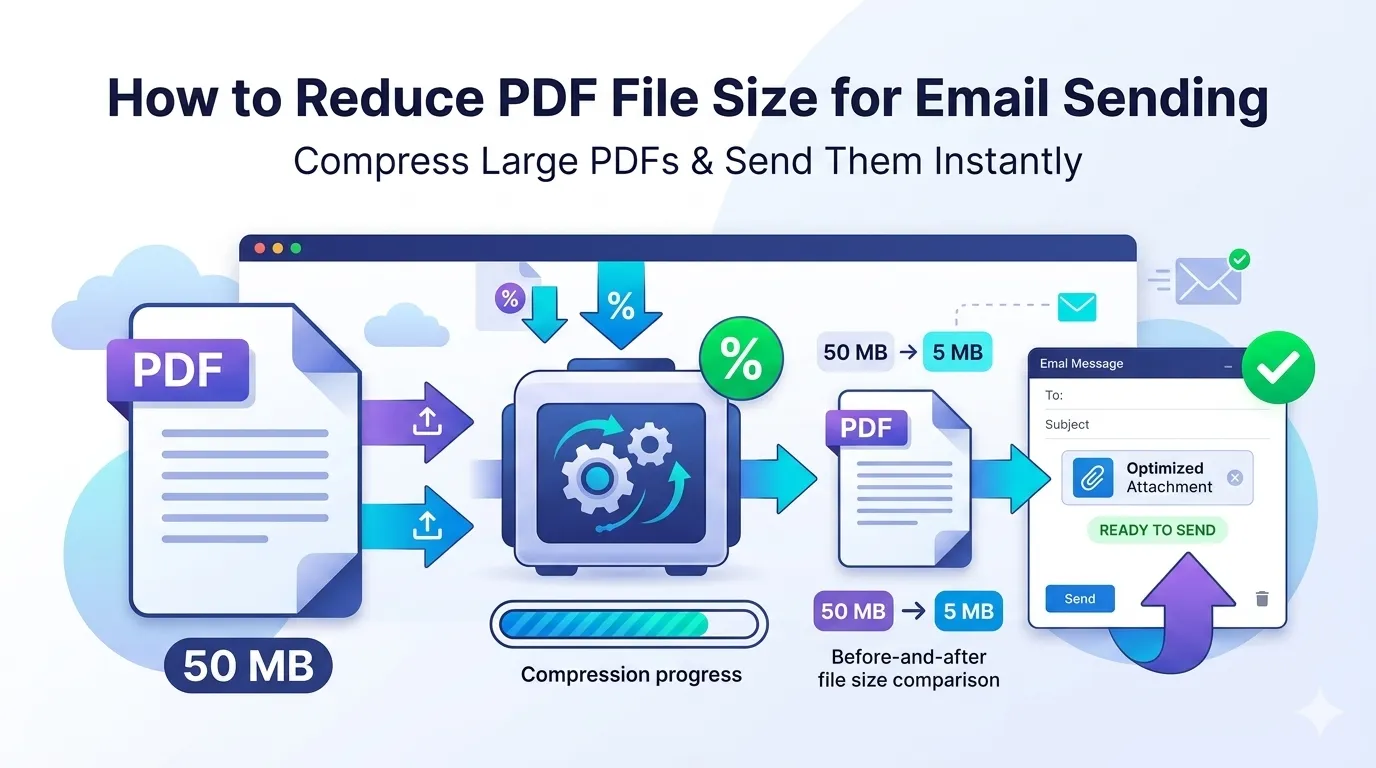
Watched your PDF attachment bounce back because it was too big? You’re not alone. Knowing how to reduce PDF file size for email keeps important documents flowing without delays. Most providers cap attachments at 25 MB, and large reports cross that line easily.
This guide explains why PDFs get oversized, walks through the easiest compression methods, and shares techniques to slim files without trashing quality. By the end, you’ll send any PDF without bounce-back frustration.
Why PDFs Get So Big in the First Place
PDFs grow large for several reasons. High-resolution images eat the most space. Embedded fonts add bulk. Scanned pages saved as raw images balloon file size dramatically. Plus, hidden metadata accumulates over edits.
Furthermore, repeated editing in some apps leaves orphaned data behind. A 50-page report that should weigh 2 MB can swell to 80 MB if mistreated. Compression strips out the wasted bytes.
When Compression Becomes Essential
- Emailing financial reports to executives
- Sending contracts to clients within Gmail or Outlook limits
- Uploading PDFs to slow corporate systems
- Sharing portfolios with hiring managers
- Distributing course material on low-bandwidth networks
- Backing up PDFs to limited cloud storage
Step-by-Step: Compress PDF Online for Email
Browser-based compressors handle the work in seconds. No software downloads or paid subscriptions required. Here’s the fastest workflow.
Step 1: Upload Your Oversized PDF
Visit our PDF Compressor. Drag the file into the upload zone. Most tools accept files up to 200 MB without complaints.
Step 2: Pick a Compression Level
Most tools offer three levels: low, medium, and high. Low keeps quality near-perfect. High shrinks files dramatically but adds slight blur to images. Medium balances both nicely.
Step 3: Download the Smaller PDF
Save the compressed file. Compare it to the original before sharing. If quality looks fine, you’re ready to attach the file to your email without bouncing.
How Much Smaller Can Your PDF Get?
Results vary by content type. Image-heavy PDFs shrink the most. Text-only documents see modest reductions since text is already lean. Scanned PDFs benefit most from compression.
| PDF Content Type | Typical Reduction |
|---|---|
| Image-heavy reports | 50–80% smaller |
| Scanned documents | 60–90% smaller |
| Mixed content | 30–50% smaller |
| Text-only documents | 10–25% smaller |
| Already-optimized PDFs | Minimal change |
Tips for Smarter PDF Compression
Smart habits stretch every compression. First, remove unnecessary pages before compressing using our Remove PDF Pages tool. Less content means smaller output.
Second, downsample embedded images before saving the PDF. Web-sized photos at 72 DPI weigh far less than print-quality 300 DPI versions. Third, flatten layered objects to a single image where appropriate.
Compression vs Quality: Finding the Sweet Spot
Heavy compression saves space but hurts visuals. Light compression keeps everything sharp but barely shrinks the file. Medium settings usually deliver the best balance for email sharing.
Test critical pages after compression. Charts, signatures, and small text suffer first when compression goes too far. Adjust settings until visuals stay readable yet file size meets your target.
Common Issues After PDF Compression
- Images turn blurry: Step back to a lighter compression setting
- Text becomes pixelated: Switch to compression that protects text layers
- File still too big: Split the PDF before compressing each piece
- Quality drops unevenly: Try a different tool for cleaner results
- Fonts look strange: Use a converter that preserves embedded typography
Alternatives When Compression Isn’t Enough
Sometimes even maximum compression leaves a file too large. When that happens, split the PDF into chapters using our PDF Splitter. Send each section separately or upload to cloud storage and share links instead.
For mixed-format attachments, bundle the compressed PDF with related files using our PDF to ZIP tool. ZIP compression sometimes squeezes out a few extra MB.
Privacy When Compressing Confidential PDFs
Many compressed PDFs hold sensitive content. Pick converters processing files in your browser. Files never leave your device, keeping legal contracts and HR records private.
Always read the privacy policy first. Tools deleting files within an hour offer reasonable security. Avoid services storing uploads indefinitely or sharing them for service improvements.
When NOT to Compress Your PDF
Legal documents often need archival-quality preservation. Print-ready brochures lose punch when compressed too aggressively. Photographs benefit from PDF/A archival standards instead of standard compression.
Reserve heavy compression for email attachments and digital sharing. Keep original files intact for printing, archiving, or repurposing later. Save copies before compressing if size doesn’t matter elsewhere.
Stop Bouncing Attachments Once and for All
Oversized PDFs ruin client deadlines and slow down workflows. Compressing them shrinks files to manageable sizes in seconds. Whether you’re emailing financial reports, contracts, or portfolios, the right compressor keeps things flowing.
Try our PDF Compressor today. Free, secure, and ready whenever your PDF needs to fit inside someone’s inbox without hassle.