
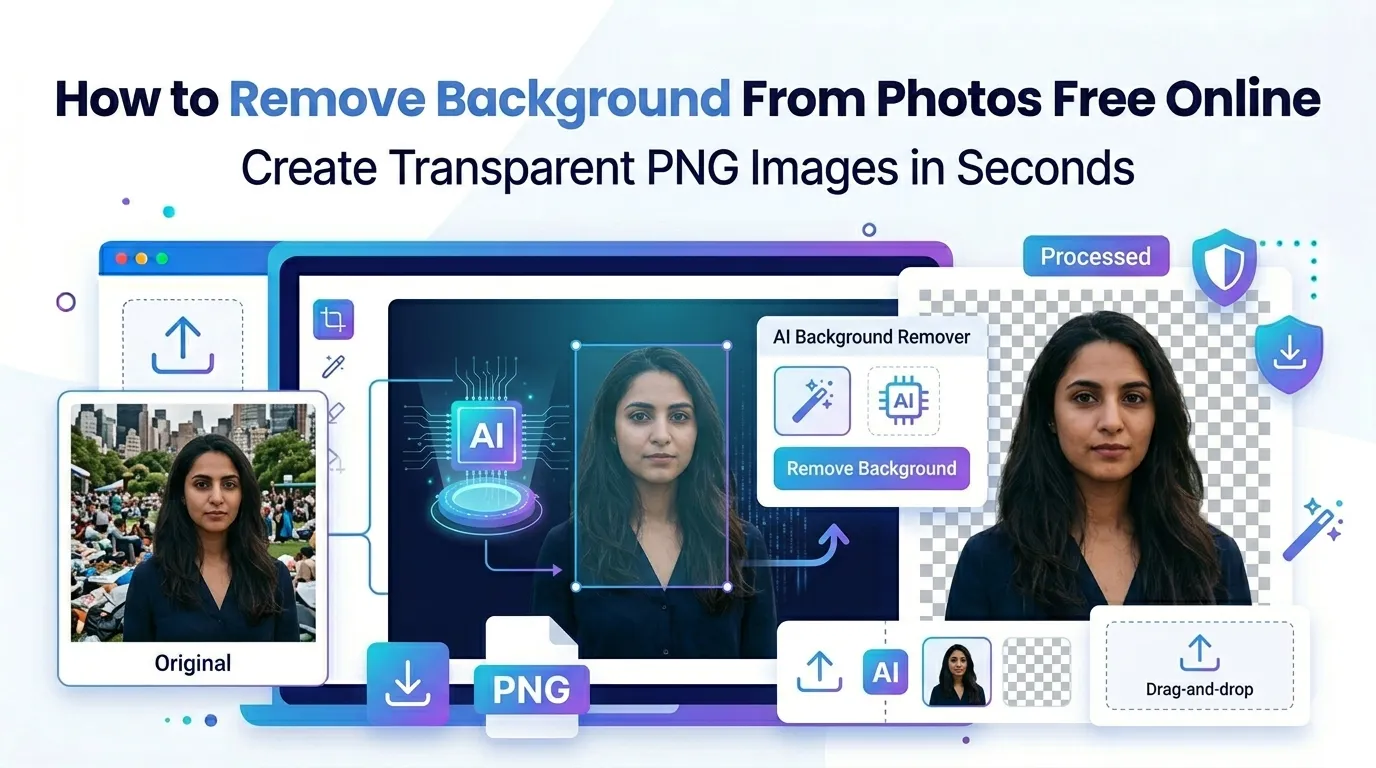
Want to remove background from photos free without complicated software? You’re tapping into one of the smartest design wins available. AI-powered background removal isolates subjects in seconds. Whether you’re prepping product photos, headshots, or graphics, the right tool delivers clean results instantly.
This guide walks through the easiest method, explains common use cases, and shares pro tips for edge perfection. By the end, you’ll handle background removal like a designer.
Why Removing Backgrounds Matters
Distracting backgrounds steal attention from subjects. Product photos compete with cluttered settings. Headshots get lost in busy walls. Logo extractions require clean isolations. Background removal solves all these problems instantly.
Furthermore, transparent backgrounds let images sit cleanly on any color. Brand logos adapt to dark headers and light hero sections. Product photos overlay marketing graphics without ugly white boxes around them.
Where Background Removal Wins
- E-commerce product photos for clean catalog displays
- Professional headshots with neutral or transparent backgrounds
- Logo extractions from busy original files
- Marketing graphics where subjects need isolation
- Social media posts with custom backgrounds
- Real estate photos focusing on properties
Step-by-Step: Remove Backgrounds Online
Browser-based tools handle background removal in seconds using AI. No design software or technical skills required.
Step 1: Upload Your Photo
Visit our Background Remover. Drag your photo into the upload zone. The tool detects subjects automatically using AI.
Step 2: Wait for AI Processing
AI scans the image and identifies foreground objects. Complex photos take longer. Simple subjects against solid backgrounds finish almost instantly. The tool delivers a transparent PNG result.
Step 3: Download the Transparent Image
Save the resulting PNG. Open it against different backgrounds to verify clean edges. Use the transparent version in design projects, marketing materials, or websites.
When AI Background Removal Works Best
| Subject Type | AI Success Rate |
|---|---|
| People against solid backgrounds | Excellent |
| Products on white | Excellent |
| Pets and animals | Very good |
| Hair detail | Good with refinement needed |
| Complex transparent objects | Mixed; may need manual work |
Tips for Clean Background Removal Results
Smart prep work boosts AI accuracy. First, use high-contrast photos. Subjects standing out clearly from backgrounds give AI the cleanest edges to detect.
Second, light subjects evenly. Harsh shadows confuse AI edge detection. Third, start with high-resolution sources. Detailed pixels help algorithms find precise boundaries between subject and background.
Common Background Removal Issues
- Hair edges look choppy: Use AI tools designed for hair refinement
- Subject parts disappear: Increase contrast in source photo first
- Background fragments remain: Manual cleanup may be needed
- White halo around subject: Use refined edge detection or feathering
- Transparent subjects vanish: Glass and clear objects need manual handling
What to Do After Background Removal
Removed backgrounds open up countless creative options. Layer subjects onto custom backgrounds. Build branded marketing campaigns. Create clean product catalog displays. The transparent PNG works as a foundation for unlimited design work.
For polished delivery, compress the final PNG using our Image Compressor. Resize for web with our Image Resizer. Convert to JPG for compatibility via our Image to JPG converter when transparency isn’t needed.
Privacy When Uploading Personal Photos
Photos with people demand careful handling. Pick background removers processing files in your browser. Personal images stay on your device throughout the entire process.
Read each tool’s privacy policy first. Reputable services delete uploads within an hour. Avoid platforms requiring account creation or storing photos longer than necessary for processing.
Combining Background Removal With Other Tools
Background removal fits into bigger workflows. Crop first using our Image Cropper to focus the subject. Rotate orientation with our Image Rotator if needed.
For brand assets, convert final transparent files using our Image to PNG converter. Each tool handles a specific job, and together they cover every image manipulation need.
When Manual Editing Beats AI
AI handles most subjects beautifully. However, transparent objects like glass, hair details, and intricate shapes sometimes need manual touch-ups. Professional design tools offer pixel-level precision AI can’t always match.
Use AI as a starting point. Most photos get 90% there automatically. Final touch-ups in Photoshop or GIMP handle the remaining edge cases. Combined approaches deliver the cleanest results.
Isolate Subjects With One Click
Cluttered backgrounds steal attention from what matters. AI-powered removal isolates subjects in seconds. With the right tool, you transform any photo into a versatile transparent asset ready for unlimited creative use.
Try our Background Remover today. Free, secure, and ready whenever your photos need that polished, professional isolation that separates good designs from great ones.