
Need to remove password from PDF files but the constant prompts are slowing you down? Encryption protects sensitive documents brilliantly, but once protection isn’t needed, those passwords become annoying roadblocks. Removing them takes seconds with the right tool.
This guide explains when password removal makes sense, how to do it online safely, and what to watch out for. By the end, you’ll handle decryption confidently without compromising security.
When You Need to Remove a PDF Password
Password-protected PDFs slow down everyday work. Searching across files becomes impossible. Bulk processing fails because encryption blocks automation. Even simple printing requires unlocking each file separately.
Furthermore, old encryption stops being useful. Long-archived files may no longer need protection. Removing passwords lets you organize, search, and reuse content without constant friction.
Real Situations for Password Removal
- Archiving PDFs that no longer need protection
- Preparing documents for internal team sharing
- Automating PDF processing in larger workflows
- Searching content across folders of old files
- Printing booklets that came in encrypted form
- Editing your own protected documents after the project closes
Step-by-Step: Remove PDF Password Online
Online tools strip passwords in seconds once you have the original. The process stays simple and quick.
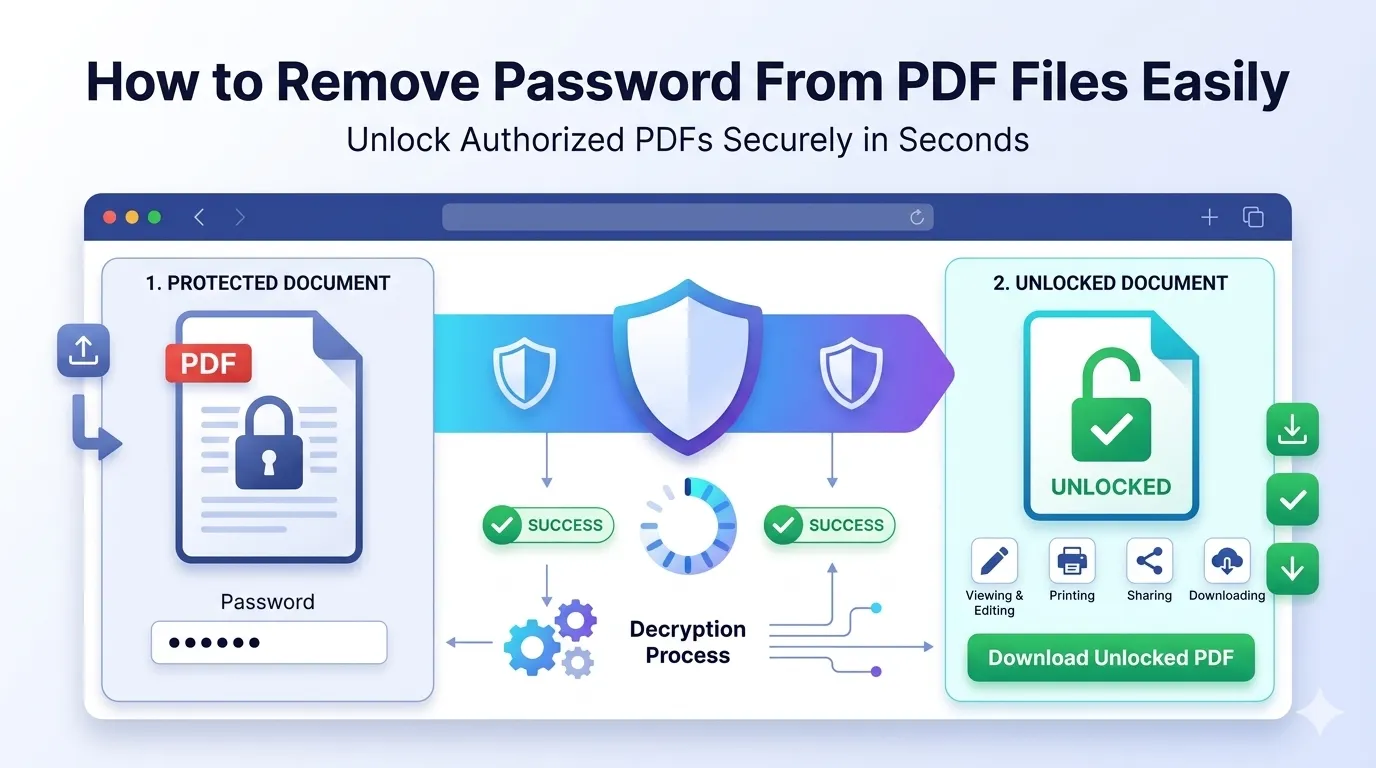
Step 1: Upload Your Protected PDF
Visit our PDF Decrypt tool. Drag your encrypted file into the upload zone. The tool recognizes password-protected files instantly.
Step 2: Enter the Original Password
Type the password into the prompt. The tool verifies access before stripping encryption. Without the original credentials, no legitimate tool can unlock the file.
Step 3: Download the Unlocked PDF
Save the decrypted file. Open it to confirm protection has been removed. The PDF now works like any standard document.
Important Boundaries: When NOT to Remove Passwords
Decryption tools work only when you own the password. They can’t crack files. They simply remove protection after authenticating you. Respect that boundary.
| Scenario | Appropriate Action |
|---|---|
| Your own encrypted PDF | Decrypt as needed |
| Workplace document with shared password | Confirm authorization first |
| PDF received with credentials | Decrypt for personal convenience |
| Unknown protected file | Don’t attempt removal |
| Copyrighted material | Respect the publisher’s restrictions |
Tips for Safe PDF Password Removal
Smart habits keep decryption safe. First, always work with a copy. Keep the encrypted original as backup until you confirm the decrypted version works correctly.
Second, store decrypted PDFs in secure folders. Without password protection, anyone with file access reads content. Third, re-encrypt files later if confidentiality returns to mind, using our PDF encryption tool.
Common Errors and Quick Fixes
- Wrong password message: Double-check capitalization and special characters
- Owner password mismatch: Some tools need user password too
- File still locked after download: Open in a different PDF viewer to test
- Process failure on certain files: The encryption may use unsupported standards
- Corrupted output: Re-upload the original and try again
Privacy When Decrypting Sensitive PDFs
Decryption tools handle sensitive content by definition. Pick services processing files in your browser. Encrypted files plus passwords never leave your device that way.
Read each tool’s privacy policy. Look for client-side processing and quick automatic deletion. Avoid services storing decrypted output for any reason, since that defeats the protection you originally added.
What to Do After Removing the Password
An unlocked PDF opens countless workflows. Compress oversized files with our PDF Compressor now that automation works. Merge related decrypted files using the PDF Merger.
Need to edit content? Convert through our PDF to Word converter. For raw text dumps, try the PDF to Text converter. Each tool now works freely without password prompts.
When Re-encryption Makes Sense
Removing protection doesn’t mean permanently abandoning encryption. Add new passwords later if the file’s sensitivity returns. Storage moves, sharing changes, or compliance updates often warrant re-encryption.
Use strong, unique passwords when re-encrypting. Store credentials in a password manager. Stronger encryption combined with unique passwords protects content better than reusing the original password.
When Password Removal Isn’t Right
Don’t strip passwords from files you don’t own. That crosses ethical and often legal boundaries. Respect publisher rights on commercial PDFs. Honor confidentiality on shared work documents.
If you need access to a forgotten-password file you legitimately own, check your password manager first. Cloud backup services sometimes store credentials too. Decryption tools require the original password to work properly.
Free Your Authorized PDFs in Seconds
Password prompts shouldn’t slow down your work on files you legitimately own. Removing them takes seconds with the right tool, freeing PDFs for everyday workflows. Just remember — always use decryption ethically and only on documents you control.
Try our PDF Decrypt tool today. Free, secure, and ready whenever password prompts become more obstacle than protection.