
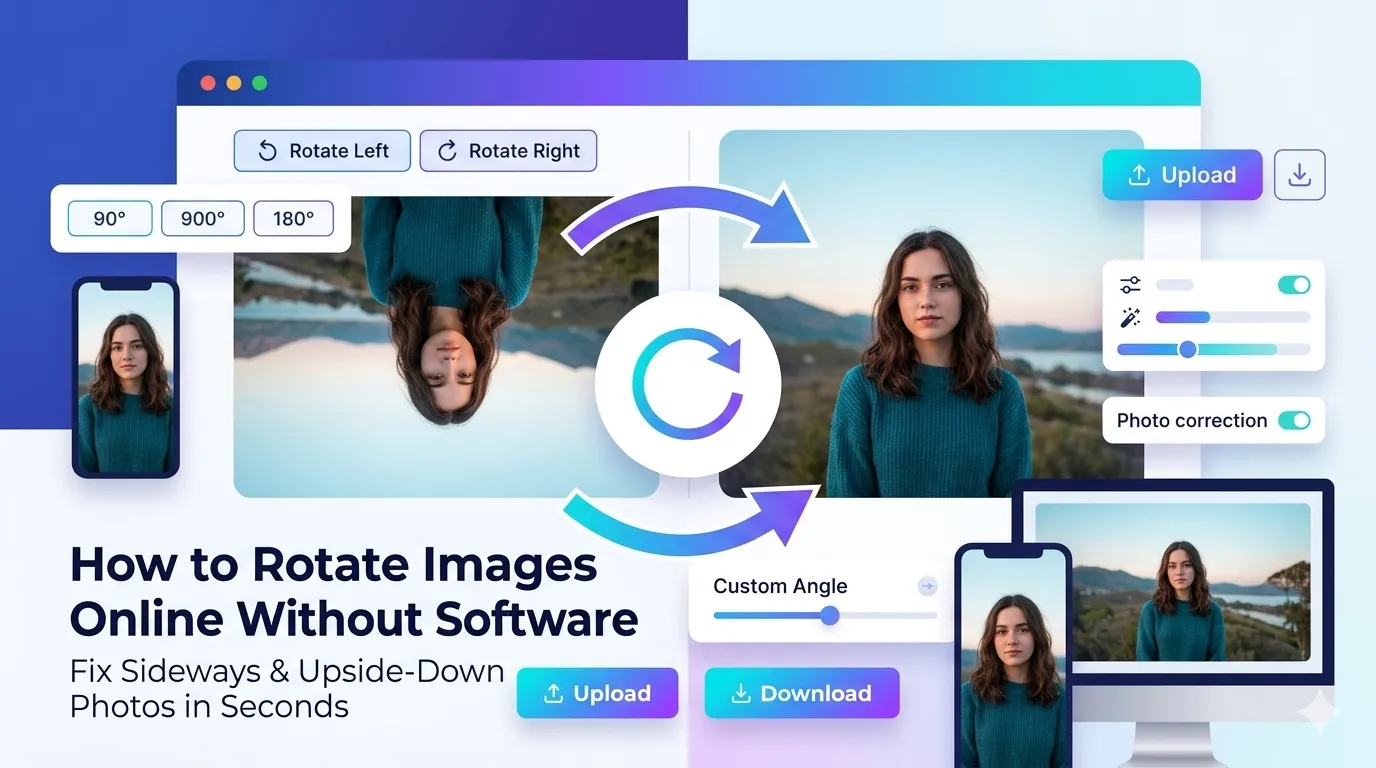
Tired of sideways photos cluttering your phone or computer? Learning how to rotate images online without software fixes orientation issues in seconds. Whether photos came in upside-down from your camera or scanned documents arrived flipped, online rotators straighten everything out quickly.
This guide explains common rotation scenarios, walks through the fastest online method, and shares pro tips for batch corrections. By the end, you’ll handle photo orientation like a pro.
Why Photos End Up Sideways or Upside Down
Cameras and phones save photos with embedded orientation data. Some apps read that data correctly; others ignore it. The result? Photos appear sideways in certain contexts even when they look right elsewhere.
Furthermore, scanned documents often arrive at strange angles. Scanner placement, document feeders, and quick scans all introduce rotation issues. Rotating fixes everything cleanly without complex software workflows.
Common Rotation Scenarios
- iPhone photos showing sideways on Windows computers
- Scanned documents arriving rotated 90 degrees
- Drone shots needing 180-degree flipping
- Portrait photos accidentally taken in landscape mode
- Receipts scanned upside down for accounting
- Photos imported from old cameras with mixed orientations
Step-by-Step: Rotate Images Online
Browser-based rotators handle the work in seconds. No software downloads required. Here’s the simplest workflow.
Step 1: Upload Your Image
Visit our Image Rotator. Drag your photo into the upload zone. Most tools support JPG, PNG, WebP, and other common formats simultaneously.
Step 2: Choose Rotation Direction
Click rotate left or right buttons to spin 90 degrees per click. For custom angles, type a precise degree value. Most photos only need standard 90, 180, or 270-degree rotations.
Step 3: Download the Rotated Image
Click apply or save. The tool generates the rotated image instantly. Save it locally and replace the original wherever needed.
Rotation Options Explained
| Rotation Type | Use Case |
|---|---|
| 90° clockwise | Phone photos showing sideways |
| 90° counter-clockwise | Photos rotated the wrong way |
| 180° | Upside-down scans or drone shots |
| Custom angle | Slightly tilted images needing precision |
| Flip horizontal | Mirror image effects |
| Flip vertical | Reflection effects |
Tips for Clean Rotation Results
Smart habits prevent quality loss. First, use 90-degree increments when possible. Standard rotations don’t introduce quality loss. Custom angles require interpolation that can soften details slightly.
Second, work from highest-resolution sources. Rotating from already-compressed images compounds quality loss. Third, save rotated images as PNG or original format. Re-encoding to JPG adds compression artifacts unnecessarily.
Common Rotation Mistakes
- Ignoring EXIF data: Some tools read it; others don’t. Test both approaches
- Custom angles without need: Stick to 90-degree increments when possible
- Saving over originals: Keep backup copies before applying rotations
- Re-encoding to JPG: Adds quality loss; pick lossless formats when possible
- Skipping batch tools: Don’t rotate hundreds of images individually
Batch Rotation for Multiple Photos
Single rotations work for a photo or two. For dozens or hundreds, batch tools save serious time. Upload many images at once, set rotation direction, and download everything as a ZIP.
Furthermore, smart batch tools detect orientation automatically. They read EXIF data and rotate each photo correctly without manual intervention. Useful for processing entire photo libraries efficiently.
Privacy When Rotating Personal Photos
Family photos and personal documents deserve careful handling. Pick rotators processing files in your browser. Images stay on your device throughout the entire rotation process.
Always check the privacy policy. Reputable services delete uploads within an hour. Avoid platforms requiring account creation for one-off rotation tasks involving sensitive documents.
Combining Rotation With Other Tools
Rotation pairs well with other image operations. Crop rotated images using our Image Cropper to focus subjects. Resize them with our Image Resizer for web-friendly dimensions.
For final compression, route through our Image Compressor. Each tool tackles a specific need, and together they form a complete image processing pipeline.
When Rotation Isn’t the Right Fix
Rotation only spins images. It can’t fix perspective distortion in tilted shots. Buildings that lean inward stay leaning even after rotation. Perspective correction needs different tools.
Also, severely warped images may need professional editing software. Online rotators handle simple straightening tasks well. For complex perspective issues, dedicated photo editors offer more control.
Straighten Every Photo in Seconds
Sideways photos belong in the past. With the right tool, fixing orientation takes seconds and works on any device. Whether you’re cleaning up phone snaps, scanned receipts, or drone shots, online rotation handles everything cleanly.
Try our Image Rotator today. Free, secure, and ready whenever your photos need orientation correction without installing yet another app.