
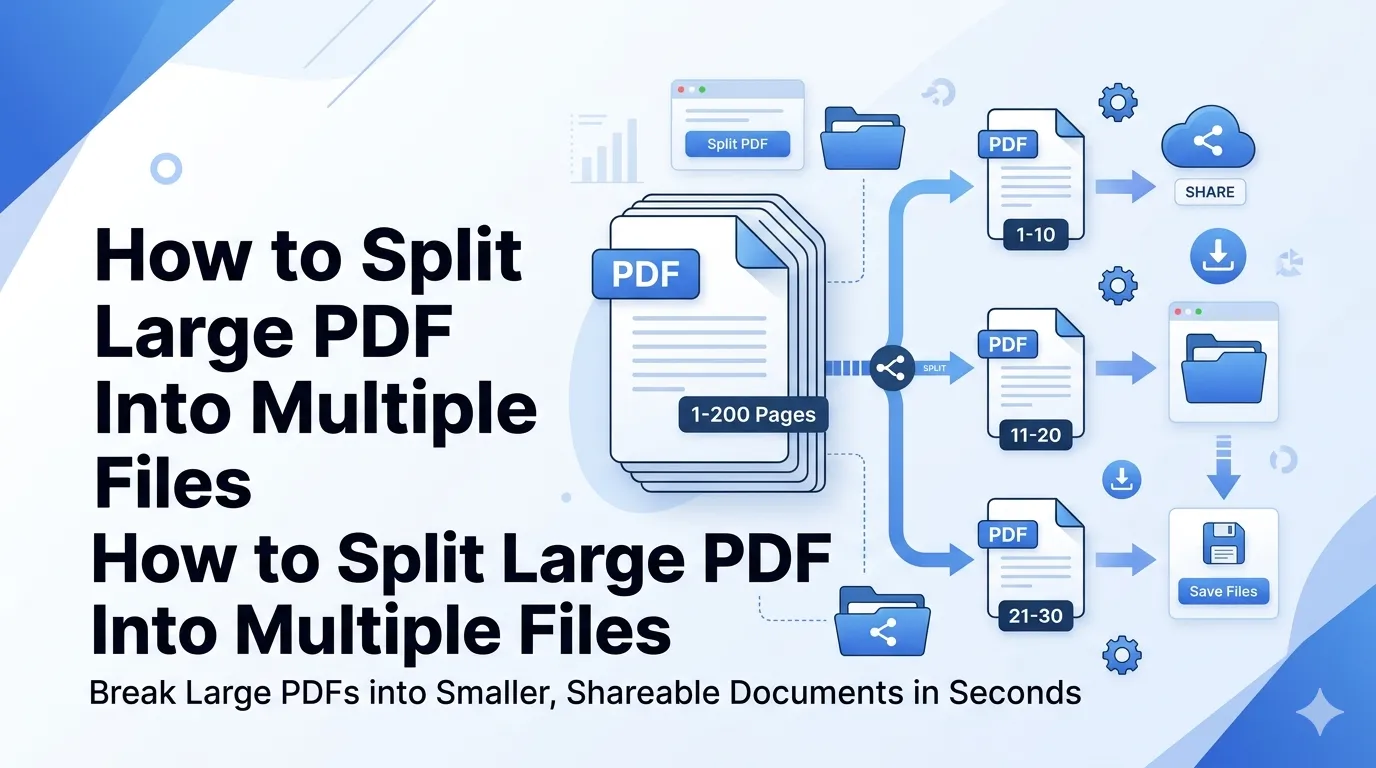
Ever tried to email a 50 MB PDF only to get blocked by the size limit? Learning how to split large PDF into multiple files solves that problem instantly. A massive PDF is hard to share, slow to open, and frustrating to navigate. Breaking it into smaller pieces makes everything easier.
This guide explains why splitting PDFs matters, when to do it, and exactly how to handle the process online. You’ll walk away knowing the fastest, safest methods, even for hundred-page documents.
Why Splitting a Large PDF Saves Time and Hassle
Big PDFs cause real problems. Email servers reject attachments over 25 MB. Cloud storage takes longer to sync. Mobile users wait ages for downloads to finish. Furthermore, scrolling through 200 pages to find one chapter wastes minutes you’ll never get back.
Smaller files load faster on every device. Your readers find what they need quickly. Plus, you can share just the relevant section instead of dumping everything on someone’s inbox.
Real Situations Where Splitting Helps
- Sharing one chapter of an eBook with a friend
- Sending invoice pages separately to different clients
- Submitting only required sections of a long report
- Archiving contracts by individual signature pages
- Distributing course materials by lesson
- Cleaning up scanned documents that bundled too many pages together
Step-by-Step: Split PDF Files Online in Minutes
You don’t need expensive software for this. Browser-based tools handle splitting in seconds. The process stays simple even for non-technical users.
Step 1: Upload Your PDF
Visit our PDF Splitter tool. Drag your file into the upload box. Files load locally, so privacy stays intact throughout the process.
Step 2: Choose Your Split Method
You’ll typically see two options. Split by page range gives you specific sections. Split by single pages turns each page into its own file. Pick whichever fits your goal.
Step 3: Download Your Split Files
After processing, download the new PDFs as a ZIP or individually. Save them with descriptive names so you can find them later without confusion.
Different Ways to Split a Large PDF
One size doesn’t fit all. Different splitting methods suit different needs. Knowing which approach to use saves rework later.
| Method | Best For |
|---|---|
| Split by page range | Extracting specific chapters |
| Split every X pages | Breaking up evenly into chunks |
| Split into individual pages | Creating one file per page |
| Split by bookmarks | Long PDFs with chapter markers |
| Split by file size | Meeting email attachment limits |
Common Mistakes When You Split PDF Files
People often make the same errors when splitting. Avoiding these saves you redo time.
- Forgetting page numbers shift: Always preview before downloading
- Losing the original: Keep a backup of the source PDF
- Ignoring file naming: Use clear names like “chapter-1.pdf”
- Splitting password-protected files blindly: Unlock first if needed
- Skipping quality checks: Open each split file to verify content
Smart Tips for Better PDF Splitting
A few small habits make splitting smoother. First, scan your PDF for natural break points like chapter headers. These create logical division lines.
Next, compress oversized PDFs before splitting using our PDF Compressor. Smaller source files split faster. Additionally, if your PDF came from scans, try OCR first so split files remain searchable.
Combining Split PDF With Other Document Tools
Splitting rarely stands alone. After breaking a PDF apart, you might want to merge specific pieces back together. Use the PDF Merger to combine relevant sections into one fresh document.
Need to delete junk pages first? The Remove PDF Pages tool trims unwanted content. For ongoing edits, convert files via the PDF to Word converter. These tools work as a complete workflow.
Security Considerations Before Splitting
Confidential PDFs deserve extra care. Always pick a tool that processes files in your browser. Server-side processing means your document briefly sits on someone else’s machine.
Furthermore, review the privacy policy. Tools that delete files automatically after one hour are safer than ones storing uploads indefinitely. When handling legal or medical PDFs, double-check encryption practices.
When NOT to Split Your PDF
Sometimes the original works better intact. Don’t split signed contracts that need to stay together for legal validity. Avoid splitting PDFs with internal cross-references unless you fix the links afterward.
Similarly, archival documents often have value as complete records. Splitting them fragments their integrity. Consider compression instead if you only need smaller file sizes.
Start Splitting Your Oversized PDFs Today
You no longer need to wrestle with massive PDF files. Splitting them takes seconds with the right tool. Whether you’re emailing one chapter, archiving by section, or just simplifying your workflow, the process is straightforward.
Try our PDF Splitter right now. No downloads, no payments, no friction. Take control of your PDF files in seconds.