
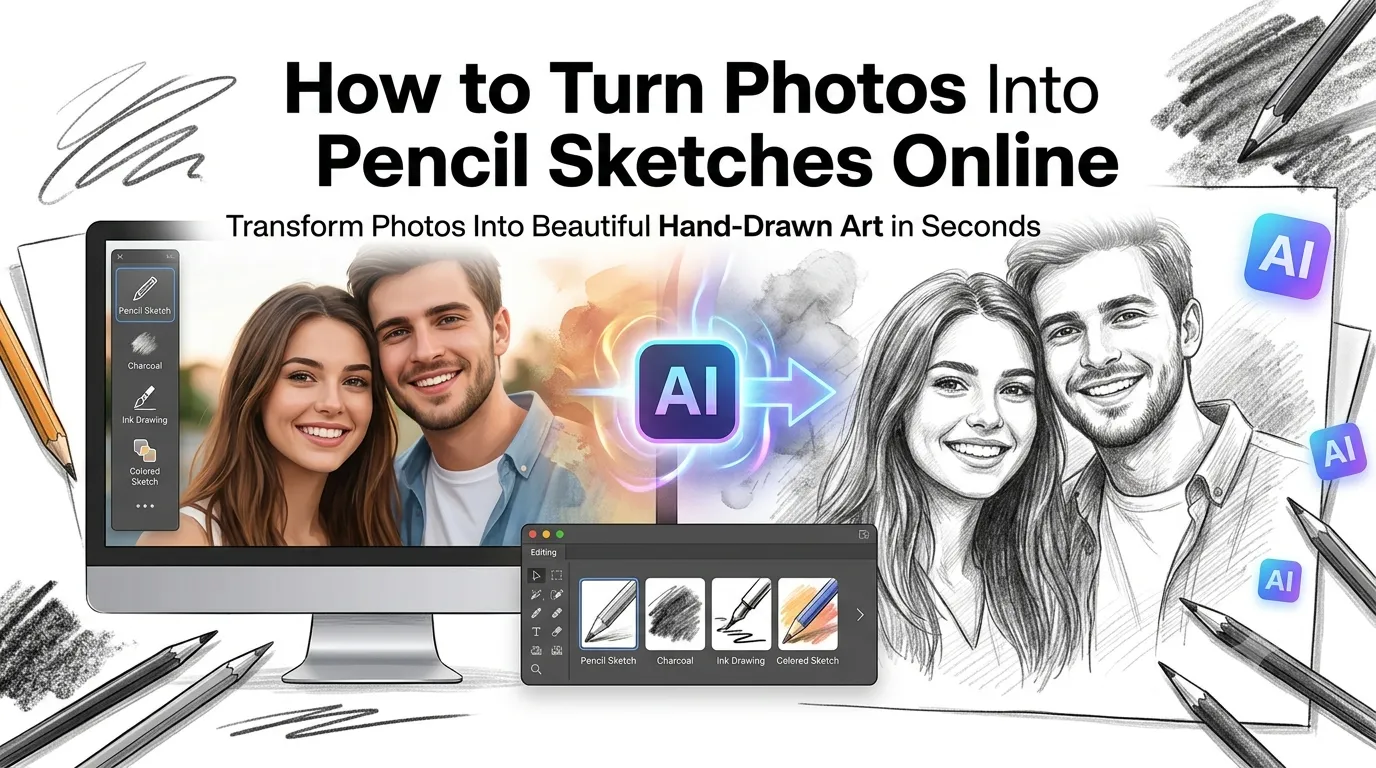
Want to turn photos into pencil sketches that look hand-drawn by an artist? You’re tapping into one of the most charming photo effects available. AI-powered sketch tools transform ordinary snapshots into elegant pencil portraits in seconds, perfect for gifts, social media, or personal art collections.
This guide walks through the easiest method online, explains different sketch styles, and shares pro tips for stunning results. By the end, you’ll create artistic transformations like a pro.
Why Pencil Sketch Effects Are So Popular
Pencil sketches feel personal and artistic. They strip color noise and focus on form, line, and shading. Recipients sense the effort behind hand-drawn portraits, even when AI handles the work.
Furthermore, sketches make beautiful gifts. Anniversary photos become drawn portraits. Pet pictures turn into thoughtful keepsakes. Wedding shots gain timeless artistic quality. The format adds emotional weight that plain photos can’t match.
Where Pencil Sketch Effects Shine
- Anniversary or birthday gifts as printed artwork
- Social media posts standing out from photo-heavy feeds
- Memorial portraits honoring loved ones
- Pet portraits turned into framed wall art
- Children’s bedroom art from their own photos
- Wedding album highlights with artistic touches
Step-by-Step: Convert Photos to Pencil Sketches Online
Browser-based tools handle photo-to-sketch conversion in seconds using AI. No artistic skills required.
Step 1: Upload Your Photo
Visit our Photo to Sketch tool. Drag your photo into the upload zone. Portraits work best, but landscapes, pets, and objects transform beautifully too.
Step 2: Choose Sketch Style
Pick from pencil, charcoal, ink, or colored pencil options. Adjust intensity for softer or bolder lines. Most tools offer instant previews so you can see results before committing.
Step 3: Download Your Sketch
Save the transformed image as PNG or JPG. Print it, share on social media, or use it in design projects. Sketches look especially impressive when printed and framed.
Different Sketch Styles Explained
| Style | Effect |
|---|---|
| Soft pencil | Gentle, romantic lines |
| Bold pencil | Dramatic, high-contrast strokes |
| Charcoal | Rich shadows and texture |
| Pen and ink | Sharp, defined lines |
| Colored pencil | Soft hues over sketched outlines |
Tips for Stunning Sketch Results
Smart prep work creates better sketches. First, start with high-contrast photos. Clear subjects against simple backgrounds produce cleaner sketch outlines than busy scenes.
Second, use well-lit photos. Harsh shadows produce muddy sketches. Third, focus on subjects with distinct facial features or shapes. Pet portraits, headshots, and dramatic poses work especially well in sketch form.
Common Sketch Conversion Issues
- Sketch looks muddy: Use higher-contrast source photos
- Details vanish: Try a softer sketch intensity
- Lines too harsh: Switch to pencil from pen-and-ink style
- Color washes out: Pick colored pencil mode instead of pure pencil
- Background distracts: Remove background first for cleaner sketches
Making Sketches Ready for Print
Sketches print beautifully as wall art. Use sources at 300 DPI minimum for crisp prints. Larger formats need higher source resolutions. A printed 11×14 sketch needs at least 3300×4200 pixels for quality results.
For premium gifts, save sketches as TIFF using our Image to TIFF converter. Commercial printers prefer TIFF for lossless print quality. Frame the final print for emotional impact.
Privacy When Uploading Personal Photos
Family photos and personal portraits deserve careful handling. Pick sketch tools processing files in your browser. Photos stay on your device throughout the entire transformation process.
Read each tool’s privacy policy first. Reputable services delete uploads within an hour. Avoid platforms requiring account creation for one-off sketch generation tasks involving family memories.
Combining Sketch With Other Tools
Sketch creation pairs well with other photo tools. Crop tightly first using our Image Cropper for focused portraits. Remove distracting backgrounds via our Background Remover before sketching.
For final presentation, resize for print using our Image Resizer. Add elegant framing manually after download. Each tool fits a specific role in creating polished artistic outputs.
When Sketch Effects Don’t Work Well
Some photos resist sketch transformation. Very busy scenes with too many subjects confuse AI. Low-resolution sources produce muddy sketches. Heavily filtered photos already losing details don’t gain artistic punch from further processing.
Reserve sketch effects for clear, well-lit subjects. Single faces or pet portraits work beautifully. Save complex group shots for traditional photographic presentation instead of artistic transformation.
Create Artistic Portraits Instantly
Every photo carries emotional weight. Pencil sketches amplify that feeling, turning snapshots into timeless artwork. With the right tool, transforming photos takes seconds and creates gifts people remember for years.
Try our Photo to Sketch tool today. Free, secure, and ready whenever your photos deserve artistic transformation worthy of framed wall art.