
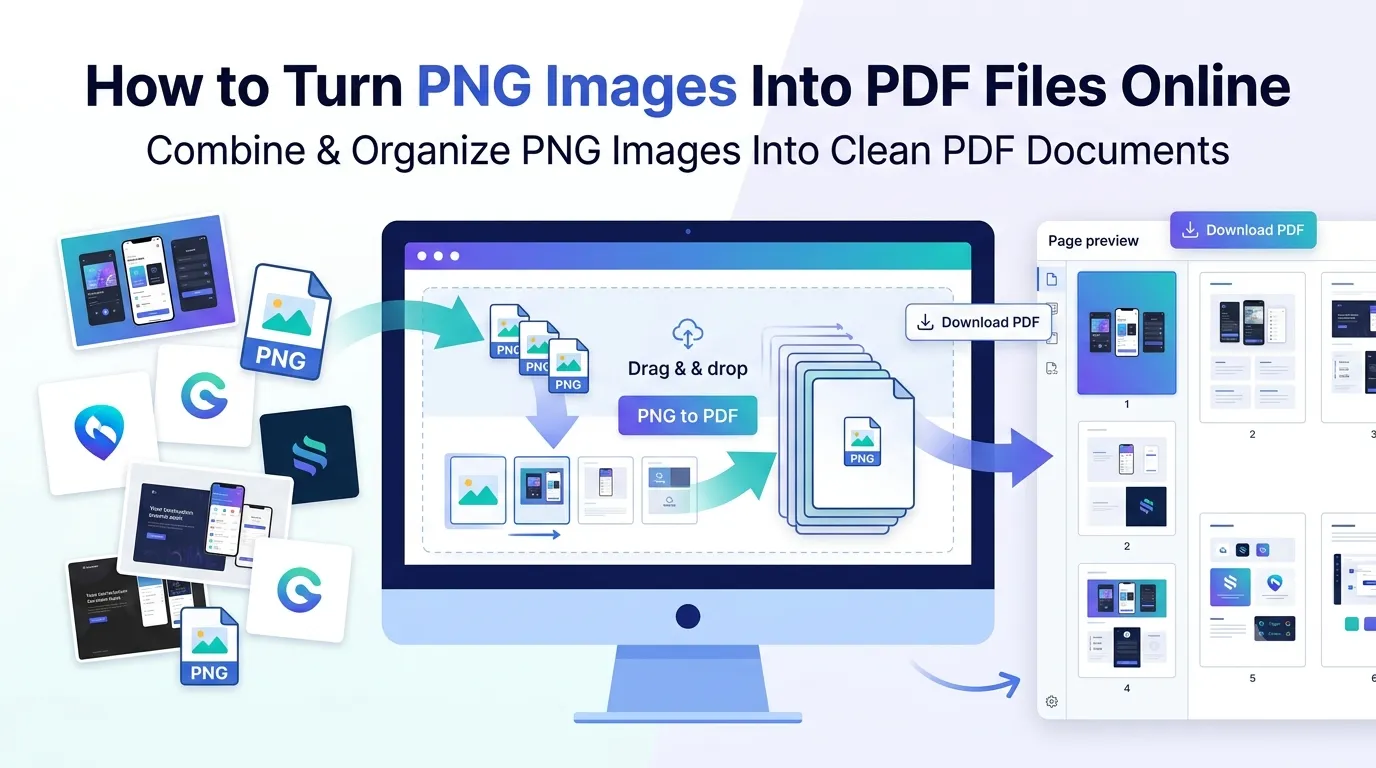
Looking for the cleanest way to turn PNG images into PDF files? You’re in the right place. PNG handles transparency and sharp graphics beautifully. PDF lets you bundle and share those visuals without losing crispness or order.
This guide walks through the simplest method, explains why PNG to PDF differs from JPG, and shares tips for transparent backgrounds. By the end, you’ll move design assets and screenshots into clean PDFs effortlessly.
Why Convert PNG to PDF in the First Place?
PNG files shine on their own but get awkward in bulk. Designers send dozens of screenshots, mockups, and illustrations together. Bundling them as a single PDF tames the chaos and arrives intact every time.
Furthermore, PDFs respect order. Random folder uploads scramble file sequences. A PDF keeps the visual story exactly as you arranged it, page by page.
Practical Reasons to Bundle PNG as PDF
- Sending UI mockups to clients in one file
- Compiling bug screenshots into a tester report
- Building portfolio decks for design reviews
- Archiving tutorial screenshots for easy reference
- Sharing logo variations with brand teams
- Submitting visual evidence for tickets or audits
Step-by-Step: PNG to PDF Online
Online tools handle PNG to PDF conversion in seconds. The workflow stays painless even when bundling 30 or more files.
Step 1: Upload Your PNG Images
Visit our PNG to PDF converter. Drag images into the upload zone all at once. The tool supports both transparent and opaque PNGs without complaints.
Step 2: Arrange the Page Order
Drag thumbnails into the order you want. Pick page size and orientation if available. Most projects work well with A4 portrait or Fit-to-Image options.
Step 3: Generate and Download
Click “Convert.” The tool stitches your PNGs into one PDF in seconds. Save the file and share with confidence — every screenshot lands exactly where you placed it.
Handling Transparent Backgrounds
Transparency makes PNG special. Most converters flatten it to white during PDF conversion. That works for screenshots and most designs. For logos placed over patterns, transparency matters more.
Pick a converter offering “preserve transparency” if your visuals depend on see-through edges. Otherwise, default settings flatten cleanly without issue and produce smaller PDFs.
PNG to PDF vs JPG to PDF: Key Differences
| Feature | PNG to PDF | JPG to PDF |
|---|---|---|
| Transparency | Supported with the right tool | Not supported |
| Image quality | Lossless, sharper edges | Lossy compression |
| File size | Larger | Smaller |
| Best for | Screenshots, logos, graphics | Photos, snapshots |
| Color accuracy | Excellent | Good |
Tips for Sharper PNG to PDF Results
Cleaner inputs create cleaner output. First, crop unnecessary whitespace around each PNG before uploading. Trimmed images look polished and reduce wasted page area.
Second, name files descriptively if you depend on alphabetical sorting. Third, verify resolution. Web-sized PNGs work for digital sharing, while print-ready ones need 300 DPI for crispness.
Common Issues and How to Fix Them
- Huge PDF file size: Resize PNGs before adding to the converter
- Transparent areas turning black: Pick a tool with white-background flattening
- Page orientation mismatch: Set fixed page sizes in the converter
- Misaligned images: Toggle Fit-to-Image versus fixed page size
- Lost color accuracy: Use a tool offering lossless conversion
Privacy When Converting PNG Designs
Design assets and screenshots often contain proprietary information. Pick converters processing files in your browser. Your visuals stay on your machine throughout the entire process.
Always review privacy policies. Reputable tools delete files within an hour. Skip services demanding account creation for one-off PNG bundles.
After Conversion: Building the Workflow
Generated PDFs slot into bigger workflows. Compress hefty image PDFs with our PDF Compressor. Combine PNG decks with related documents through the PDF Merger.
Mixing photo formats? Pair this tool with our JPG to PDF converter. For broader image bundles, try the Image to PDF converter.
When PNG to PDF Isn’t the Right Move
Single PNGs rarely need PDF conversion. Sending them as raw images keeps transparency intact and stays simpler. Web designers handing off assets often prefer PNG directly so developers can place them with full transparency.
Reserve PDF bundles for collections, sign-offs, and printable documents. Native PNG works better for ongoing design iteration and integration into apps.
Send Design Bundles With One Click
Scattered PNG files slow down design reviews and bug reports. Bundling them as a single PDF turns chaos into clarity. With the right tool, every screenshot or mockup lands exactly where you placed it.
Try our PNG to PDF converter right now. Free, secure, and ready whenever your design assets need to travel together as one clean document.