
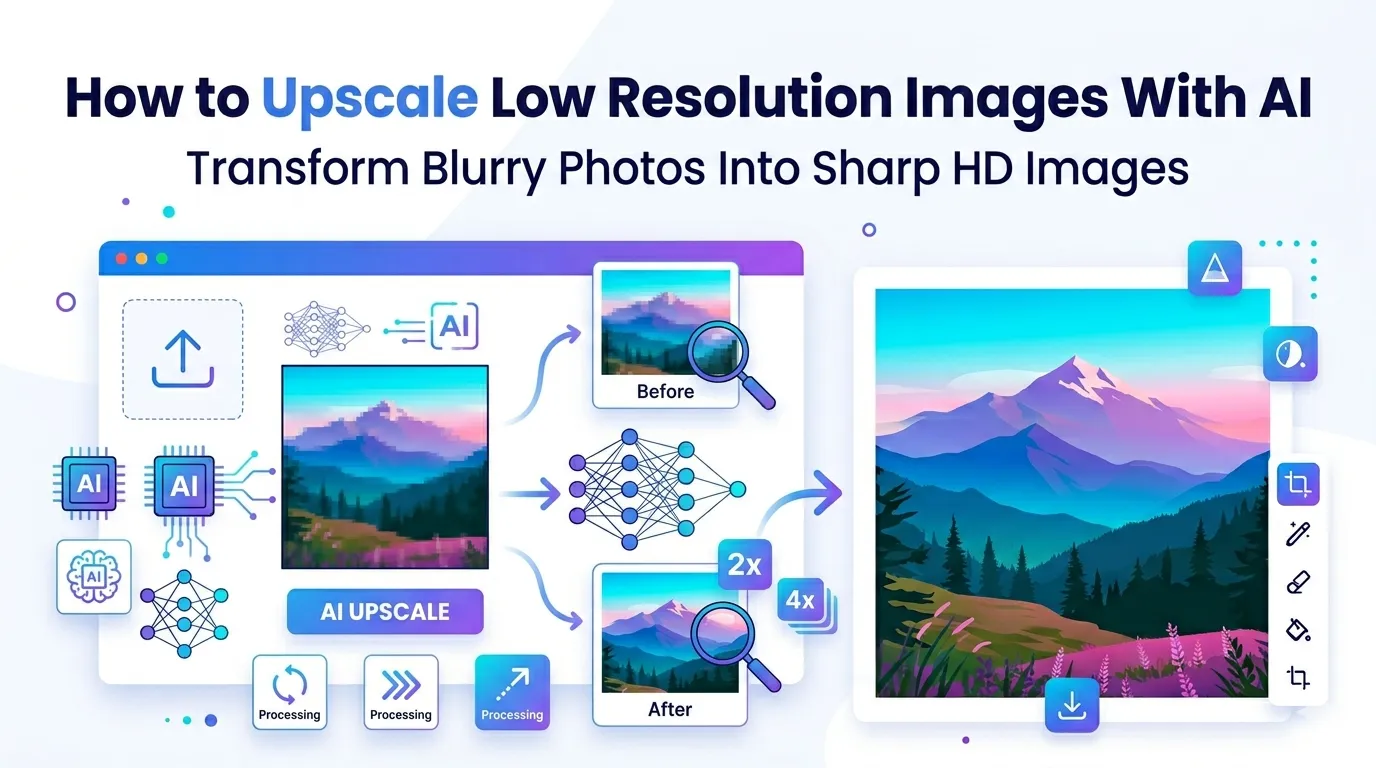
Stuck with a tiny, pixelated photo you wish was bigger and sharper? Learning how to upscale low resolution images with AI fixes that exact problem. Modern AI upscalers add detail intelligently, transforming small images into print-ready, high-resolution versions. The results often look stunning.
This guide walks through the easiest method, explains how AI upscaling works, and shares pro tips for crisp results. By the end, you’ll rescue any small photo and prepare it for any size.
Why AI Upscaling Beats Traditional Methods
Traditional image enlargement just stretches pixels. Photos get blurry. Details disappear. Photoshop’s standard resize introduces softness that ruins print quality.
Furthermore, AI upscalers add new details. They’ve learned from millions of high-resolution images. When upscaling, they predict what details should appear at higher resolutions. The result: sharper, more detailed images than the original ever contained.
When AI Upscaling Saves the Day
- Enlarging old photos for canvas prints
- Sharpening screenshots for presentation slides
- Restoring details in compressed social media images
- Preparing low-res product photos for print catalogs
- Improving family heirloom scans before framing
- Boosting resolution of phone photos for billboards
Step-by-Step: Upscale Images Online
Browser-based AI upscalers handle the heavy work in seconds. No GPUs or expensive software needed.
Step 1: Upload Your Low-Res Image
Visit our AI Image Upscaler. Drag your photo into the upload zone. Most tools accept JPG, PNG, and WebP formats, including images as small as 300 pixels wide.
Step 2: Pick Upscale Factor
Choose 2x, 4x, or even 8x enlargement. AI works hardest at higher multipliers. 4x usually delivers the best balance of size gain and quality. Beyond that, results vary depending on source clarity.
Step 3: Download the Enhanced Image
Save the upscaled result. Compare it side-by-side with the original. Print, frame, or use it wherever you need detailed, large-format imagery.
How AI Upscaling Actually Works
AI upscalers train on millions of paired low-resolution and high-resolution images. They learn how details appear at each size. When you upload a small photo, the AI predicts what the higher-res version should look like.
| Method | Quality Result |
|---|---|
| Traditional bicubic | Smooth but blurry |
| Lanczos resampling | Slightly sharper |
| AI super resolution | Adds new realistic detail |
| Deep learning models | Best quality, slower processing |
Tips for Best Upscaling Results
Smart prep maximizes AI output. First, start with the highest-quality source you have. AI can’t recover detail from heavily compressed JPGs as well as it can from clean PNGs.
Second, avoid pre-sharpened sources. AI handles sharpening better than manual filters. Third, don’t overdo upscaling. 4x usually beats 8x for natural-looking results. Match upscale factor to your actual final use.
Common AI Upscaling Pitfalls
- Over-sharpened textures: Some AI tools exaggerate edges; pick natural-mode settings
- Artifacts in low-quality sources: AI amplifies existing flaws too
- Face distortion: Use AI tools specifically trained on faces for portraits
- Slow processing: Expected; quality AI upscaling needs computation time
- Cartoonish results: Adjust strength settings or try different upscaler
When to Use AI vs Manual Upscaling
AI handles most upscaling tasks beautifully. Photos, products, and casual images all gain from AI processing. For detailed line art, screenshots, or pixel art, traditional Lanczos resampling sometimes works better.
Test both methods on important images. Compare results side by side. Pick whichever delivers the best visible quality for your specific use case. The right tool varies by content type and intended final size.
Privacy When Upscaling Personal Photos
Photos hold personal value. Pick AI upscaler tools processing files in your browser when possible. Family photos and personal portraits stay on your device throughout the upscaling process.
Always read each tool’s privacy policy. Pick services offering automatic file deletion. Avoid platforms requiring permanent account creation just to upscale a few photos.
Combining Upscaling With Other Tools
Upscaling fits into broader workflows. Crop tightly first using our Image Cropper to remove unwanted areas before processing. Compress upscaled results with our Image Compressor for web use.
For print-ready output, convert via our Image to TIFF converter. Each tool handles a specific need, building complete photo restoration workflows.
When Upscaling Hits Its Limits
AI can’t recover detail that was never captured. Severely blurry sources stay blurry. Heavily compressed thumbnails produce predictable but not photographic detail. AI predicts plausible details, not the original truth.
For irreplaceable images that need genuine accuracy, professional restoration services use advanced techniques. AI upscalers handle casual needs perfectly. Save expert services for situations where exact original detail genuinely matters.
Rescue Any Low-Resolution Photo
Small, pixelated photos no longer need replacing. AI upscalers transform them into sharp, detailed, print-ready images in seconds. Whether rescuing old memories or boosting product photos, modern AI delivers stunning results.
Try our AI Image Upscaler today. Free, secure, and ready whenever your photos need to grow without losing the magic that made them special.