
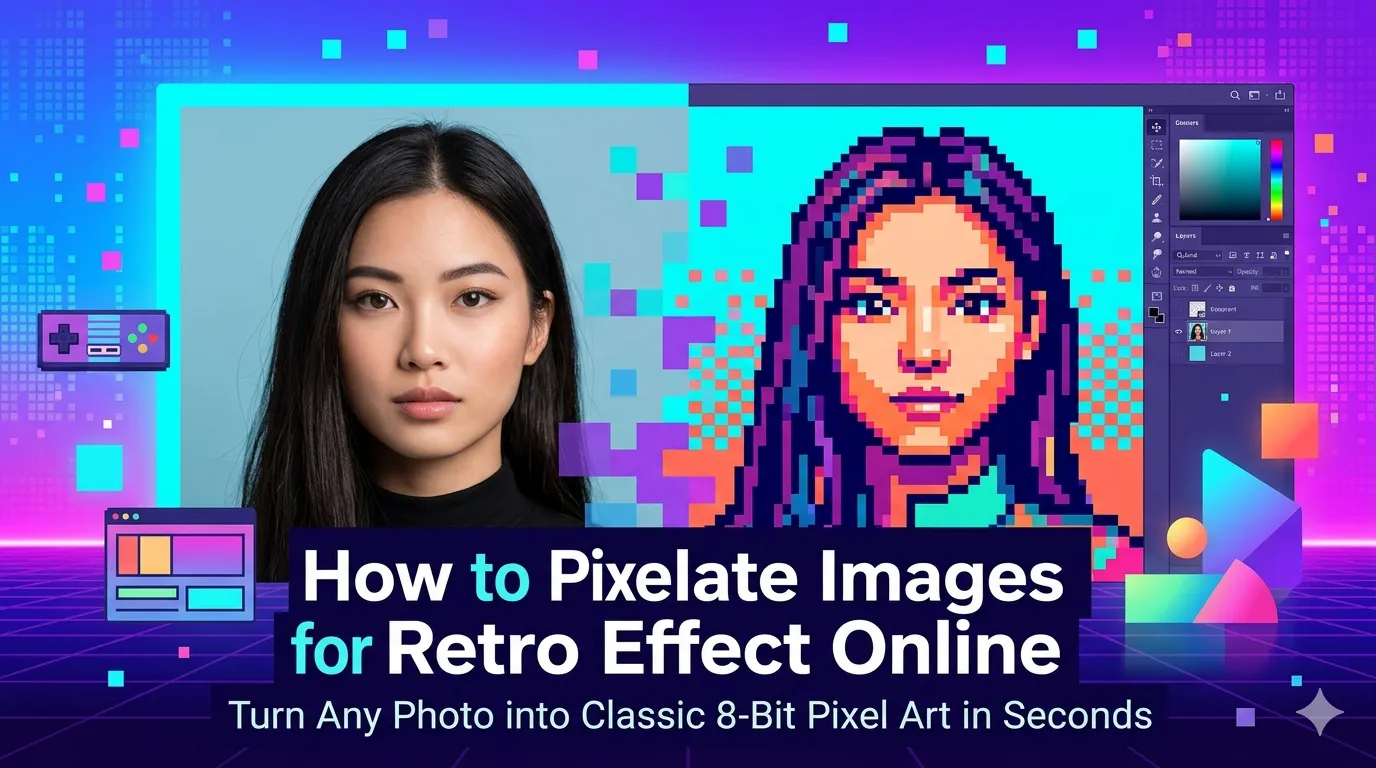
Want to pixelate images for retro effect that feels straight from a vintage video game? You’re tapping into one of the most beloved visual styles online. Pixel art aesthetics dominate gaming culture, retro design, and creative social posts. Online pixelators handle the transformation in seconds.
This guide walks through the easiest method, explains pixel size options, and shares pro tips for striking retro results. By the end, you’ll create authentic-looking pixel art from any photo.
Why Pixel Art Captures Modern Imaginations
Pixel art carries serious nostalgic weight. It reminds viewers of classic Nintendo games, early Apple icons, and 80s computer aesthetics. That nostalgia makes pixelated images instantly recognizable and emotionally resonant.
Furthermore, pixelation works as creative privacy. Lightly pixelating faces hides identities while keeping general image context. Heavy pixelation transforms photos into pure abstract art. The tool serves both stylistic and practical purposes.
Common Pixelation Uses
- Creating retro game-style profile pictures
- Building 8-bit themed marketing materials
- Designing pixel art assets for indie games
- Censoring faces in screenshots for privacy
- Making nostalgic gift designs and merchandise
- Transforming photos into pure abstract art
Step-by-Step: Pixelate Images Online
Browser-based pixelator tools handle the work in seconds. No design software required.
Step 1: Upload Your Photo
Visit our Pixelate Image tool. Drag your photo into the upload zone. The tool processes any common format like JPG, PNG, or WebP.
Step 2: Set Pixel Size
Pick pixel block size. Small pixels (4-8px) give subtle retro feel. Medium pixels (16-32px) deliver classic 8-bit aesthetic. Large pixels (64px+) create pure abstract patterns. Adjust to match your creative goal.
Step 3: Download the Pixelated Image
Save the retro-styled result. Use it for profile pictures, gaming-themed posts, or creative projects. Pixel art looks especially striking when paired with bold colors and simple compositions.
Pixel Size Options Explained
| Pixel Size | Visual Effect |
|---|---|
| 4-8px | Subtle retro touch, mostly readable |
| 16-32px | Classic 8-bit Nintendo style |
| 48-64px | Heavy mosaic look, abstract feel |
| 96-128px | Pure abstract patterns |
| 200px+ | Almost unrecognizable from source |
Tips for Authentic Retro Results
Smart prep delivers convincing pixel art. First, start with high-contrast source photos. Strong shapes and clear colors pixelate cleanly. Soft, low-contrast images become muddy.
Second, reduce color palette for true retro feel. Classic 8-bit games used 4-16 colors. Use color reduction tools alongside pixelation for authentic 80s aesthetic. Third, pair with retro typography for complete vintage style.
Common Pixelation Mistakes
- Wrong pixel size: Match block size to intended use case
- Too much detail in source: Simplify photos before pixelating
- Modern colors: Reduce palette for true retro look
- Skipping crop: Tight crops produce cleaner pixel compositions
- Light pixelation for privacy: AI can reverse weak pixel censorship
Pixelation vs Other Retro Effects
Pixelation belongs to a family of retro effects. Combining pixelation with VHS scan lines creates 80s TV aesthetic. Adding film grain produces analog film feel. Each effect serves different vintage moods.
For pure 8-bit gaming feel, stick to clean pixelation with limited colors. For broader retro aesthetics, layer multiple effects. The combination determines whether your image feels like 1985 or 1965.
Privacy When Pixelating Photos
Pixelation often serves privacy purposes. Pick pixelator tools processing files in your browser. Photos with sensitive content stay on your device throughout the censorship process.
Note that light pixelation can sometimes be reversed by AI tools. For true privacy protection, use heavy pixelation or replace areas with solid color blocks. Match technique to actual privacy need.
Combining Pixelation With Other Tools
Pixelation fits broader creative workflows. Crop tightly first using our Image Cropper. Resize before pixelating with our Image Resizer for predictable block sizes.
For privacy work, our Photo Blur tool offers complementary censorship options. Apply filters via our Photo Filter for additional retro color treatment.
When Pixel Art Doesn’t Fit
Pixel art suits specific aesthetics. Professional headshots, product photography, and editorial content rarely benefit from pixelation. Reserve it for retro themes, gaming content, or creative experimental work.
For privacy needs in serious contexts, solid black bars often work better than pixelation. Solid covers eliminate all reversal risk. Pixelation looks more natural but provides less guaranteed protection.
Bring Retro Magic to Any Photo
Pixel art carries nostalgia no modern effect can match. The right pixelator transforms ordinary photos into retro masterpieces in seconds. Whether for gaming culture, creative projects, or privacy needs, smart pixelation delivers instant impact.
Try our Pixelate Image tool today. Free, secure, and ready whenever your photos need that classic 8-bit charm.